Wow, what an awesome turnout for our last webinar on Online Forms! A big thank you to all who joined us — it was a blast having you all there.
During our time together, we geeked out over all things Online Forms, diving into how you can customize the app to fit your unique needs. We hope to show you the many workflows that our Online Forms can handle – admissions, enrollment and re-enrollment, helpdesk, just to name a few. If you’d like our help setting up Online Forms for your school, reach out to our support team via email or Live Chat.
And hey, guess what? We’ve got even more fun in store with our next webinar: “Lunchtime Made Easy with QuickSchools.” Get ready to discover how we’re shaking things up in the cafeteria to make lunchtime a breeze for everyone involved.
Once again, a massive thank you for being part of our community and for your unwavering support. We couldn’t do what we do without you, and we can’t wait to hang out with you all again soon!
This article describes how schools can setup Free Lunch Orders through our new Lunch Ordering App (with Shopping Cart). This may come in handy when certain cases require this, such as when prospective students visit the school and want to try out the Cafeteria.
A summary of the steps are as follows:
Create a Dummy Student and Parent Account
Invite Parent via Parent portal
Add Credits for the Parent’s Lunch Ordering
Order lunches through the Parent Portal
Setup Dummy Student and Parent Accounts
You will need to setup a dummy account for a student and parent. If you want to have separate lunch orders per Grade Level/Homeroom, a dummy student account would need to be created for each grade level. However, all students can still be linked to a single Parent Account.
In order for the student to be excluded from the Attendance Roster (if Homeroom Attendance), set the Enrollment Date to a future date.
If you would be having more than one dummy student (one per grade), link the students as Siblings in order to access them all in a single Parent Portal.
Invite the Parent to the Parent Portal
Invite the dummy parent account by going to the Parent Portal > Invite tab > Click on the Invite button for the dummy parent.
Add Credits
Without a valid credit card, parents can only submit orders using Credits. You will need to add sufficient credits to the parent account, so as to complete lunch orders as necessary.
COMING SOON At this time, credits can only be added by QuickSchools Support Staff. The ability for the School Admin to add credits to users will be available soon.
Order Lunch for Students
Once credits have been added for the Parent, you can order lunch via the Parent Portal and checkout using the credits.
Select Meals in Lunch Ordering
Checkout Meals using Credits
The lunch orders can then be viewed through either the Lunch Ordering > Order Fulfillment tab, or our Lunch Ordering Reports.
If you have any questions or concerns regarding setting up Free Lunches, feel free to chat in, or send us an email at support@quickschools.com. Feel free to provide any suggestions or feedback as well.
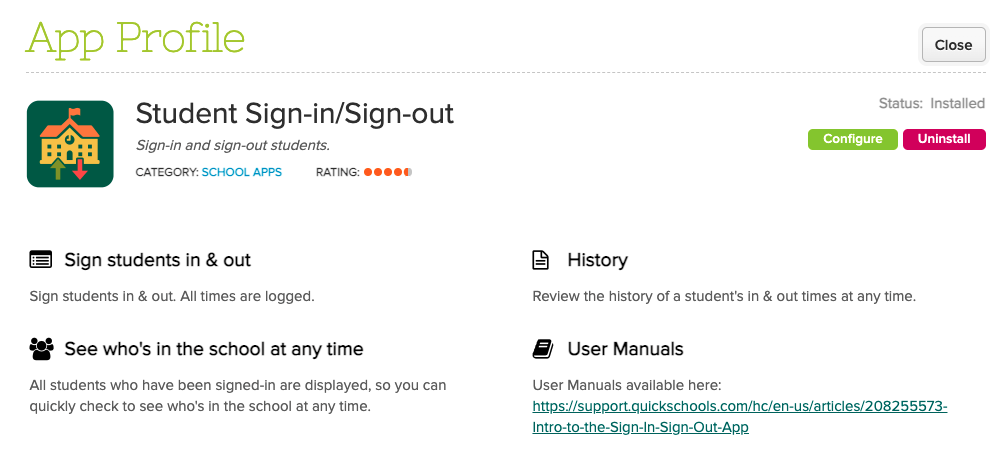
The QuickSchools Sign-In/Sign-Out App has undergone quite a few improvements over the years. Schools are using this app to:
Track the exact date and time when students sign-in and sign-out of school
Allow students to sign themselves in
Allow parents to sign in their children
Track the total time a student is in the school (usually for billing or compliance purposes)
You can find this app on our app store:
Sign-In/Sign-Out App on the QuickSchools App Store
We’d like to take this opportunity to discuss some recent improvements since our last review was from 2020, as well as a few potential improvements moving forward:
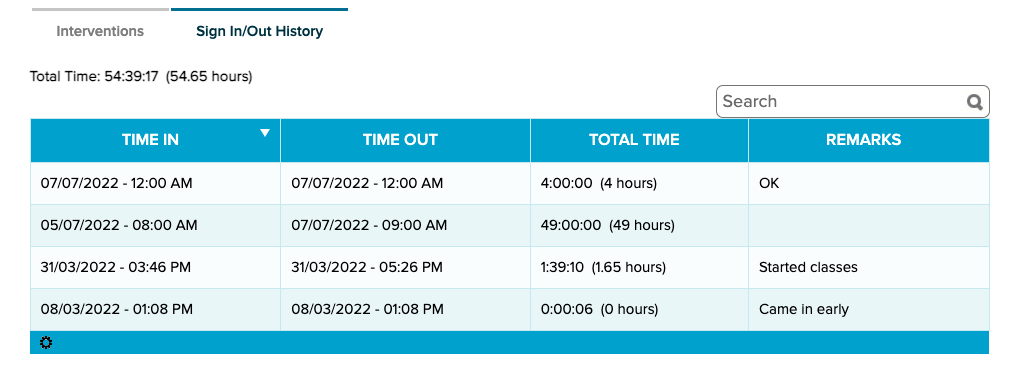
Teachers and staff can now view the sign-in/sign-out history for a student directly from the student tab. This makes it easier for users to review all data pertaining to a student in one location.
View Sign-In/Out History from the Student record
NOTE: This is a welcome improvement because most apps require you to view information about the app from the app itself (and not from the student record).
Summary from Student Portal
This new feature is designed primarily for adult education. It allows students to track the amount of time they’ve completed at school, as a prerequisite for completing their course:
In today’s release, we’re including framework improvements for our upcoming Lunch Order and Shopping Cart modules. The release also includes a mix of improvements to the Orchestra Master Scheduler, Admissions, Sign-In/Sign-Out, and security, just to name a few.
Step 4 Scheduler supports color-coding without “Organize by department”
Here is a list of the latest QuickSchools improvements:
Master Scheduler Improvements
Color Code Step 4 when “Organize by department” is not enabled (See above)
Security Improvements
General Security Improvements
Improve Privacy on Test Server
General (Functional) Improvements
Ability to hide Admissions Application Statuses (See below)
Show Custom Fields for Documents on Student record
Importer for Sign-In/Sign-Out App (See below)
Improve Report Creator support for Sign-In/Sign-Out App
General Bug Fixes
Improve Support for Disputed Charges in Fee Tracking with Online Payments
Improve Support for OneRoster (v1.1) Integration
Upgrade Text Messaging Framework
Bug Fix Alerts Framework for deleted parents
Bug Fix when adding new Online Test
Other Server Updates
Beta Improvements / Fixes
Lunch Ordering Support for Online Payment
New Shopping Cart Framework
Ability to Share Dashboard
Improvements to Bulk Charge Credit Cards via Standard Charges
Add support to disable Auto-Enrollment for Canvas Integration
Add support to automatically Un-enroll students for Canvas Integration
Fix District-Wide Students for Group School
Hide Application Status
In the Admissions module, when configuring the Application Statuses, you now have the option to hide certain status:
Today’s release contains several security-related improvements PLUS a mix of improvements to a variety of modules that include Orchestra Master Scheduler, Admissions, Standard-Based Gradebook, Fee Tracking, and the Report Creator, just to name a few.
Improved Security with New Email Notifications
Here is a list of the latest QuickSchools improvements:
Master Scheduler Improvements
Improve new “Scheduling Algorithm” in Step 4
Refresh list of Subject Areas when new subject area is added
Report Creator support for Day and Time in Bell Schedule
Security Improvements
Notification Email when logging in from New Device
Notification Email when School Admin user is added/removed
Notification Email when password is changed
Clear active sessions when password is changed
General (Functional) Improvements
Ability to relabel period names for Subject-Based and Period-Based Attendance (See below)
Ability to unselect radio button when taking attendance
Ability to schedule tasks for every other week (i.e. Bi-Weekly)
Reformat Student Name when converting Inquiry to Application (in the Admissions module), based on configured Student Name format
Report Creator support for (1) subject Custom Fields and (2) Online Payments
API Support for OAuth2
General Bug Fixes
Fix Subject line when using Email Template from the Admissions module
Fix Family Name tag when using Email Template from the Admissions module
Beta Improvements / Fixes
Bulk Charge Credit Card using Standard Charges (See Below)
Improve Search Student specifically by Student Name, Grade Level or Tag
Ability to hide “View Complete Record” from Student Portal
Ability to restrict deletion of Fee Tracking transactions to specific users/roles
Ability to disable “Add Standard” for teachers in the Standards-Based Gradebook
Ability to disable “Override Gradebook Settings” for teachers in the Standards-Based Gradebook
Ability to hide “Call Number” when creating new books in the Library App
Show Subject Abbreviation is Student Self-Enrollment History screen
REST API support for OneRoster v1.1
Improve framework for Integration via File Transfer (SFTP)
Relabel Attendance Periods
You can now relabel the period names for Period-based and Subject-based Attendance. Just click on the new “Customize Period Names” button under “Attendance” > “Settings”:
We want you to have the best user experience with our software. That’s why we’re continuously improving it. We’ve come a long way, and have made many innovations to date. In case you missed it, here’s a list of major features released just for the past 2 years (from 2021 to May 2022).
Also, our developers are busy bees because our philosophy is to release improvements every 2 to 3 weeks. Here’s a catalogue of our Release Notes for 2022.
If you’re interested in learning more about future improvements for the rest of 2022, join us in our upcoming QuickSchools’ Product Roadmap webinar.
This webinar is the perfect chance for you to see a live demo, ask questions, and provide us with feedback or suggestions. Log on to your QuickSchools account and sign up from the Teachers’ Lounge page.
Learn about future improvements and help us shape QuickSchools for you!
The Fileroom App is an add-on feature that is available in the QuickSchools App Store. This app allows files to be uploaded and shared between Teachers, Parents, or Students.
With this App, you can do the following:
Upload files into a shared, central location
Create your own folder structure for storing files
A separate Fileroom for teachers and parents
Virtual Hard-drive
100 GB of storage
To know more about our Fileroom App, feel free to check out our Support Article linked below: