Do I Need Academic Terms?

An important aspect of the QuickSchools system is the concept of Academic Terms. An academic term is used to manage all subjects/courses that a student is enrolled in within a specific time frame. This containment is important in order to easily manage a group of students that all start/end courses at the same time. It is also important that these academic terms do not overlap, as the system can only support one term to be active at any time.

So what if a school does not have academic terms? There are still courses with multiple students starting and learning together, but some courses run for a week, others for a month, and so on. This is more typical for vocational schools that offer private courses like a Photography School, or a Barber/Beauty School. In this case, we recommend having just ONE academic term, which you can archive on a yearly basis.

This set up works if:

  • Students learn together in groups. All students within a course start and end together, but also go through the same curriculum (i.e. not Self-Paced)
  • You have courses of varying lengths.
  • You want to track students as cohorts, even though the same cohort of students may leave the school at different times (because of the length of their courses)
Read More »

New Release – July 8, 2020

Here are the latest improvements in QuickSchools:

Main Improvements

  • Rich-Text Support when generating PDF
  • Backward compatibility when switching Attendance Settings between Rotating Attendance and Daily Attendance
  • Google Classroom Integration Enrollment Fix when deleting assignments in Google Classroom
  • Bug fix for Email History with Attachments
  • Bug Fix to Scheduled Emails when using certain field types

Groundwork for New Assignments Module (Alpha*)

  • New Assignments listing for Teachers
  • Teachers can Add and Edit Assignments
  • Students can Open and Submit Assignment
  • Post to Assignments from Lesson Plan
  • Relabel “Homework” to “Assignment” for repurposed screens

A Sneak Peak for LMS

With the strong push for online learning given the current pandemic, we’re working on building a few basic LMS features, for schools that don’t necessarily need a full-fledged LMS system like Canvas, Schoology, or Google Classroom. We’re still in the early phases of development, but just to show you what’s coming soon, check out these screens

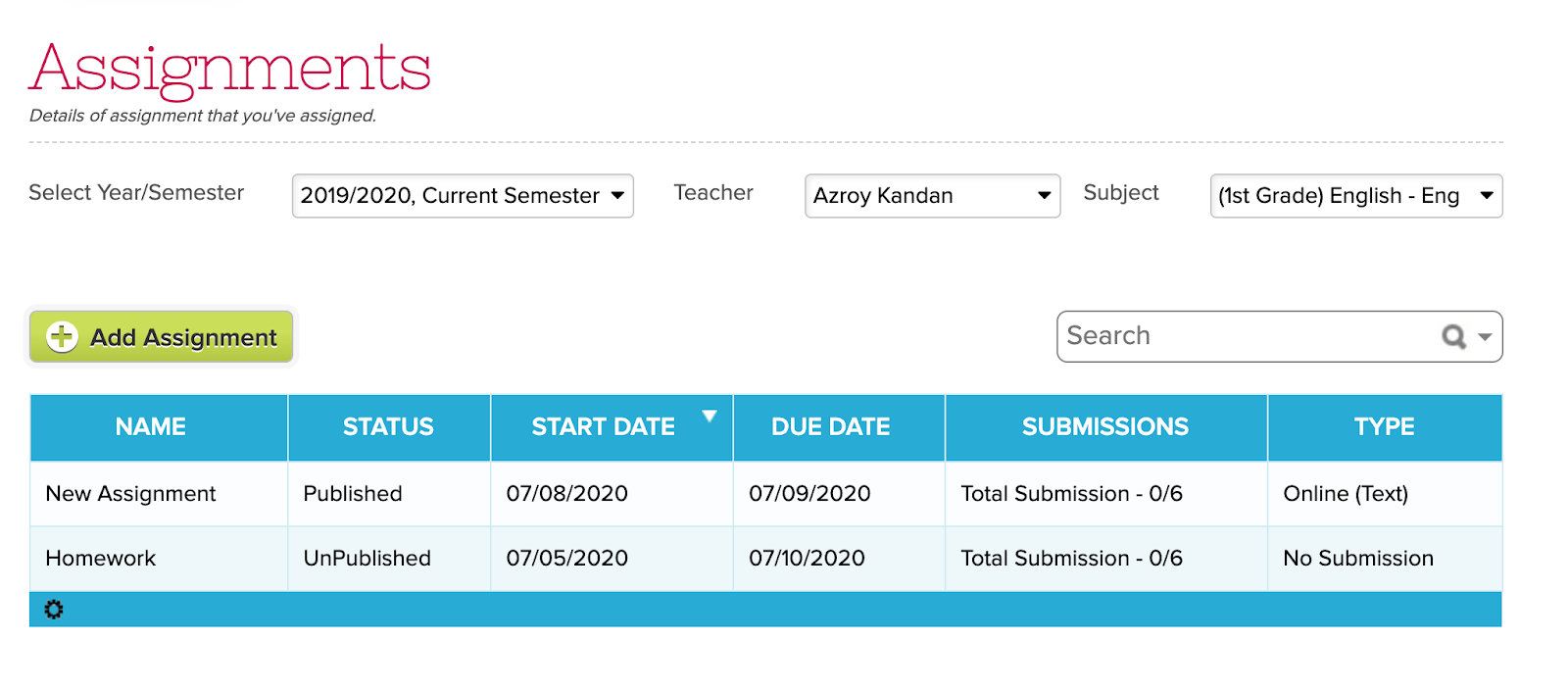
The new “Assignments” module augments the existing “Homework” module, and provides more control for teachers to engage students:

configure your assignment module with quickschools

The new “Assignments” page for Students allows students to submit completed work:

Read More »

Perfect for Weekend Schools

One question we often get asked is if QuickSchools is beneficial for schools that only operate 1-2 days a week, or just on the weekends. Some would think that since instruction is sporadic, then a system is less necessary. But to the contrary, the less teachers meet with students, the more impact a system like QuickSchools can make.

Interact with Students

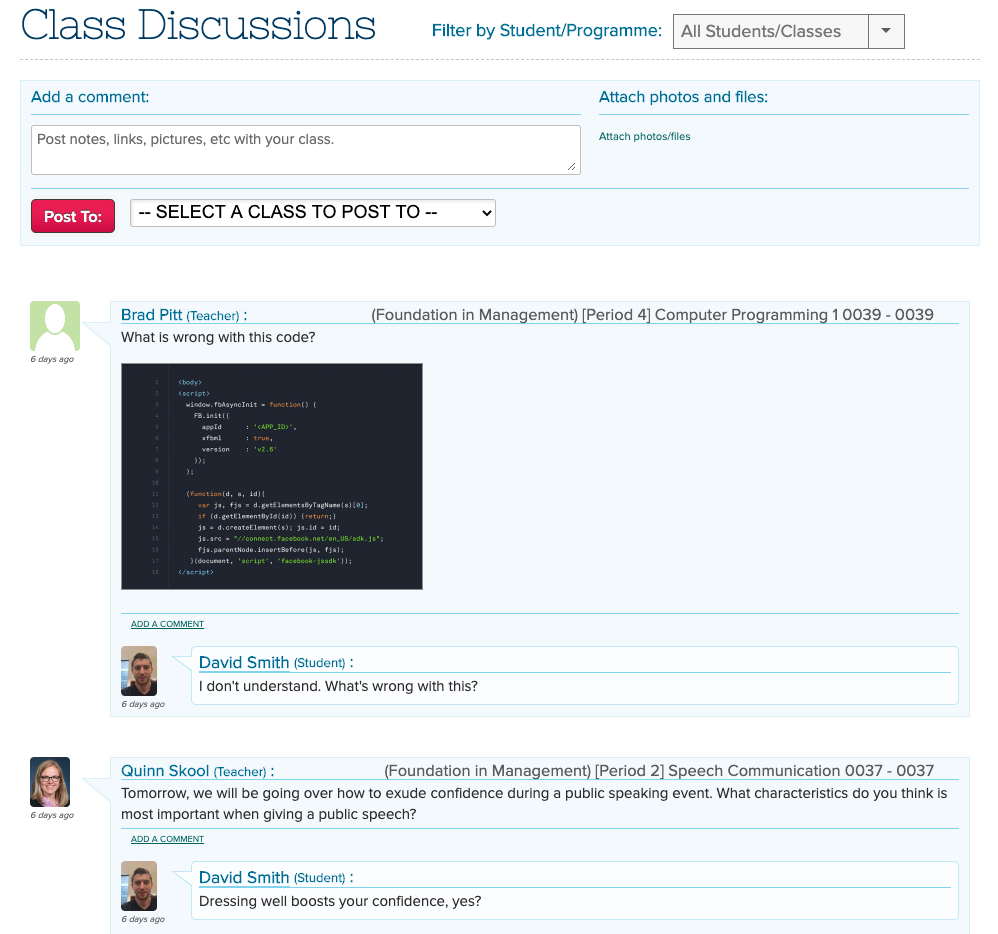
While students are not at school, you can use the Class Discussion module to discuss learning topics online. Share pictures, links and files. The Student Portal is a great way for students to stay ahead by accessing all related student information like homework assignments, grades and report cards. Teachers and students can also communicate directly via the Private Messaging module.

Class Discussions for Students

Share information

Throughout the course of the week, teachers and staff can more easily share / broadcast information to students and parents using our Mass Messaging Module, which includes email, text and voice. Administrators can also make announcements via the Parent Message Board. And when teachers use the Class Discussions module, an email notification can also be sent out as well. Finally, we have new apps on iOS and Android to make notifications even easier.

You’re still a school

So in addition to engaging students and parents throughout the course of the week (ie. when students are actually in front of the teacher), there are still many benefits to having a centralized system. Just to name a few:

Read More »

Setting up Programs for Vocational Schools

QuickSchools has been supporting Trade Schools and Vocational schools for many years now, primarily due to the flexibility afforded by our platform. In this article, we’d like to elaborate specifically on setting up your Programs.

Class Setup

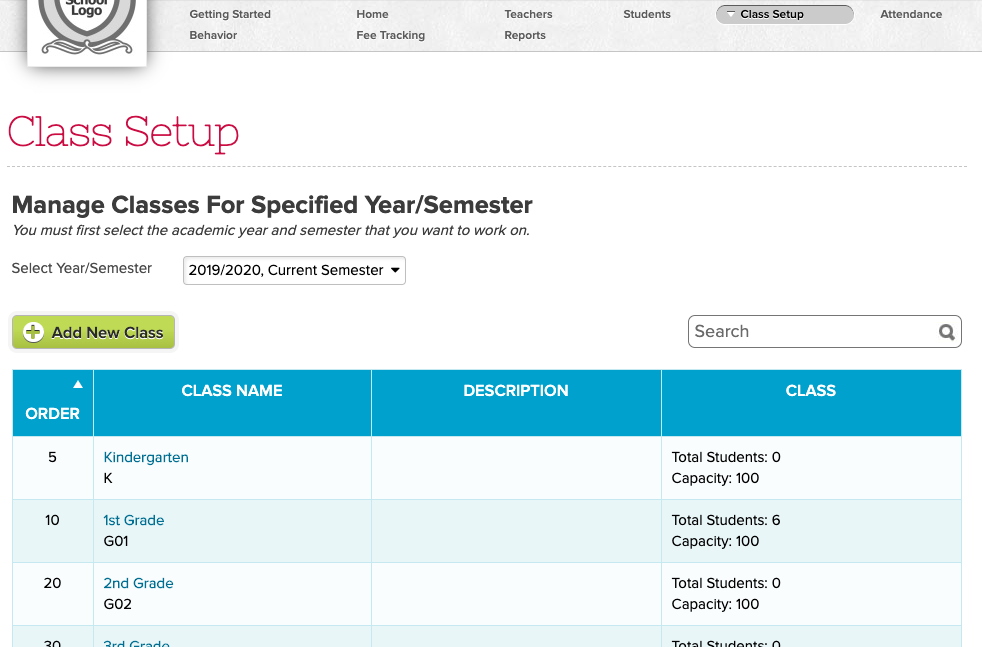
When “College-Level Settings” is turned on, you’ll see a new module called “Class Setup”, which displays all the grade levels (relabelled as “year levels” or “classes”):

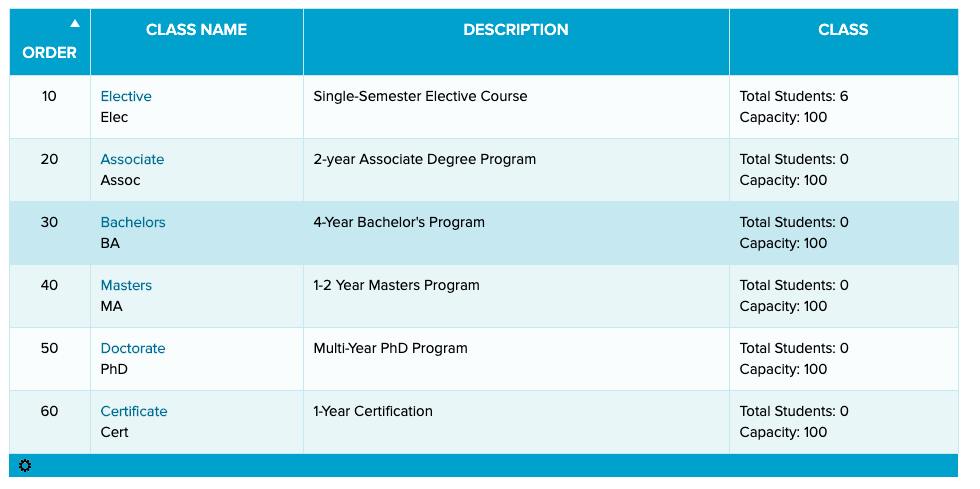
Depending on your institution, you can repurpose this module to display the program or year levels. For example, you can set up classes as Programs:

For vocational schools, your programs may look like this:

Read More »

Online Form Reference Numbers Report

QuickSchools has just released a new Summary Report for the Online Forms App — Online Form Reference Numbers Report. This report is available for all users with access to the Online Forms Reports, and is ideal for schools that use Public Online Forms.

If you do not have access to the Online Forms Reports, you can enable this by going to App Store > My Apps tab, and click on “Configure” in the Online Forms app. In the configuration window, enter the user or role in the “Who can view Summary Reports” option and Save.

Online Forms Configure

Online Forms Configuration

Once this has been enabled, go to Reports, and search for “Online Form Reference Numbers”.

Online Forms Report

Here is what the report would look like:

Online Forms Reference Number Report

This report can be filtered by Online Form Packet, Student Name, and Submission. If you have suggestions for more reports, please feel free to reach out to our support team.

The Case for Importing Fees

Collecting fees is an important part of the school operations. And although QuickSchools provides an integrated way to collect fees online via Stripe, many schools choose to collect fees via their own payment gateway. When doing this, keeping both systems in sync can be a challenge. So here’s what you can do:

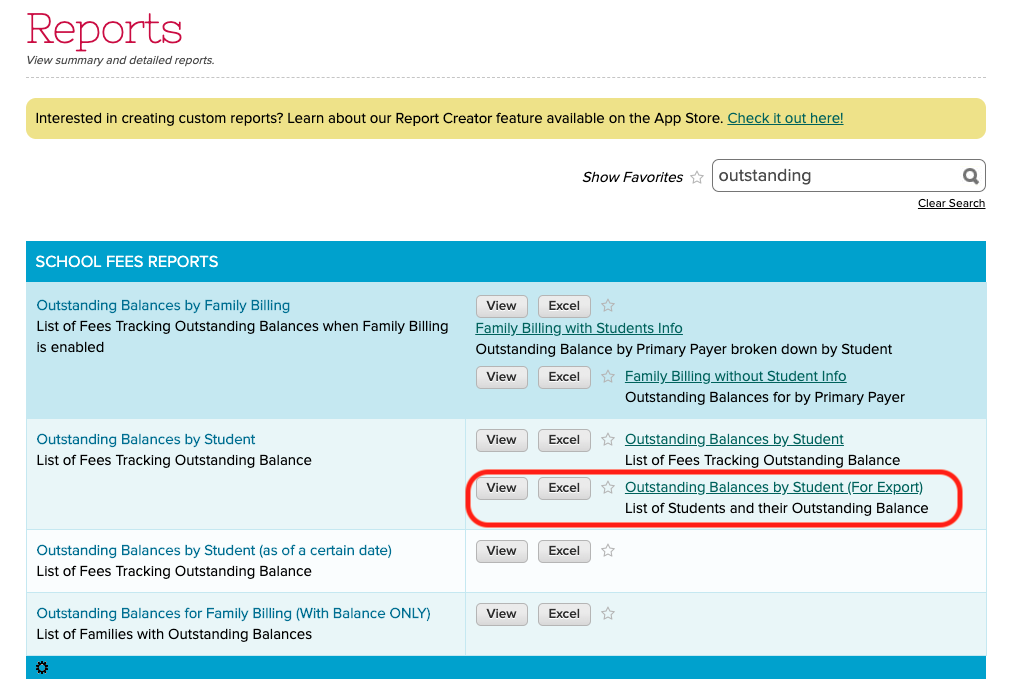
First off, you can use the “Outstanding Balances by Student (For Export)Summary Report to export all outstanding balances out of QuickSchools in Excel format. Simply search for “Outstanding”, and you should see it:

importing reports with quickschools
Outstanding Balances by Student (For Export) Report

You should hopefully be able to import the outstanding balances back into your payment gateway, and then charge your students/parents based on the new outstanding balances. Successful payments should create payment transactions (i.e. receipts) within your external system. Finally, you can then export all the payment transactions, and re-import them back into QuickSchools.

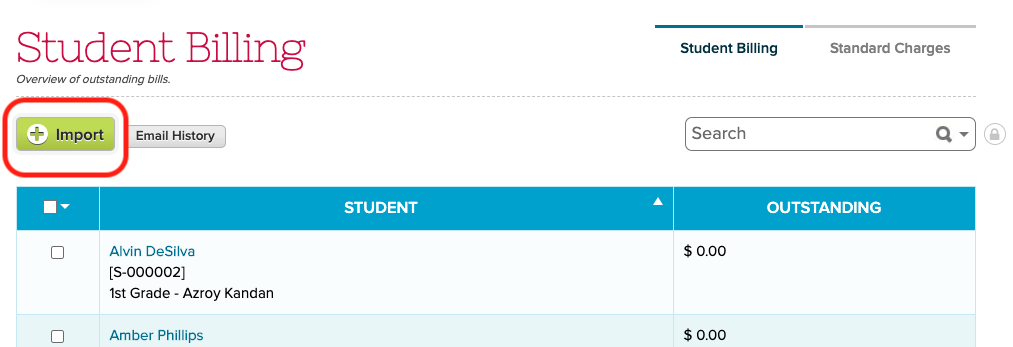
student billing with quickschools
Import Fees into QuickSchools

If you’re using an external system to manage all payments and fees, and you simply want to display all fees and payments in QuickSchools via the Student and Parent Portal, you could import all transactions as well, but this is a different scenario.

Read More »

New Release – June 13, 2020

Here are the latest improvements in QuickSchools:

Online Learning Improvements

  • Option to create Gradebook Column when adding Homework (See below)
  • Expanded WYSIWYG support for Report Creator
  • Expanded WYSIWYG support when posting Homework from Lesson Plans
  • Fix display of “Homework Due” notification on Student and Parent Portals
  • Fix text alert for Homework assignments using WYSIWYG
  • Enable new “Homeworks” tab in Student and Parent Portals
  • Framework Improvements for upcoming Assignments module

Other Improvements

  • Failed Credit Card payments no longer adds phone/text credit
  • Improve Session-Based LogOff function
  • Fix loading error when synchronization between browsers
  • Fee Tracking Import no longer in Beta
  • Add usage note on Custom Embed section for Admissions
  • General Security Improvements
  • Support Mapping to Canvas when users in Canvas do not have login information
  • Improve Gradebook Sync for Google Classroom

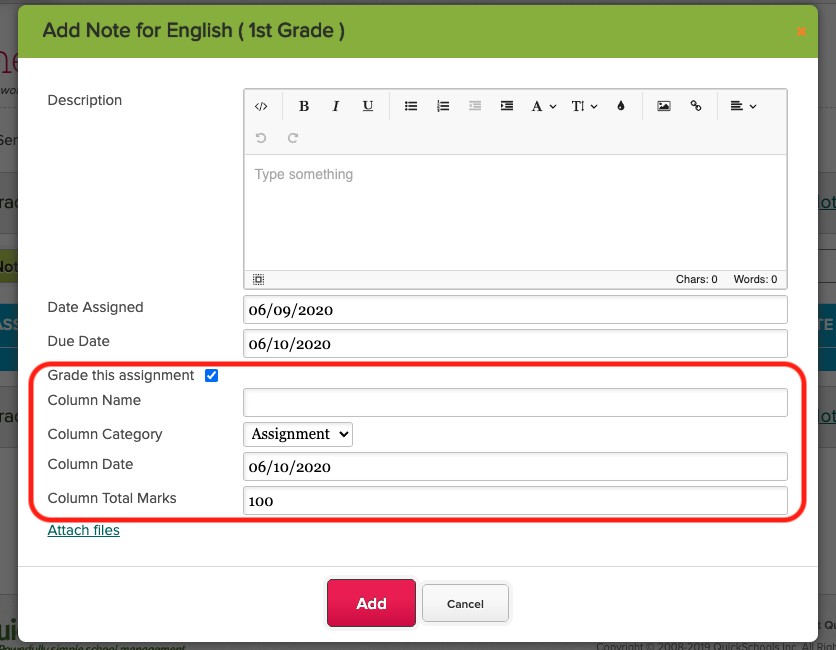
Create Gradebook Column from Homework module

When adding / editing a Homework assignment, you know how the option to “Grade this assignment”, which will automatically create a column in the Gradebook:

Some things to note about this function:

Read More »

Tracking Late Arrivals and Early Dismissals

There are times when the school needs to track when students arrive late to school, or when they leave early. In most cases, you can use the Sign-In/Sign-Out app in QuickSchools, which works like a kiosk for signing in students on premise. If you want students/parents to notify the school of late arrivals or early dismissals from their portal, then the Online Forms app might be the better way forward.

Submitting Forms

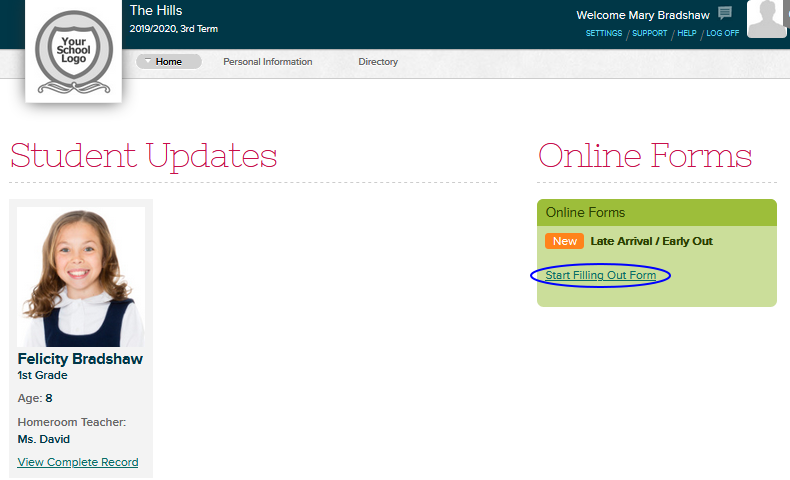
Here’s an example of how you can use the Online Forms to allow parents to notify the school about late arrivals and early dismissals. A parent simply needs to log into his/her account and fill out the form every time their child comes in late or needs to leave early.

The form can be as simple as the example form below. The parent will fill out a few fields and then submit the form.

Parents can use the same link to submit the same form over and over again, for different days, or for different students.

Reviewing Submissions

As an administrator, you can be notified via email whenever a form is submitted. You just need to add the appropriate emails when configuring the Notification Emails:

Read More »