Picture this: a world where managing school fees is as easy as a walk in the park. Welcome to the Payment Plan App – your key to unlocking unparalleled peace of mind. In this article, we’ll unveil 8 compelling reasons why the Payment Plan App is an absolute necessity in your life, transforming the way you manage school fees.
Are you tired of wrestling with complex financial arrangements and endless paper trails?
The Payment Plan Module has you covered. It’s truly the superhero solution for schools. With automated payment schedules at your fingertips, you can sit back, relax, and trust that every invoice will be paid on time, every time.
This article describes how schools can setup Free Lunch Orders through our new Lunch Ordering App (with Shopping Cart). This may come in handy when certain cases require this, such as when prospective students visit the school and want to try out the Cafeteria.
A summary of the steps are as follows:
Create a Dummy Student and Parent Account
Invite Parent via Parent portal
Add Credits for the Parent’s Lunch Ordering
Order lunches through the Parent Portal
Setup Dummy Student and Parent Accounts
You will need to setup a dummy account for a student and parent. If you want to have separate lunch orders per Grade Level/Homeroom, a dummy student account would need to be created for each grade level. However, all students can still be linked to a single Parent Account.
In order for the student to be excluded from the Attendance Roster (if Homeroom Attendance), set the Enrollment Date to a future date.
If you would be having more than one dummy student (one per grade), link the students as Siblings in order to access them all in a single Parent Portal.
Invite the Parent to the Parent Portal
Invite the dummy parent account by going to the Parent Portal > Invite tab > Click on the Invite button for the dummy parent.
Add Credits
Without a valid credit card, parents can only submit orders using Credits. You will need to add sufficient credits to the parent account, so as to complete lunch orders as necessary.
COMING SOON At this time, credits can only be added by QuickSchools Support Staff. The ability for the School Admin to add credits to users will be available soon.
Order Lunch for Students
Once credits have been added for the Parent, you can order lunch via the Parent Portal and checkout using the credits.
Select Meals in Lunch Ordering
Checkout Meals using Credits
The lunch orders can then be viewed through either the Lunch Ordering > Order Fulfillment tab, or our Lunch Ordering Reports.
If you have any questions or concerns regarding setting up Free Lunches, feel free to chat in, or send us an email at support@quickschools.com. Feel free to provide any suggestions or feedback as well.
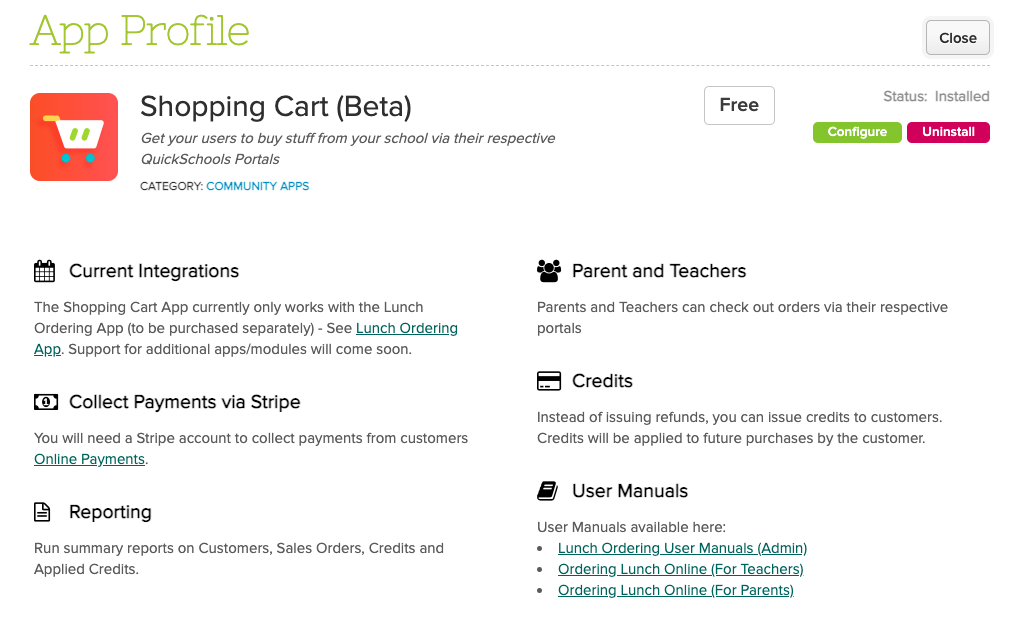
With our new updated Lunch Ordering app, QuickSchools is developing its own Shopping Cart capability, where users can add items into the Shopping Cart and make a purchase from the school.
The Shopping Cart app is currently still in beta, and only available with the Lunch Ordering App. But we do intend to support additional features in the future:
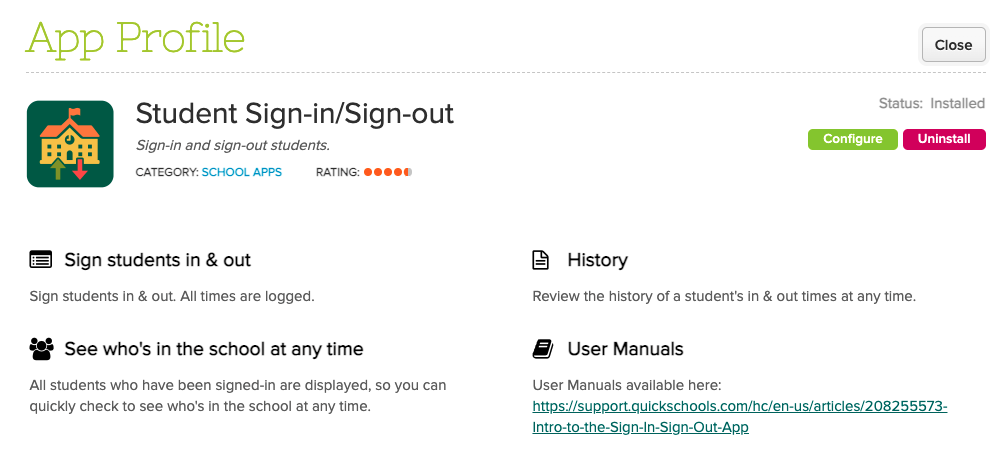
The QuickSchools Sign-In/Sign-Out App has undergone quite a few improvements over the years. Schools are using this app to:
Track the exact date and time when students sign-in and sign-out of school
Allow students to sign themselves in
Allow parents to sign in their children
Track the total time a student is in the school (usually for billing or compliance purposes)
You can find this app on our app store:
Sign-In/Sign-Out App on the QuickSchools App Store
We’d like to take this opportunity to discuss some recent improvements since our last review was from 2020, as well as a few potential improvements moving forward:
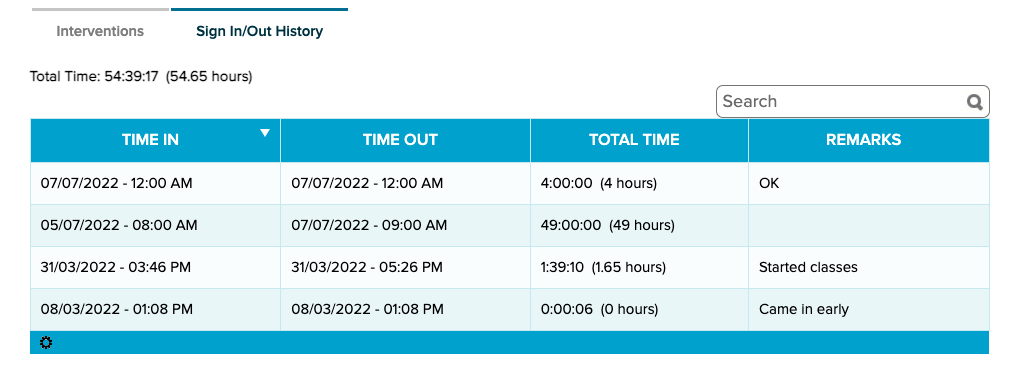
Teachers and staff can now view the sign-in/sign-out history for a student directly from the student tab. This makes it easier for users to review all data pertaining to a student in one location.
View Sign-In/Out History from the Student record
NOTE: This is a welcome improvement because most apps require you to view information about the app from the app itself (and not from the student record).
Summary from Student Portal
This new feature is designed primarily for adult education. It allows students to track the amount of time they’ve completed at school, as a prerequisite for completing their course:
Your school is under new management, or perhaps has merged with another school, and you want to rebrand. Perhaps your school name has changed? Or, you have a new logo? Or, you have a new color scheme to promote your brand? What are the options available to you?
Here, we discuss the various steps you can take to re-customize the experience for users accessing your QuickSchools account.
Change Basic Profile Details
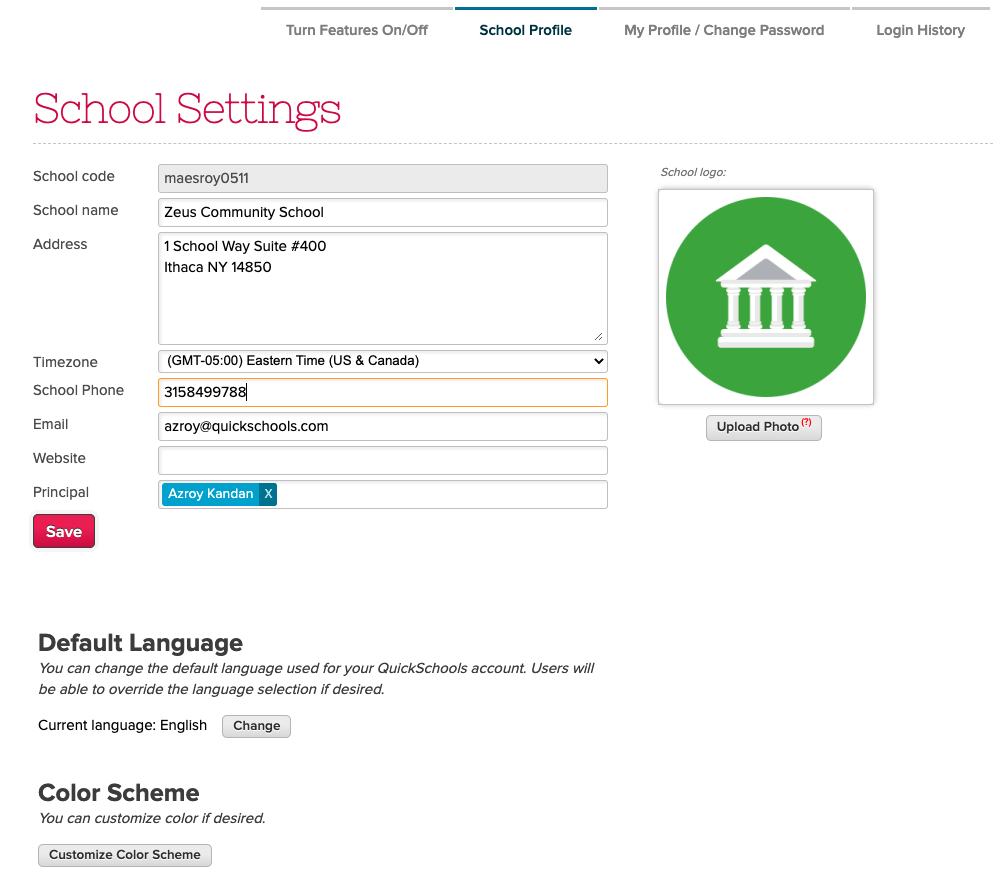
The first thing you should do as the school administrator is go to “Settings” > “School Profile”, and change the basic profile information for your school, such as your school name or uploading your new logo. This includes things like:
School name
School address
Contact info (Phone and Email)
Website
Color scheme
School logo
Update School Details under “School Profile”
The one thing you’ll note is that the School Code cannot be changed. This is because we use the School Code to partition your data into its own database. As such, this field cannot be changed once assigned to a school.
A lot of schools are okay with leaving the URL as-is because it does not incur any additional cost or effort. If changing the URL is important, there are a few options available to you:
Set-Up a Custom Domain
Create a new account
Migration via Group School
OPTION 1: Set-up a Custom Domain
QuickSchools offers a Custom Domain App. By using this app, you can set up your own URL for accessing your QuickSchools account. This option requires the least effort. However, the Custom Domain App incurs a monthly subscription. You will also need to register for your own custom domain and provide an SSL certificate from your provider.
Since our last release on August 9, we made several improvements to our Orchestra Master Scheduler. And now that the new Weekly Schedule feature is more robust, we’re back BIG-TIME to our regular 3-week Sprints. This release includes groundwork for our upcoming Learning Management System (LMS).
Check out the complete list of our latest QuickSchools improvements:
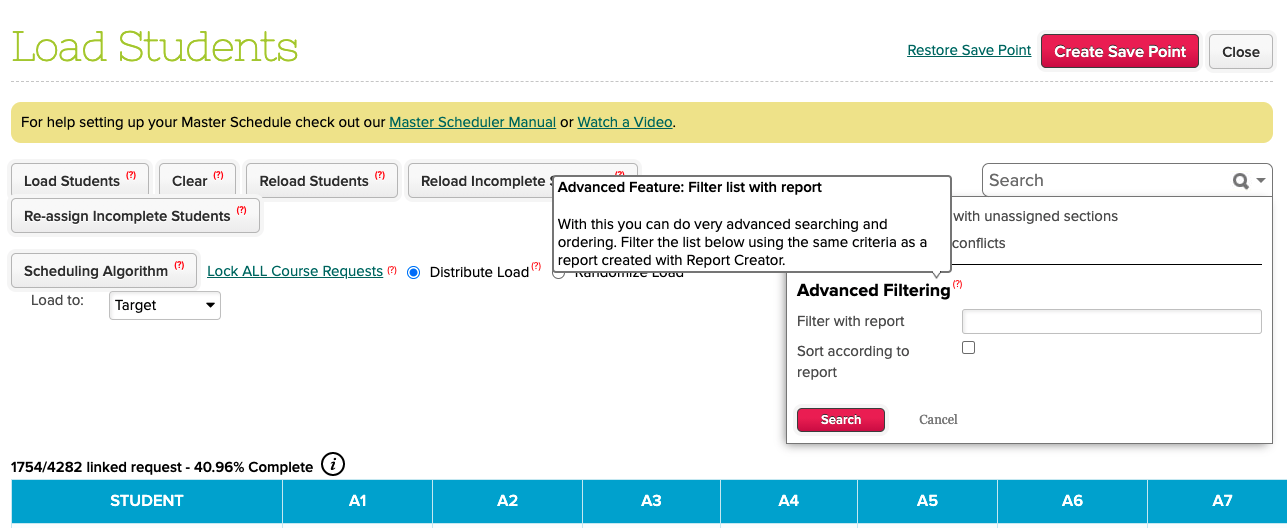
New Advanced Filtering by Report on Master Scheduler Step 5: Load
Master Scheduler Improvements
Remove Next Grade when SIS is not used
Support optional teachers when importing STEP 1 course-teacher configurations
Step 2 ability to Reset calculated number of sections
New External IDs for Sections in STEP 4
Step 5 Advanced Filtering (via Report Creator)
Step 5 Percentage breakdown by Department
Remove STEP 5 Section Enrollments when Course Request is removed/deleted
Temporarily Remove STEP 5 “Re-assign Incomplete Students” for Weekly Schedule
Update Sections in student record when Course Requests are updated
Add support for Weekly Schedule in Summary Reports
Bug fix when calculating STEP 2 number of sections for courses with zero limits
Bug fix when removing course requests via STEP 2 Bulk Course Requests
Bug fix when displaying STEP 4 total students in each section
Bug fix calculating STEP 5 percentage when students are deleted
Bug fix Advanced Search in Step 5 for “students with unassigned sections”
Bug fix Advanced Search in Step 5 for “students with conflicts” when enrollment period is linked to multiple semesters
Bug fix when rendering Section Enrollment PDF when Bell Schedule is updated
Bug fix when editing section assignments from Student record for Weekly Schedule
General Improvements
Alpha features for Online Tests (LMS)
Alpha features for My WorkSpace (LMS)
Extend Temperature App to Parent Portal
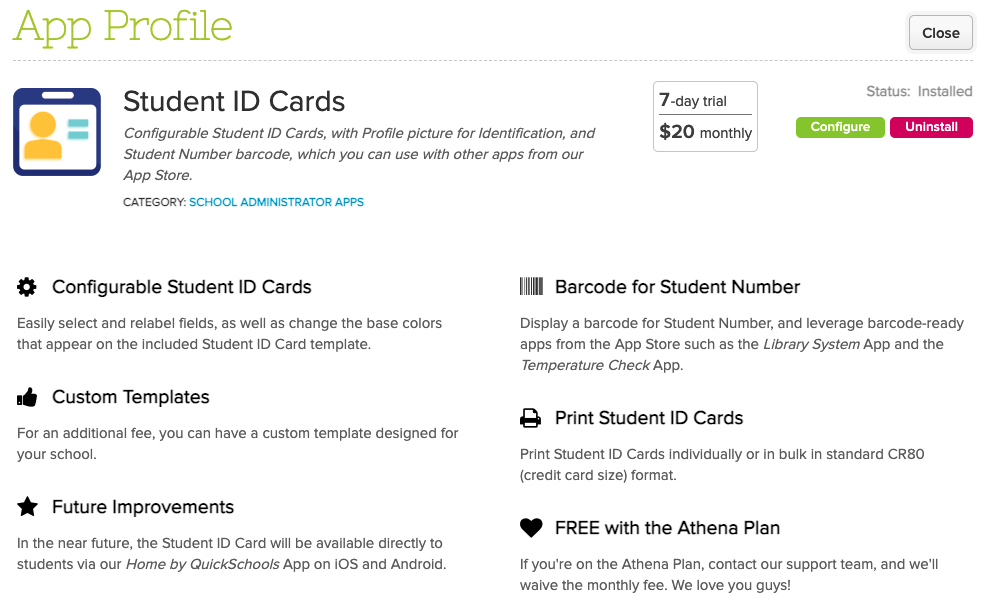
Support CR80 (credit card) size in PDF Templates (for Student ID Card)
Customizable Calculation for Period Zero (Daily) Attendance
Improve Subject dropdown in Lesson Plans module
New framework widgets for Time and TimeZone
Streamline OK button widget
Improve performance when downloading large Summary Reports via Excel
Improve concurrent access to Summary Reports with large data
Bug fix when students are permanently deleted in Group Schools
Master Scheduler Improvements
We’ve made some pretty big changes to the Master Scheduler in recent weeks. In one of our recent patches, we introduce a “Department” configuration in the “Scheduling Algorithm” in Step 5:
With classes resuming, schools may be required to track Covid-19 proof of vaccinations from students and parents. One of the ways to do this in QuickSchools is via the Online Forms app. Here we discuss one sample implementation for collecting a Covid-19 Proof of Vaccination via the Parent Portal. This process can easily be extended to students and teachers too.
Here’s how we configured the Online Form with just a few simple fields. We also added a “Section Break” at the bottom, to add instructions about uploading their Proof of Vaccination:
Configure the Online Form to collect vaccination details
By clicking the “Configure” link, we also mapped the Name field to the Student Name, so that when accessed from the Student or Parent Portal, the student name field will be automatically filled: