When adding a new book to your catalog, there’s a new “Scan ISBN” button that allows you to quickly scan the ISBN barcode.
Look up Book Details by Scanning the ISBN Barcode
QuickSchools will then search the Google library, and pull details for the book, which you can use to create the book record in your QuickSchools Library App:
Book Details retrieved by Scanning the ISBN Barcode
Note that books pulled from Google will also contain an image of the book.
Generate Barcode and Label
When adding a book, you now have the option to generate a Barcode by clicking on the “Generate” button:
The Fileroom App is an add-on feature that is available in the QuickSchools App Store. This app allows files to be uploaded and shared between Teachers, Parents, or Students.
With this App, you can do the following:
Upload files into a shared, central location
Create your own folder structure for storing files
A separate Fileroom for teachers and parents
Virtual Hard-drive
100 GB of storage
To know more about our Fileroom App, feel free to check out our Support Article linked below:
THIS IS A BETA FEATURE: To have this feature enabled, please contact our Support Team.
This feature allows you to synchronize your Google Classroom courses in batches. This is ideal for schools will a large number of students and courses.
Some things to note about this feature:
Profiles are dependent on the courses being mapped under STEP 3.
Courses that aren’t mapped in STEP 3, will not be available in the Profile
If a course is unmapped in STEP 3, the course will also be automatically removed from the Profile.
When courses are remapped in STEP 3 at the start of a new semester, the Profile will also need to be updated with the latest mappings. Mappings from the previous term will no longer apply.
To avoid the sync getting timed out, we recommend having a maximum of 35 courses per Profile.
Multiple Profiles can be scheduled to be synced at the same time. However, each profile will be synchronized one at a time.
To know more about our Google Classroom Synchronization Profiles, see our Support Article linked below:
You can easily pull up a student record, either by searching for the students name, or by entering the student number. If you have a Barcode Scanner, you can use that to scan the Student Number:
If you’re taking daily Homeroom-based attendance in QuickSchools with the Custom Attendance Codes app, we’d like to highlight a new report called “Homeroom/Class Teacher (Consolidated Exception) Attendance” Summary Report (Yes, it’s a mouth-full):
Summary Report on Attendance Codes in QuickSchools
This report consolidates all attendance codes, both custom and system codes, into a single roster-style report. Since this is an Exception report, all Present records are excluded. So the report only shows codes that are applied OTHER than Present. This will make it easy to identify trends in attendance for students and classes.
QuickSchools uses the Single Assertion Mark-Up Language (SAML) to implement Single Sign-On (SSO) with external systems. You will need an Identity Provider (IDP) like Microsoft Azure or Active Directory to manage logins from multiple Service Providers like QuickSchools. For more information on SAML, check out this article:
This app is currently in Private Beta, and is not yet available on the QuickSchools App Store. This app is only available by request. Please contact our support team, if you would like to try out this feature.
Requirements
This app requires that your QuickSchools account be configured with District (or Group School) Settings. If you have multiple sites linked as a group, the IDP will be managed centrally by the main account in your group.
Installation and Set-Up
After installing the app, the configuration is in 2 parts:
Copy the configuration from the IDP into QuickSchools
Copy the QuickSchools SAML Configuration to the IDP
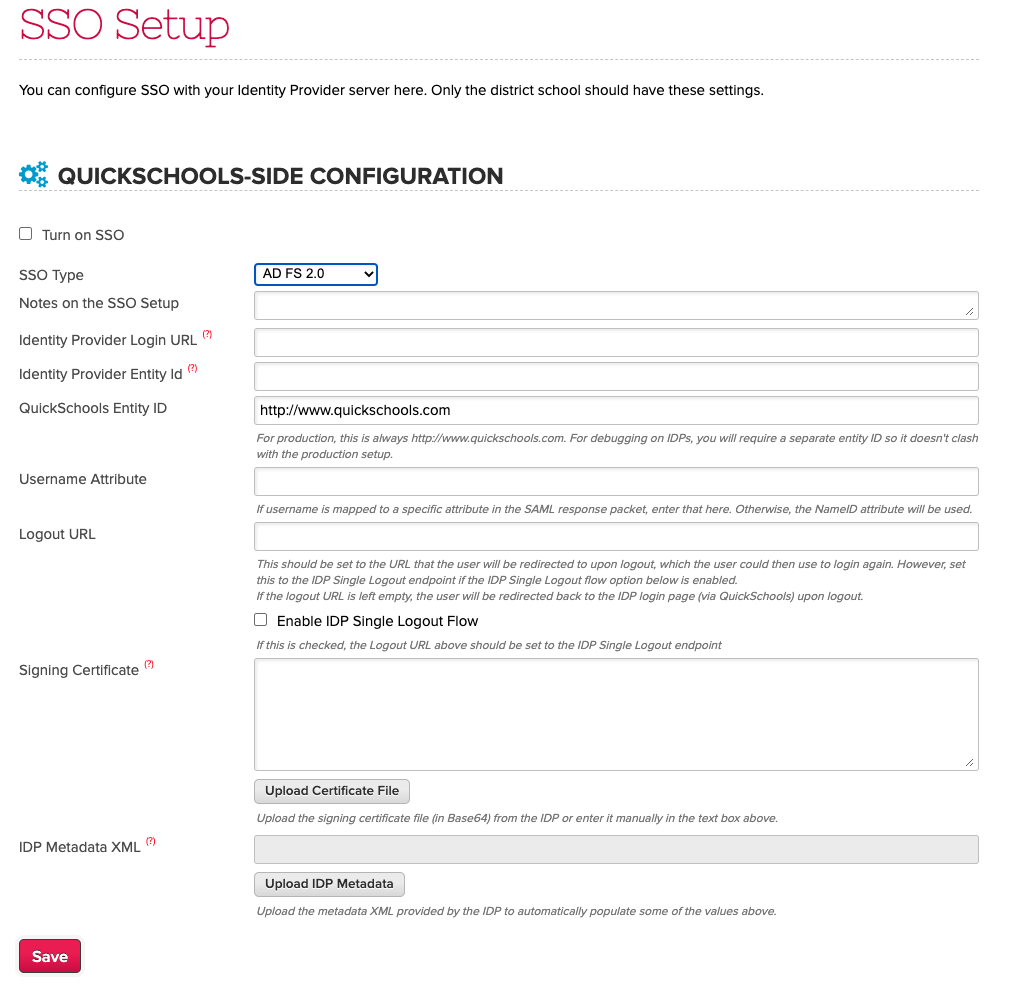
You’ll need to configure the IDP settings in QuickSchools. If you have the “Federation Metadata XML” file from your IDP, you can use the “Upload IDP Metadata” button to upload the configuration. Be sure to select the correct SSO type as well: