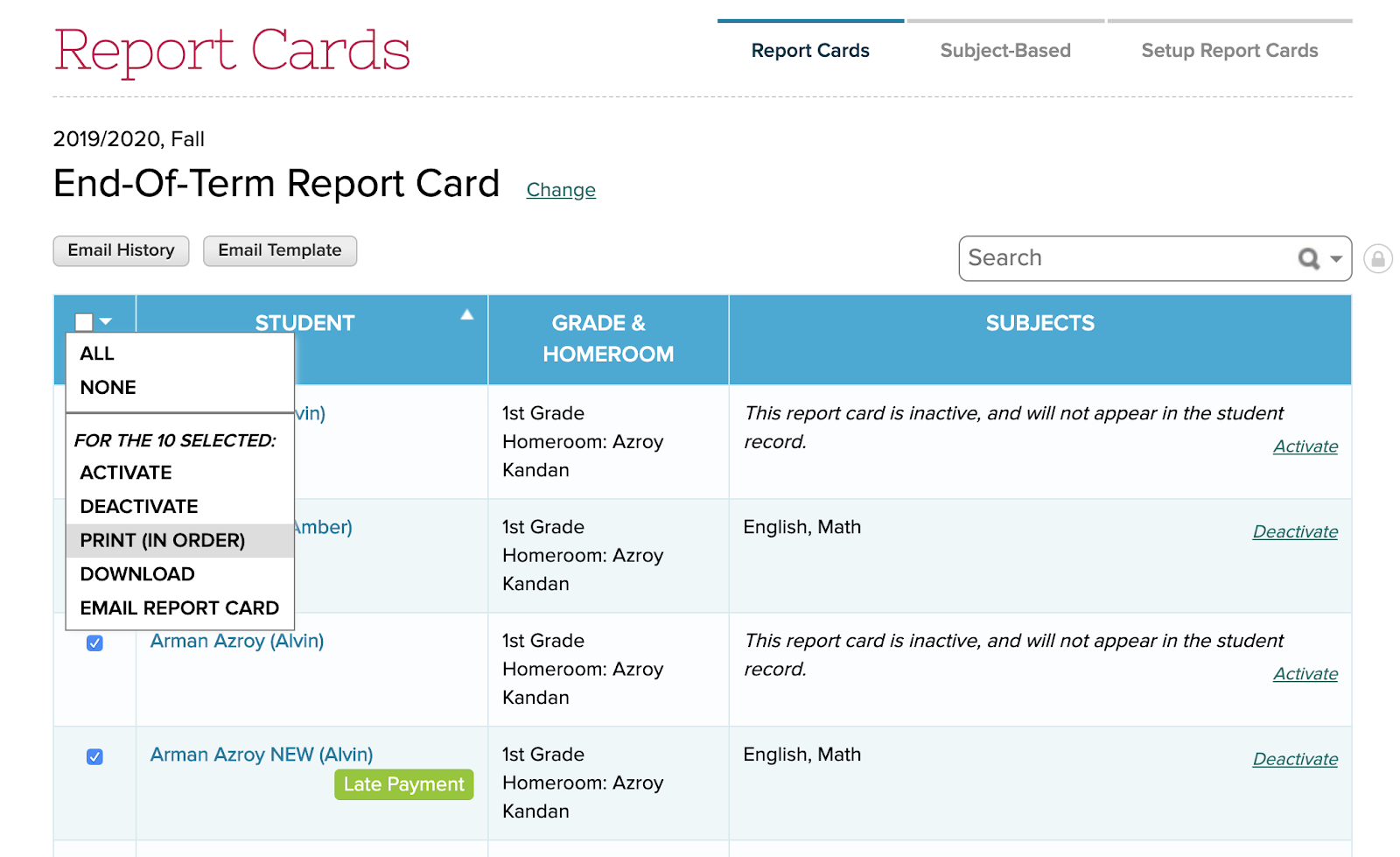
To use this function, be sure to select an appropriate number of report cards (using the checkboxes to the left), before clicking on the “Print (In Order)” option. Some updates to this function:
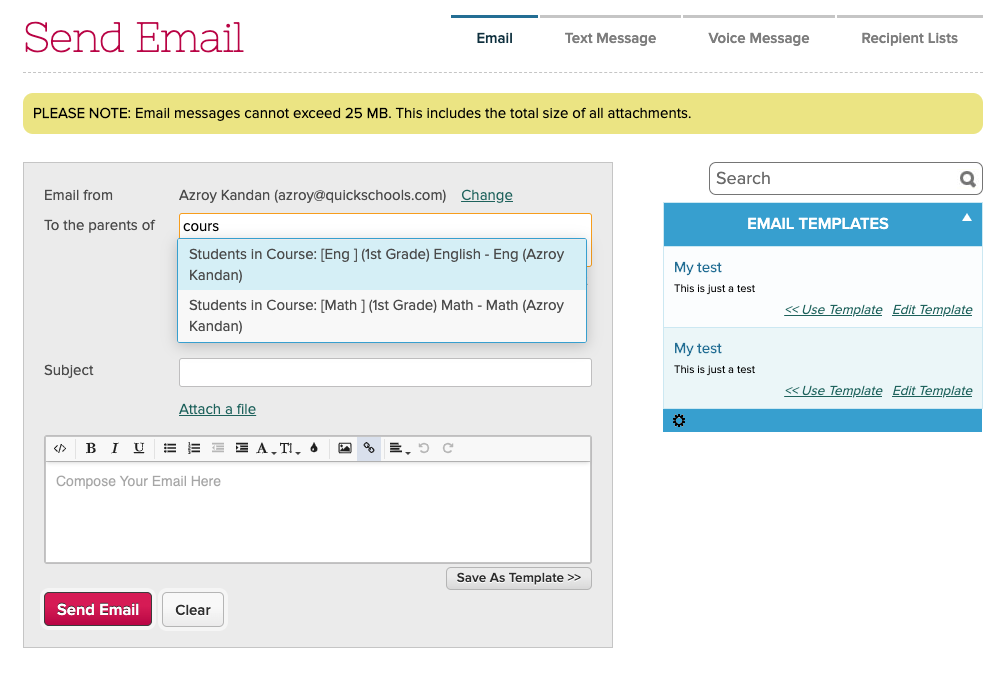
Looking for a quick and easy way to announce or send messages to all your students and parents about an upcoming event or activity? Well, look no further than the Messaging module in QuickSchools.
Send Emails via the Messaging Module
There are systems out there that focus purely on messaging capabilities. However, with these standalone systems, you have to manage your recipients separately, through a complicated process of exporting and importing contact info between systems. With QuickSchools, everything is integrated. That means that you can send out messages easily by grade level, by homeroom, or by subject/course. You can even create your own recipient lists for things like the parent council, school-related clubs or committees, and so on. And contact information is always kept current by the student information system (SIS).
If you have a group-school or district setup in QuickSchools, you can actually configure your Online Forms to be shared across multiple sites. This means that you’d only need to set up a single form packet to process applications for ALL schools in the group/district. Applications can then be routed to the appropriate school as needed.
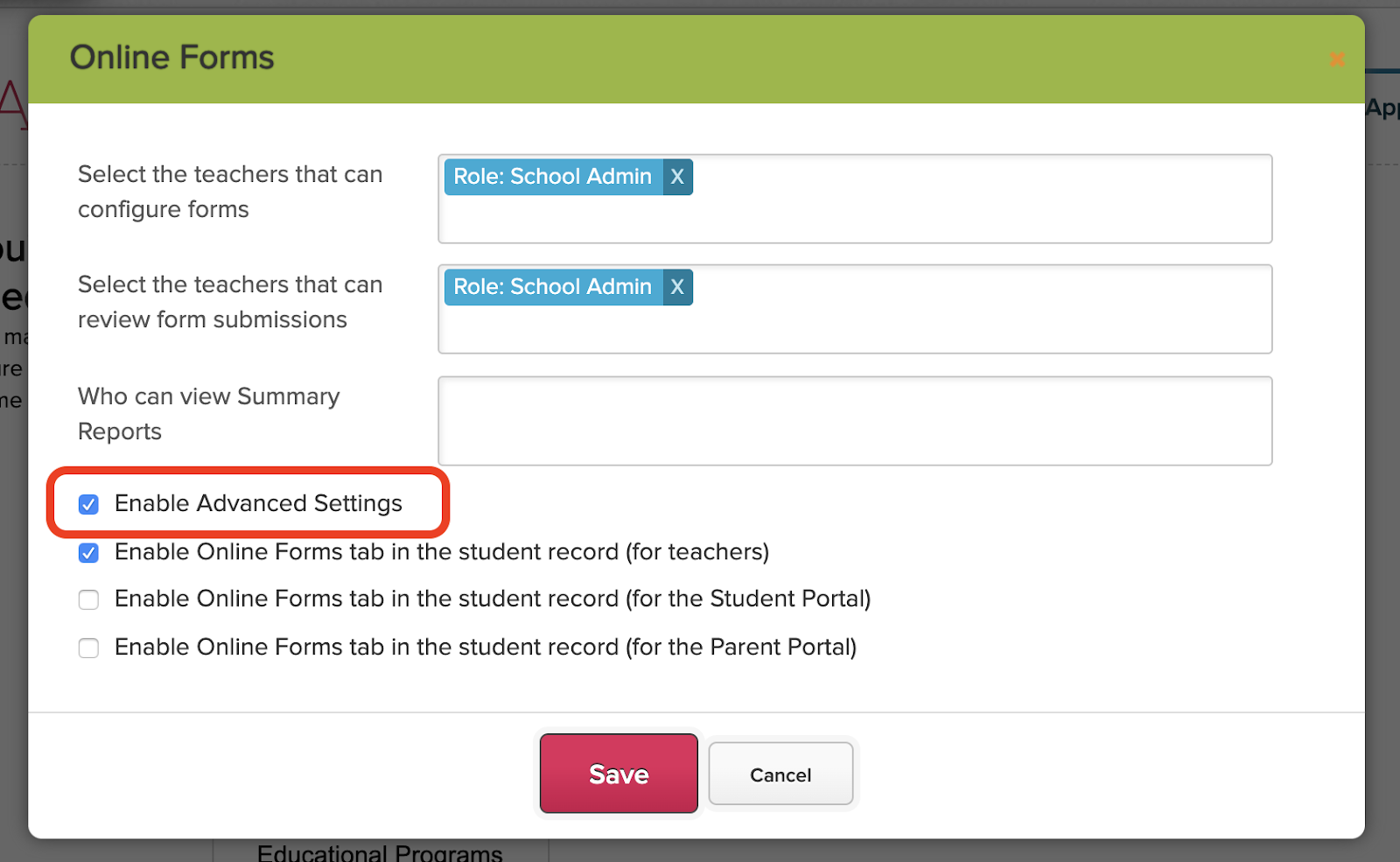
To set up this feature, you’ll first need to enable the Advanced Settings in the Online Forms app from the App Store:
Enabled Advanced Settings for the Online Forms App
Once that’s enabled, clicking “Configure Form Packet” will include the “Advanced Settings” at the bottom of the page.
Configure Form Packets
To share the form packet with other sites in your group/district, simply add any additional schools to the list under the “Advanced Settings” section:
In the recent QuickSchools release on May 6, 2020, we introduced some new improvements to our Email Templating module. This article aims to highlight a few key features of this capability.
The Email Templates feature is currently available in several modules, namely:
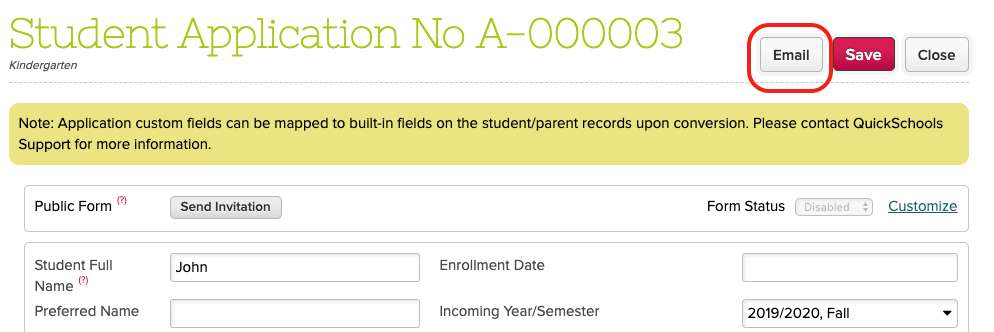
When accessing a record in these modules, there is an “Email” button that allows you to send emails that utilize fields from the module. Here’s an example from the Admissions module:
Send Emails from the Admissions module
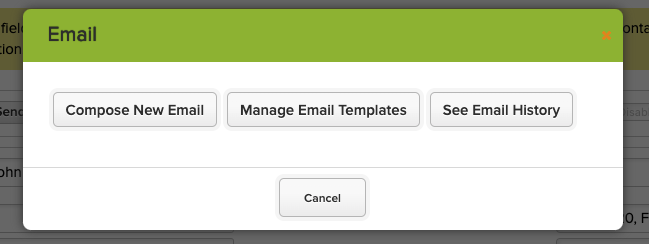
You then have the option of creating an ad hoc email, use a template, or view the history for this record:
Options when using the Email Template capability
Each module has its own set of fields that you can use. Just click on the “Insert Field” link to view list of fields:
Here are the latest improvements in the New Release May 6 2020 QuickSchools:
Google Classroom
Cosmetic Layout Improvements
Disable mapping of Grading Category
Support using Grading Category in QuickSchools Gradebook
Synchronize Assignments based on Assignment Date
Online Payments Improvements on Allocation Functionality
Ability to manually fix Allocation for Credit Card Fees
Fix Decimal Formatting
Featured Improvements
Dedicated screen for students to access Homework Assignments (Beta)
General Improvements and Bug Fixes to Bulk Email from Template
General Bug Fixes / Improvements
Gradebook ToolTip temporarily removed for performance tuning
WYSIWYG Editor is now enabled by default for Email Messaging
Expand Support for Auto-Enrollment by Homeroom
Support for Section Attendance on the Student Attendance tab
Support personalized Announcements
Improve display of multiple Announcements
Improve Auto-Logoff Feature on Browser Refresh
Improve Attendance Calendar Support for deleted Attendance Codes
Improve Reporting on Student and Parents with Communications Enabled
Improve support when multiple schools initiate Email Messages at the same time
Fix Sorting of Formulas in Gradebook Templates
Fix installation error for Online Forms App
Expand API Resources for Mobile Apps
Google Classroom
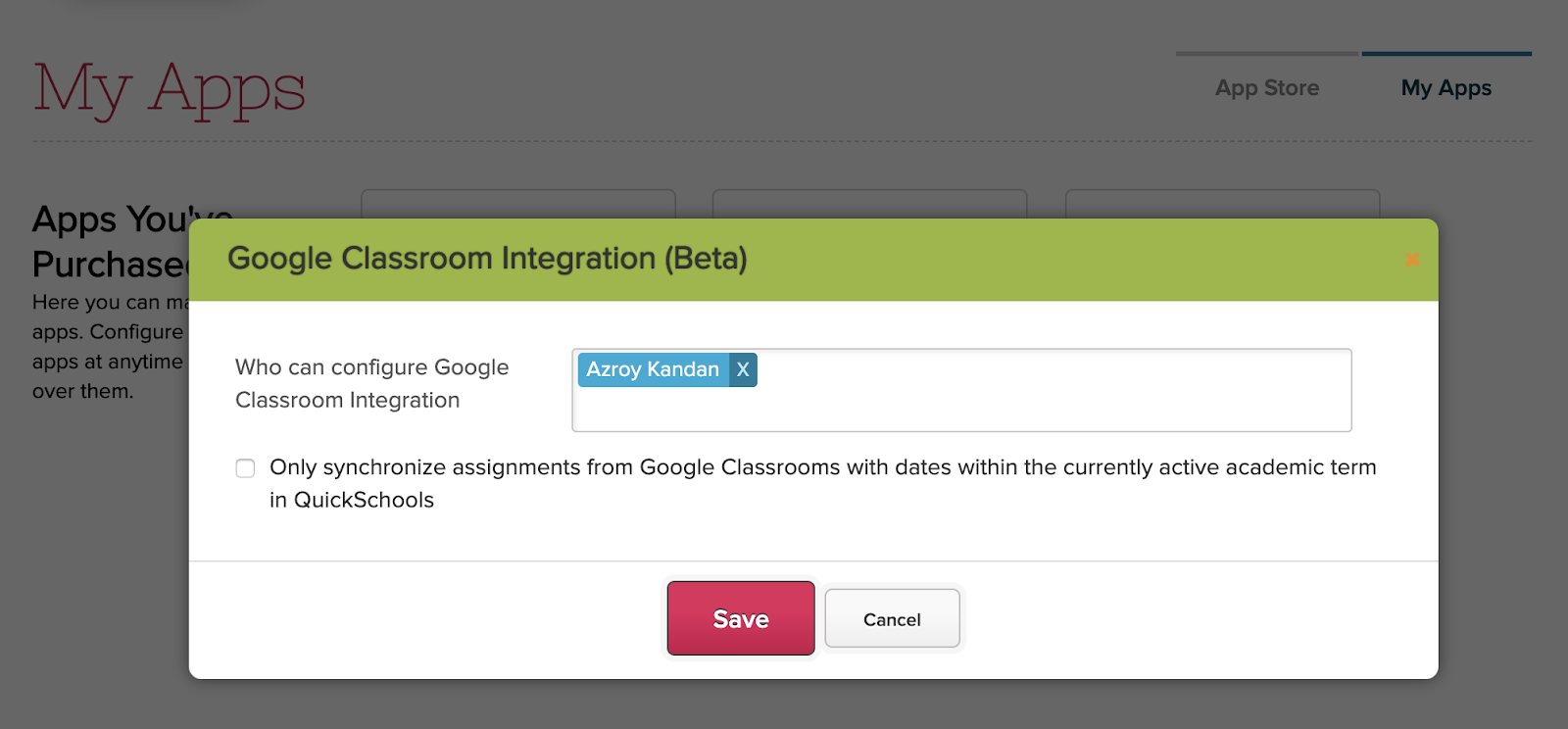
We’ve had a lot of traction with our integration to Google Classroom, as more and more schools adopt the free Google Classroom system for online learning. In this latest iteration, we’ve introduced a new setting that will only synchronize assignments in Google Classroom based on the assignment date, as compared to the dates within the currently active academic term:
By default, the synchronization pulls ALL assignments from Google Classroom into QuickSchools. But if you have a single Google Classroom course for the whole year, and you have multiple academic terms in QuickSchools, this setting will help separate the Gradebook data being pulled.
Another reminder is that the Google Classroom API currently does not support Final Grade and Mark Categories. So these will need to be set up in QuickSchools. After pulling the grades from Google Classroom, teachers can freely change the grading categories for each column, and create formulas and final grade calculations. These will not be overwritten by the synchronization process.
We’ll write more about the Google Classroom capability in a separate article to come.
The Online Forms App in the App Store can be used to update or enroll students in your QuickSchools account. This is done by mapping fields from your Online Forms into fields in QuickSchools. But every so often, you may want to update the fields on the Online Forms. How does this affect the process of updating/enrolling students from the Online Forms App?
If you’re using our standard Custom Fields to create your forms, then you simply need to update the existing custom fields, and the mapping info will be retained. And new custom fields can easily be mapped as well. But if you’re using PDFs, the process can be a little more involved.
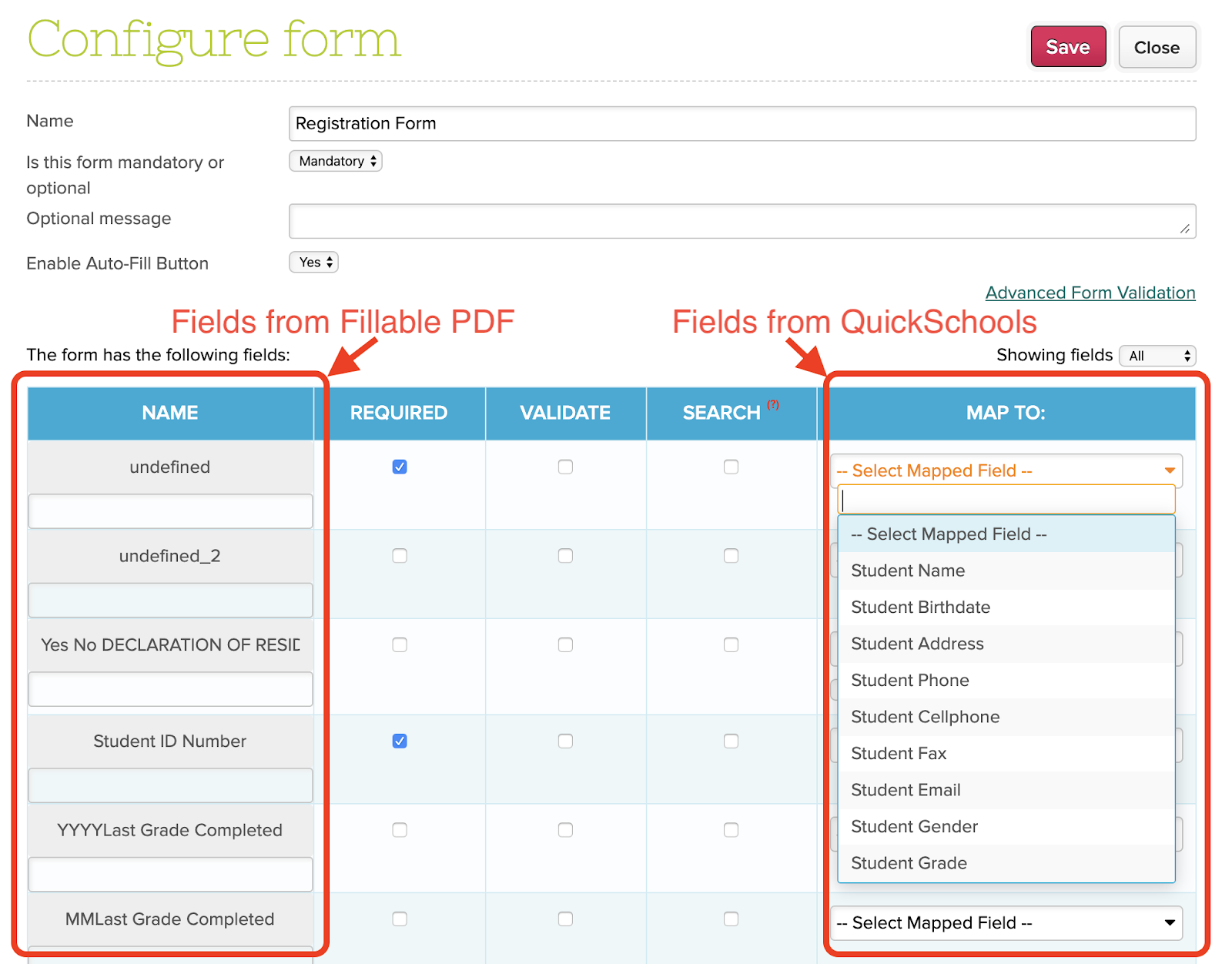
The Online Forms app will pick up fields from your fillable PDF in order to be mapped to fields in QuickSchools.
The important thing to note here is that QuickSchools uses the Field IDs from the PDF in order to map to fields in QuickSchools. If you change the Field IDs in the PDF and re-upload the PDF to QuickSchools, the system will regard those fields as NEW fields.
Preview your Online Forms PDF
In order to retain any existing mapping info within the Form Packet that you’ve already configured, it’s important to reuse the IDs for the fillable fields that have already been mapped. If you don’t have a copy of the PDF already, you can easily download a copy from the Form Packet. Just open the Form Packet to view the list of forms attached to the packet. Then click on the “Preview” button:
The Voice Messaging feature is part of the Messaging module included within QuickSchools. Like text messaging, voice messages incur an additional cost, and are typically used sparingly in case of emergency (like school last-minute school closures due to inclement weather).
The cool thing about our Voice Messaging module is that you don’t need a microphone to record your message. To record a message, simply specify a phone number to call, and you can record your message over the phone:
Record a Voice Message by specifying a Phone Number to call
Once you’re done, press the ‘#’ button before hanging up, and then you’re done. The recorded message will appear on your screen. Previously recorded messages will also appear on the right, with transcriptions, so that they can be reused:
So you’ve published your report cards, and enabled access for users to view the report cards from the Parent and Student Portals on QuickSchools. Someone spots a mistake, and now you need to update the grades. This article describes the process of updating report cards AFTER report cards have been locked.
We will be going over the following scenarios:
The Basics: Manually updating grades
Re-submitting grades from the Gradebook
Clear Locked Values
Selectively migrate calculated values
The Basics: Manually updating grades
What happens when you lock the report cards?
IMPORTANT: Report cards are designed to PULL data from supporting modules like the Attendance and Gradebook modules. This happens when you (1) OPEN an individual report card for the first time, or (2) LOCK the report cards for the first time.
Once you have locked the report cards for the first time, the system will no longer pull data from the supporting modules. This means that you can safely unlock report cards, make changes to any individual report cards, and then lock them up again.
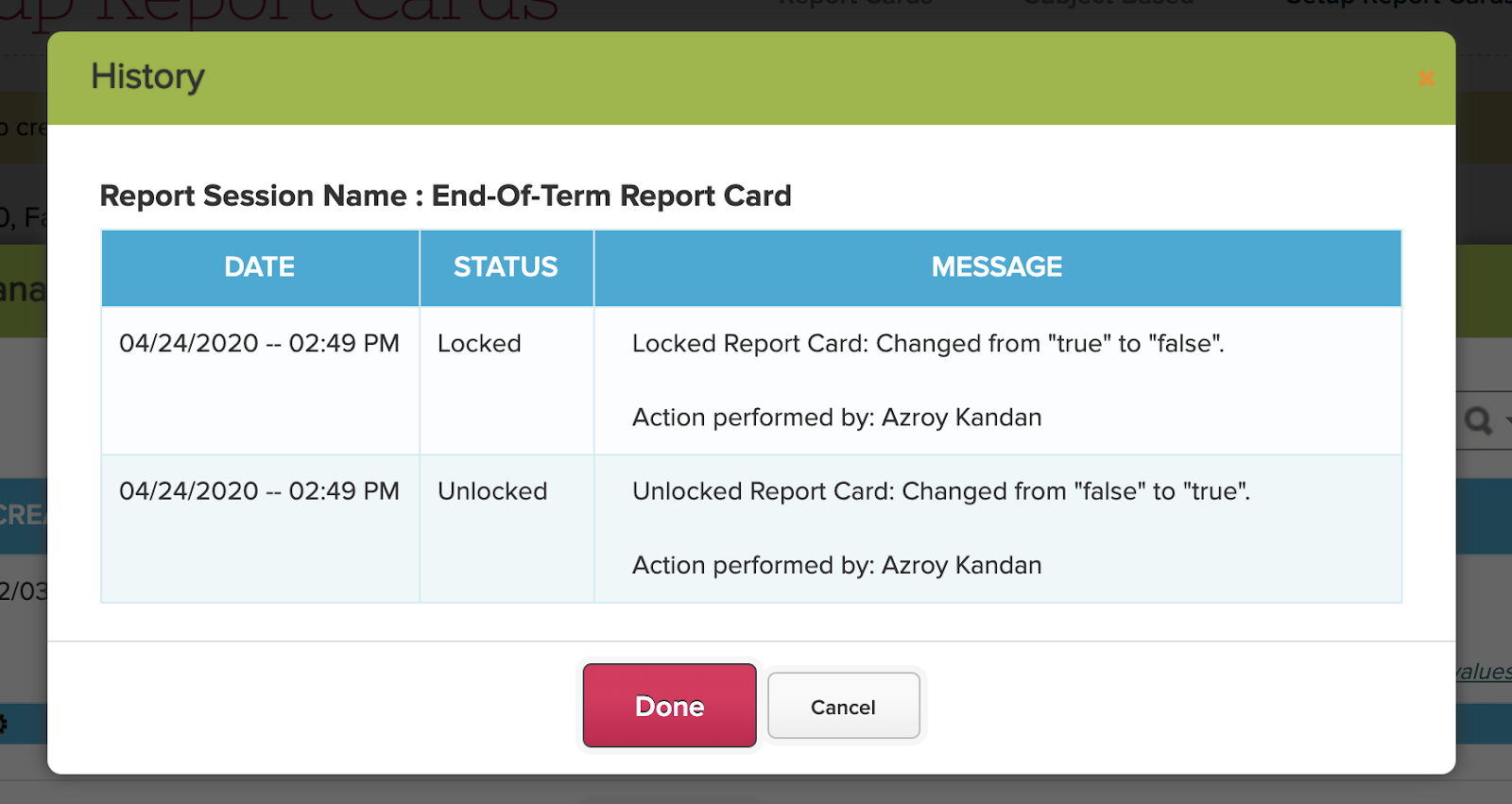
TIP: If you click on the “History” link for a particular Report Card session, the screen will show when the report cards where locked/unlocked, and by which user:
Manually updating grades in the Report Cards will NOT update the corresponding modules where the information would typically originate from. So for example, if you update a students Math grade from 80 to 90 in the Report Cards, this would be independent of the students Math grade in the Gradebook. Ideally, the Gradebook grades would match the Report Cards, but this would need to be managed manually after locking.
Re-Submitting Grades from the Gradebook
In some cases, you may have realized after locking your report cards, that one or more of your teachers had not updated his/her gradebook with the correct Final Grade calculations. As a result, the grades that were pulled from the Gradebook are incorrect. Do you need to update each grade individually in the report cards?
There is actually a new “Submit to Report Cards” function that was introduced in September 2019 as a beta feature, and later refined. You can enable this feature by configuring the Gradebook module: