Keep Track Of Student’s Assignments With QuickSchools’ Homework Feature

We at QuickSchools understand that keeping track of your students’ assignments can be a troublesome chore, especially when you’re handling more than one class.

But fret not, because our Homework feature was specifically designed to ease this process whilst ensuring that neither you or your students will ever lose track of ongoing assignments!

Similar to our other features and products, the Homework feature is easy-to-use and organized according to the classes and subjects you teach:

Blog 1 - Homework (8)

To share your assignments and notes with your students, click on the “Add/Edit Notes” link and upload away:

Blog 1 - Homework (1)
Blog 1 - Homework (2)

Before you click on the “Add” button,

Read More »

Paid Mass (Parent) Messaging

Quickschools Parent Messaging allows school users to send messages to parents, students, and teachers via email, text (SMS), and voice message. These school users are the teachers, staffs, school admins, etc.

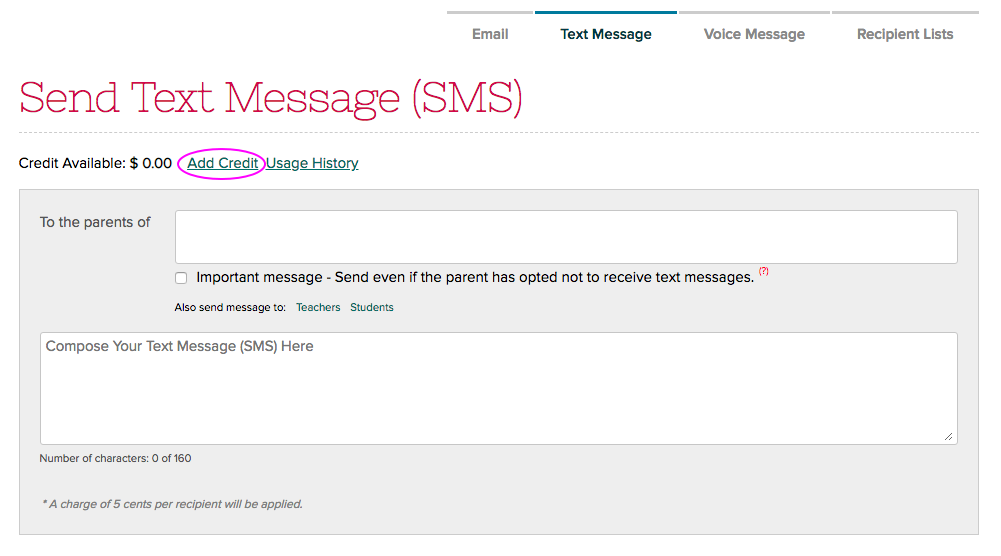
Sending of emails is always freely available even for trial subscriptions. Text and voice messages on the other hand follows a pre-pay system so you’d need to purchase a credit to use them. This credit gets used up as you send out messages via text or voice.

To purchase a credit, your account needs to be subscribed with Quickschools. You’ll have the option to buy credit once you have subscribed:

After buying a credit, the Send Text Message and Call Phones buttons become available so you can start sending text and voice messages:Read More »

QuickSchools Gradebook

The QuickSchools Gradebook is one of our core modules and we spend a lot of time making sure teachers have the best possible experience when working with it. We’ve been taking teachers’ feedback and have made a lot of improvements over time.

We’ve organized different articles, and tailored them for admins and teachers. Please see the list of articles below.

Gradebook Setup for Admin

Administrators can easily and conveniently configure Gradebook Settings for the entire school via the Grading Setup menu. These settings will be reflected in every teacher’s Gradebook. Check out the article here: Gradebook Setup For Admins

Gradebook Setup for Teachers

Teachers can set up their own grading scales and categories if permitted by the school admin. Otherwise, they have to use what the admins have centrally set up for the school. But teachers can configure other Gradebook settings based on their preference. Learn more from the article: Gradebook Setup for Teachers

Gradebook Basics – How to use the Gradebook

<coming soon>

Advanced Gradebook Features

<coming soon>

Teacher Portal

School is back! We wanted to make sure teachers are all set as you start the new school year. If you have new teachers going onboard, this article would be very helpful. For existing teachers, this is a good refresher!

Teachers need to effectively use Quickschools. So we are hoping teachers can maximize using the system to make their tasks simpler and to promote streamlined communication and collaboration with parents and students.

Our Teacher Portal video tutorial shows you how to get started with Quickschools and what are the things you can do using different modules (e.g. Gradebook, Attendance, Report Cards, Homework, etc.).

Aside from video tutorial, we also have a Getting Started article that you can read through: Getting Started As A Teacher

As you get the hang of using our system, we’d like to introduce how you can engage parents to help them track their student’s progress, or better yet, involve them in their student’s progress in school: Engaging Parents

And of course we are here for you if you have any question. Looking forward to hear from you, please chat with us!

Need more time exploring your trial?

QuickSchools is an easy-to-use, no-strings-attached, comprehensive student information system (SIS). For those with fluctuating student counts, we charge month-to-month, based on the number of active students in your account.

What this means is, you’re under no obligation to enter ALL your students at the beginning of your subscription. You can always start with just a pilot group of students, perhaps just one grade-level, or even just one classroom. And later on, as you become more accustomed to our product and services, you can add the remaining students.

If you are at the end of your free trial, but you haven’t decided to commit, no need to worry. As mentioned above, you can start a subscription with just a sample set of students. And you can add your remaining students later on. You can cancel your subscription at any time.

To subscribe, simply click on the “Account” link on the top right, and follow the instructions.

8.2 blog

If / when you do decide to commit to QuickSchools as your SIS, we do offer a discount for long-term commitments, typically 12-months and above. Please contact our support staff, if you’re interested.

Module-Based Custom Fields

We announced early on in our QuickSchools journey that we support Module-Based Custom Fields. This is our way of keeping our system clean from unnecessary fields. So users could freely add whatever fields are needed to the various modules.

Module-Based Custom Fields

Right now, we support custom fields for the following modules:

This capability has also improved over time. In addition to creating new fields, users need to be able to perform certain tasks with these fields. These include:

  • Searching based on Custom Fields
  • Reporting on Custom Fields (via the Report Creator)
  • Support for multiple data types:
    • Text
    • Hidden Text
    • Date
    • Check Box
    • Drop Down
    • Drop Down with Values (See below)
  • For formatting fields, you can also add (1) Headers and (2) Sections Breaks.

In the Admissions module, where a student progresses from Inquiry to Application and then to the Students module, you can also transfer the Custom Fields between these modules, as long as the custom fields are created in exactly the same way.Read More »

Is QuickSchools right for you?

Do you need an affordable School Management System?

QuickSchools is extremely affordable with our basic plan starting off at just $0.99 per student per month. You can have as many teacher/staff accounts as needed, each month you only pay for the number of students you have enrolled, once a student is unenrolled you are no longer charged for them. There are NO ADDITIONAL TAXES OR FEES. You can even save up to 10% off your yearly subscription if you pay in advance. See more information here

Blog 7.17

Looking for an SIS for a specific type of school?

Thanks to the flexibility and customizability of our software we have the ability to support many different types of schools. Currently our subscribers include K-12 schools, language schools, beauty schools, music schools, medical training centers, home schools, daycares, small colleges, after school programs and more. If you need help customizing your account for one of these schools contact our support team via Live Chat or via email at support@quickschools.com

Do you need a support team at your fingertips to help you when you need it?

Our Support Team is available via Live Chat Pop Out to help you with any of your needs. Live Chat is available all day weekdays and there is partial coverage on the weekend.

Are you interested in testing out a new SIS without having to pay anything?

You can try QuickSchools RISK-FREE by signing up for a FREE trial. To create a trial you do not need to enter any type of payment information, simply fill in 5 quick fields and you are on your way to test out the system with full access to all of our plans and features, to sign up for a FREE trial click here

Online Payments

Quickschools allows parents and students to pay for their fees online. They can pay for their tuition fees, uniforms, books, etc. basically any charge you set for the students. All they have to do is to log in to Parent Portal (for parents) or Student Portal (for students) to make payment using their credit card. To enable the Online Payments feature, click here.

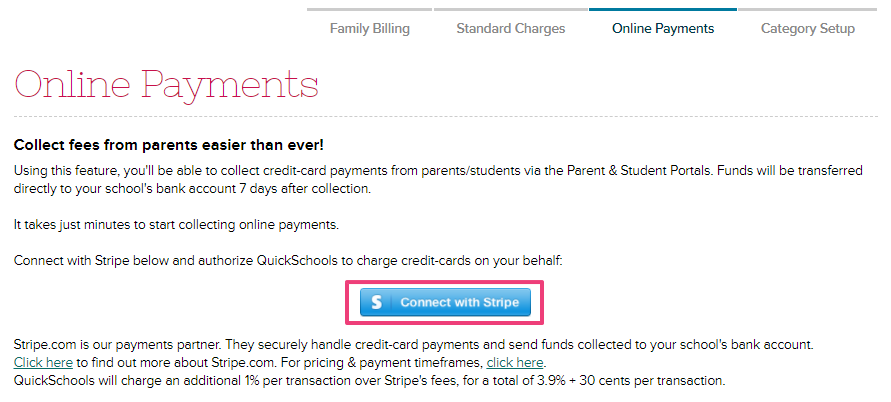
We use the service called Stripe.com for online payments. You simply have to sign up with Stripe via Fee Tracking to use our online payment facility:

quickschools online payments feature
Set up your Stripe account with Quickschools via Online Payments tab under Fee Tracking

To see if Stripe is available in your country, click here.

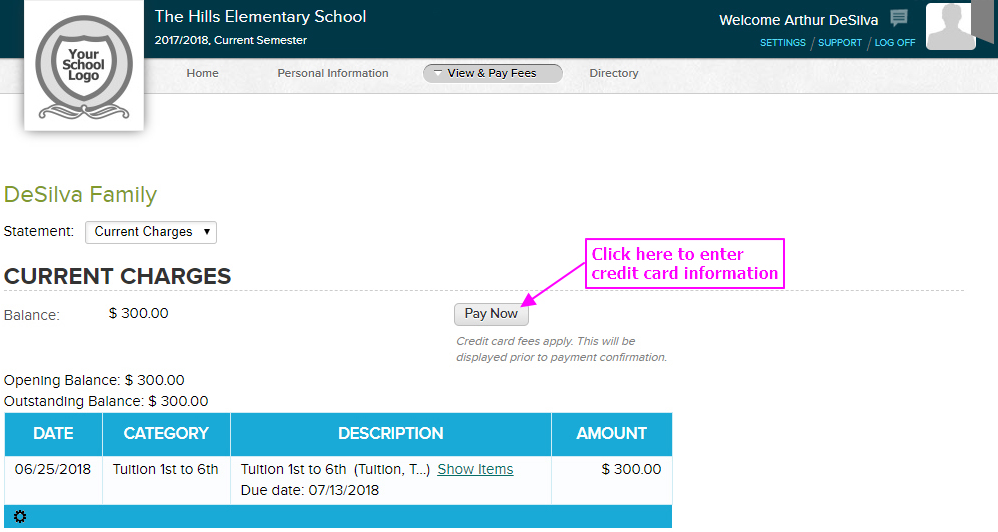
After setting up your Stripe account with Quickschools, parents should be able to pay online via parent portal. The same goes for students via student portal if Online Payments has been enabled for them.


Parent Portal page where parents can initiate online payment.


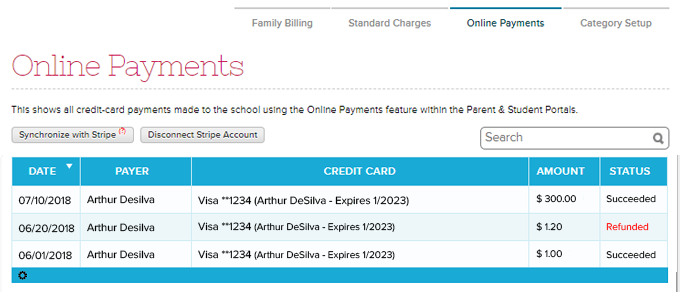
Payments made by parents will automatically reflect in Quickschools under Online Payments tab:

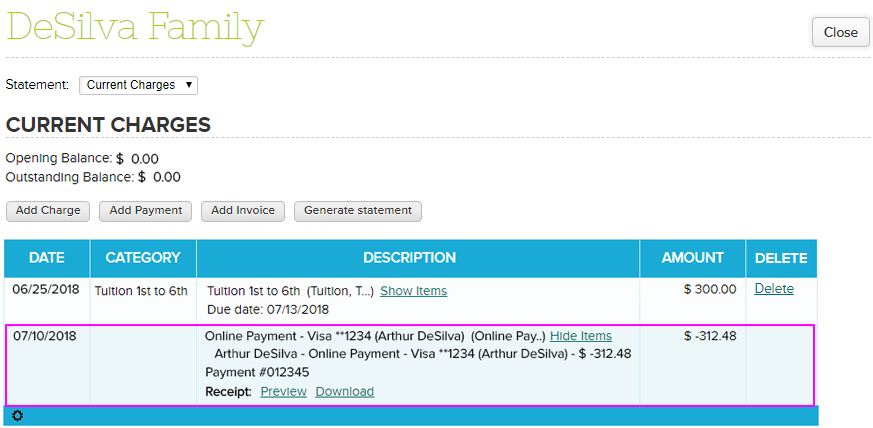
It will also appear in the student’s account under Family Billing/Student Billing:

Let us know if you have questions, come chat with us!