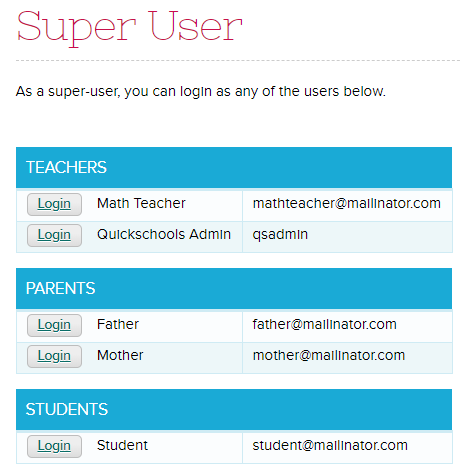
To help school administrators manage user accounts for their schools, Quickschools launched a new Super User app. This was included in Sprint D12 release. The app can be installed from the Quickschools App Store.
As a Super User you will have access to the list of all users on your school – Teachers, Parents and Students. By clicking the ‘Login’ button beside the user’s name, the Super User will be able to log into the account, for purposes of debugging and verifying user access and privileges.
Please check out our support article for more information and let us know if you have comments or suggestions!
It’s been several years since we first launched our App Store. Since then, QuickSchools has released several new apps, and we anticipate several more in the coming months. Please check these new apps out at the QuickSchools App Store. And if you don’t have access to the App Store, but you’re interested in some of these apps, be sure to let your administrator know.
New Apps for Sept 2018
Recently Released New Apps
Super User – Allow Administrators to login as any user in your school.
Homeroom-Based Seating Charts – Allow your homeroom / class teachers to create a seating chart, and take attendance by seating chart.
Sports and After School Activities – Track students taking sports and after school activities.
Health – Track medical history for students, include medication and doses taken.
Master Scheduler (Beta) – Full featured Master Scheduler based on Course Requests and Course Offering.
Recently Updated Apps
Custom Domain – Use a custom domain for your QuickSchools account, so that your users can easily remember how to access QuickSchools.
Schoology (LMS) Gradebook Integration – Export / Synchronize your roster from QuickSchools to Schoology, and pull Gradebook data from Schoology in order to create Report Cards and Transcripts in QuickSchools.
Canvas (LMS) Gradebook Integration – Export / Synchronize your roster from QuickSchools to Canvas, and pull Gradebook data from Schoology in order to create Report Cards and Transcripts in QuickSchools.
The default behaviour in QuickSchools for communications between teacher and parent is to allow full access. With the new Sprint D12 release, school administrators can now limit this interaction. This might be useful if you find that teachers or parents accidentally send messages to the wrong people. There are 2 modules that now have support for restricting teacher-parent messaging:
Private Messaging
Mass (Parent) Messaging
Restricting Private Messaging
When Private Messaging is enabled for the Parent Portal, the system enables a Teacher Directory. When configuring the Parent Portal, there is now an additional option for “Parents can only send messages to teachers of their enrolled child”. This setting is available under “Settings” > “Turn Features On / Off”, when you click “Configure” for the Parent Portal module:
Configure Parent Portal to Restrict Private Messaging to Teachers
With the setting turn on, the Teacher Directory will still display a full listing of teachers, but the “Send Message” link will only appear for teachers that are teaching students for that parent:
Teacher Directory with Restricted Access for Parents
Additionally, when creating a new Private Message (using the conversation bubble on the top right), the dropdown will only include teachers that parents should have access to:Read More »
Quickschools Parent Messaging allows school users to send messages to parents, students, and teachers via email, text (SMS), and voice message. These school users are the teachers, staffs, school admins, etc.
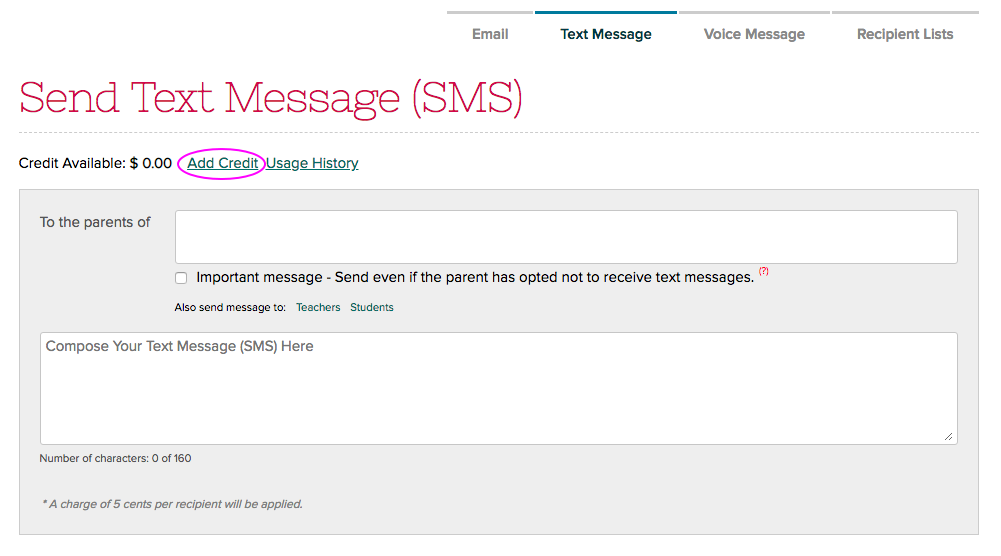
Sending of emails is always freely available even for trial subscriptions. Text and voice messages on the other hand follows a pre-pay system so you’d need to purchase a credit to use them. This credit gets used up as you send out messages via text or voice.
To purchase a credit, your account needs to be subscribed with Quickschools. You’ll have the option to buy credit once you have subscribed:
After buying a credit, the Send Text Message and Call Phones buttons become available so you can start sending text and voice messages:Read More »
Our new QuickSchools Sports and After-School Activities Tracker App combines the Sports Tracking and After School Activities modules from the Athena plan. This app allows you to keep track of activities and sports offered at your school. It’s super simple, quick to setup, and easy to use!
Once you have installed the app you will be able to add activities and sports, both work the same way. When adding an activity you will need to specify the activity name, teacher who oversees the activity and the max number of members allowed to participate:
Once an activity has been added, you’ll then be able to add students who are participating:
For more details on how to set this up see our support article. Do try it out, and let us know if you have comments or suggestions!
For schools that are changing their Gradebook grading scales from year to year, be sure to properly archive the old grading scale in your QuickSchools account, before creating a new one. Subjects are always linked to a specific grading scale, and if you attempt to change an active grading scale without properly archiving it first, you might end up changing the grading scale for previous subjects.
This new capability was released with Sprint D12. When accessing a Grading Scale from the “Grading Setup” screen, you’ll notice a new link called “Archive Grading Scale”.
Edit Gradebook Grading Scale
When viewing the Grading Scale, there is now a new Advanced Search, that allows you to view archived Grading Scales as well:Read More »
QuickSchools has released several improvements to the Standard-Based Gradebook (SBG) in Sprints D9 and D10. In the latest Sprint D12, we’ve built in support for hiding the SBG calculations for students and parents.
Typically, all assessments and calculations are done in real-time for students and parents to access from their portal. But if you wish to simply show raw assessment grades, without the grade calculation for individual standards, or for the overall subject, you can configure the “Standards-Based Gradebook” app as follows:
Partial access for Students and Parents to the Standards-Based Gradebook (SBG)
With the configuration turned on, when parents/students access the SBG for a particular subject, it will no longer show the overall grade for the subject:Read More »
We’ve updated the drop-downs when creating a new Report Card session. The new drop-downs allow you to type part of the session name, allowing you to quickly select fields:
Clear Teachers Lounge
Under “Settings” > “Turn Features On / Off”, there is now a new setting that allows you to hide old messages from the Teachers Lounge: