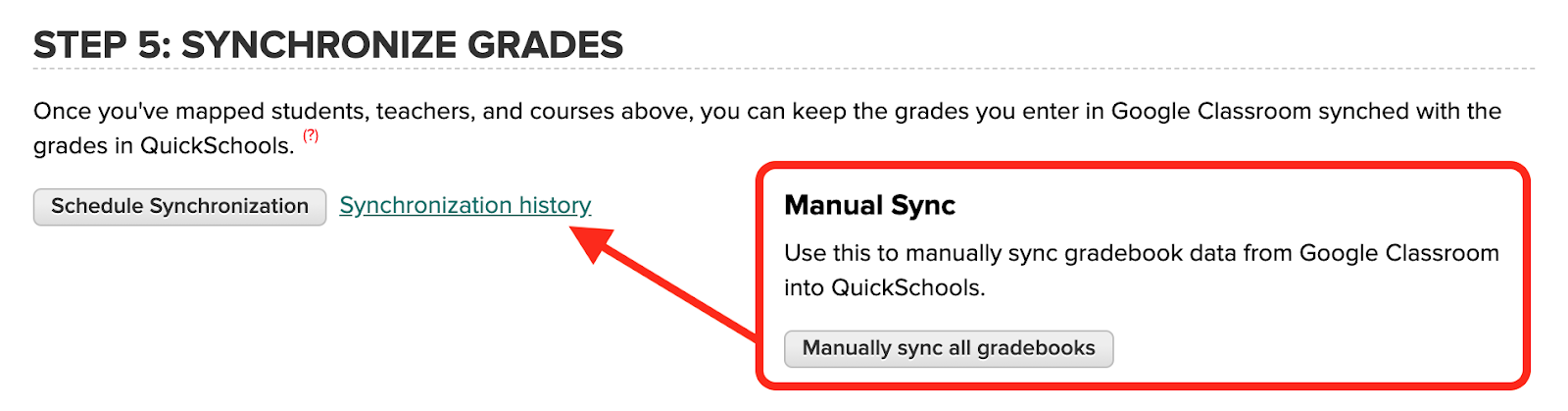
Previously, when manually synchronizing the Gradebooks, you would get real-time feedback on the status of the run:
Manual Sync for the Google Classroom Integration App
However, this process was limited by the browser time-out of 5 min. What we opted to do in the August 17 Release was to extend the timeout to 30-min. This was done by changing the function to run in the background (no more pop-up on completion of synchronization):
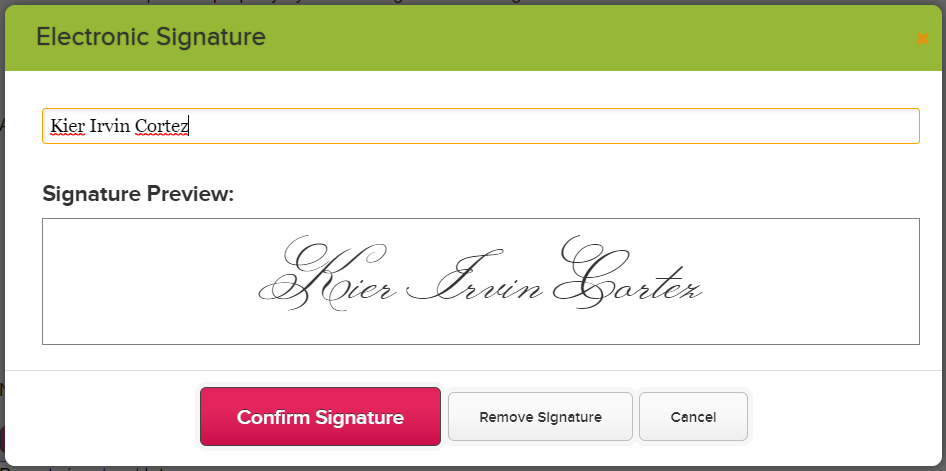
As most of you know, our Online Forms App allows you to add Fillable PDF Forms to your online form packet. To further allow your forms to go paperless, the online forms also allows users to add their electronic signature into the pdf form. This is useful for situations where you need a contract signed by the students as well as by the school.
Setting up Online Forms Signature
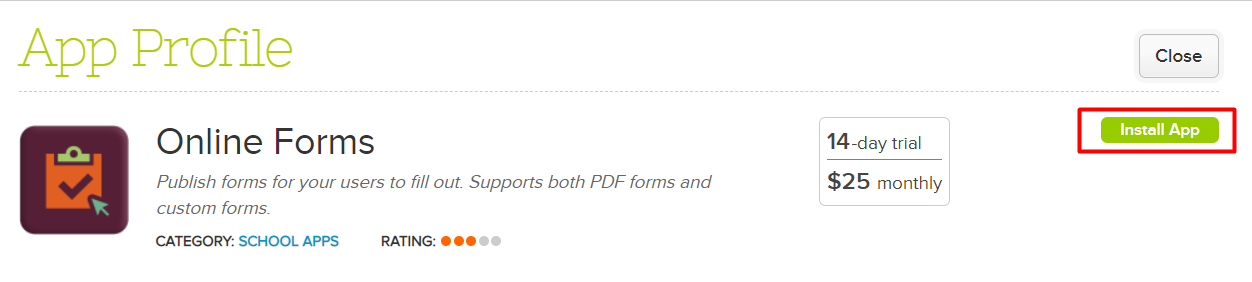
If you have not yet installed the Online Forms App in your QuickSchools account, you can do so via our App Store — search for Online Forms and click on Install
Once the app has been installed and configured, we would need to enable SVG for the online forms. This will allow Cross-Browser Compatibility and allow you to add digital signatures to the form. This is currently a hidden feature. To have this enabled please send us an email at support@quickschools.com.
After SVG has been enabled for your account, we can now start setting up our Online Form Packet. Please note that when configuring the Online Form Packet, enable the One Form per Child option. This will allow parents to send a form per child, and allows any mapped information to be automatically filled (i.e. Student Data):
The QuickSchools embedded admissions form can be customized to match your school website’s style. You can change the fonts, colors, input field or size. You just need to modify the embed code after you add it to your site. Some knowledge of HTML and CSS is required.
Customizing your embedded forms will leave a good impression and sense of security to your visitors, with inquiries and application forms that look just like the rest of your website.
We have quite a few improvements this time around, in addition to our continued focus on Online Learning. Here are the latest improvements in QuickSchools:
LMS: New Assignments module (Beta)
List all students for an Assignments, regardless of whether student has started the assignment
Hide Unpublished Assignments from Student Portal
Introduce Date / Time to Publish an Assignment
Highlight Assignments submitted after Due Date as “Past Due”
Improve behaviour for “On Paper” and “No Submission” assignments
General Bug Fixes to the Assignments listing
LMS: Live Streaming App Improvements (Beta)
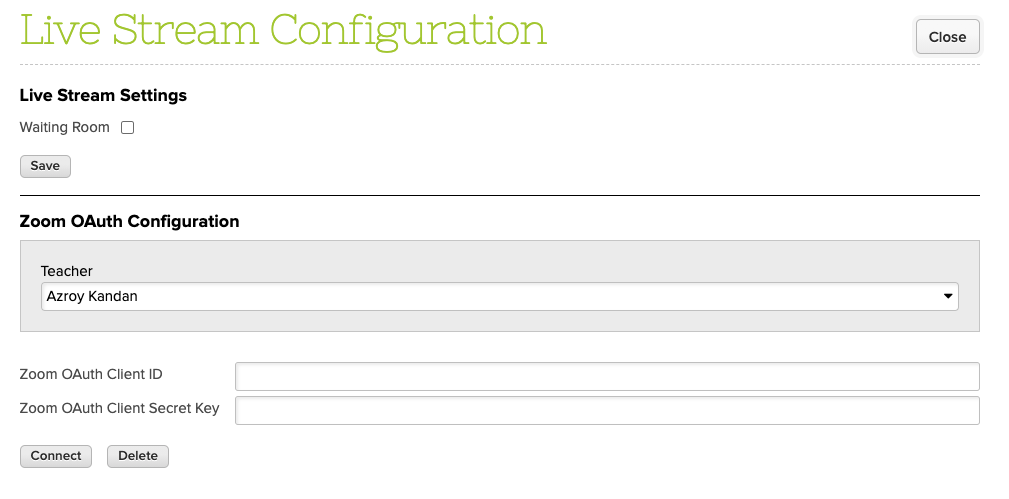
Support multiple Zoom Accounts for concurrent meetings (one account per teacher)
Auto-update meeting list when meeting is about to start
Display warning if Zoom Account is not yet set up
The Live Stream App now support Zoom Accounts for every teacher
LMS: General Online Learning Improvements
New Student Message Board
New Calendar View for Assignments and Live Stream Meetings
Improve visibility of “View Complete Record” on Student and Parent Portals
Ability to Edit a posted Class Discussion
Fix Email Notification for Class Discussions
Google Classroom Integration Improvements
Option to skip ungraded assignments
Option to exclude archived courses
Archived courses are clearly indicated when mapping subjects
Fix assignments that are synchronized from OUTSIDE the academic semester date range (Partial Fix)
Report Creator
Support Read-Only Access to Report Creator
Fix Report Creator filter for Outstanding Amount from Fee Tracking
Support reporting for Published/Hidden Gradebook Columns
Other Bug Fixes / Improvement
SSO support for SAML (Private Beta)
Scheduled Standard Charges (Private Beta)
Upgrade Real-Time Sync Framework (Firebase)
New option in Simplified Scheduler to Allow Conflicts (without pinning)
Improve security for Password Reset
Support download Schedule PDF by Grade and by Teacher
Support relabel “Principal”
Option to delete Bank Account if Credit Card is provided
Option to Sort Gradebook by NickName
Automatically trim Parent first and last names during Import
Tooltip in Online Forms module to explain Fees
Bug fix auto-generated Advanced Embedded Form for Admissions Application
Bug fix for email history attachments
Bug fix when auto-allocating Payments in bulk
Bug fix when auto-allocating transaction fees for Online Payments
Bug fix when allocating transaction fee when refunding Online Payments
Bug fix when selecting semester in Attendance Calendar
Bug fix when updating Semester Start Date when taking attendance during trial
Scheduling Standard Charges
This is a new feature in Private Beta. With this feature enabled, you will see a new button called “View/Edit Scheduled Standard Charges” next to the “Add Standard Charge” button:
QuickSchools has come a long way since our Early Days. So here’s an updated summary of what our Fee Tracking module can do:
The Basics
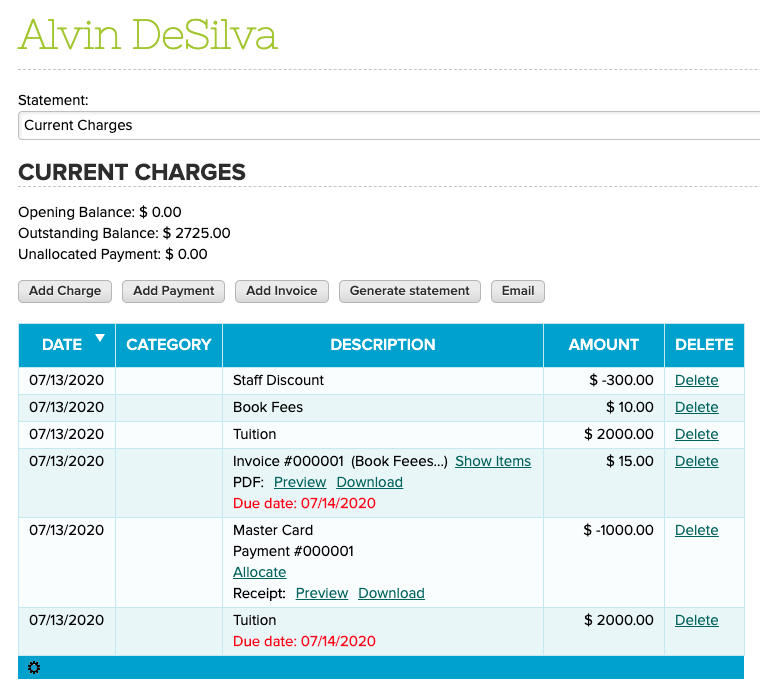
You can easily add charges and payments for each student. You can also generate invoices, which is simply a collection of charges:
We modelled our Fee Tracking module after Credit Card statements. You can designate a statement period (i.e. a start and end date), and the system will (1) calculate an opening balance, (2) calculate a closing / outstanding balance, and (3) display all transactions within the specified period. You can also print out invoices and receipts.
For the Power User
Be sure to turn on any additional features that you need from the “Settings” > “Turn Features On / Off” page:
QuickSchools integrates with QuickBooks Online. So if you’re looking to easily transfer transactions from the Fee Tracking module in QuickSchools to QuickBooks, we’ve updated our User Manuals:
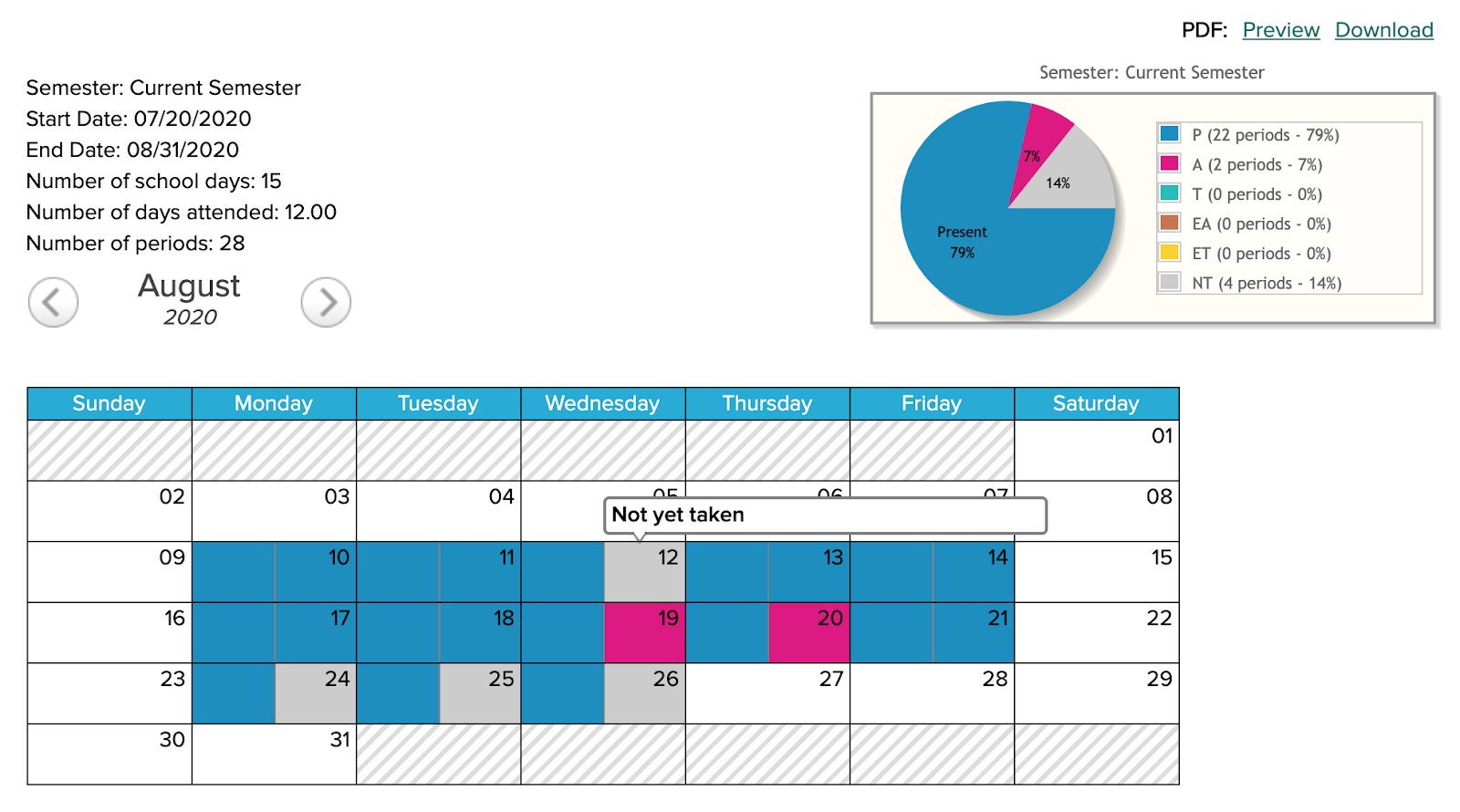
We wanted to briefly discuss how the Attendance module works in QuickSchools, and what happens when a teacher does NOT take (or has not taken) attendance on a designated school day. In these cases, the system will grey out the student record for the period, and reports will indicate that it has not yet been taken for that day/period.
Calendar on the Student record with “Not Yet Taken”
Taking attendance for the first time
The calendar adds school days in real-time when it is first taken on any particular day. For instance, you can establish holidays and school days in the Calendar (found under “New Semester Setup”), but the system will not designate a date as a school day until attendance is taken on that day.
If you have yet to enable the Parent Portal for your QuickSchools account, you’re missing out! This article describes some of the features offered via the QuickSchools Parent Portal:
Information at a Glance
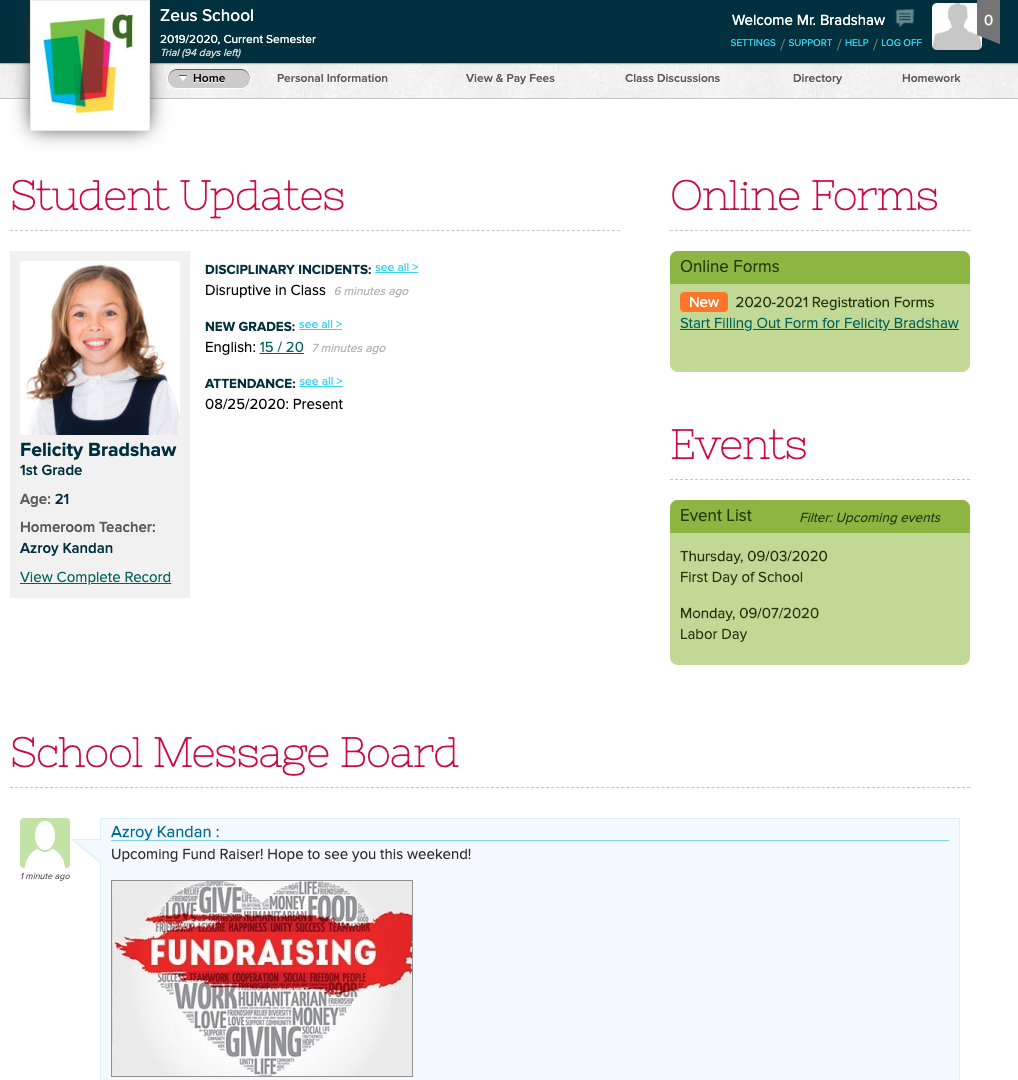
From the Home page, parents can quickly see recent activity like recent attendance, grades, homework assignments and disciplinary incidents. Events are listed on the right, and the Parent Message Board is at the bottom of the screen. Parents can click on the various elements to view more information.