The Case for the Report Creator

The Report Creator is a reporting module that is included with our Athena Plan. For all other plans, you can install it from our App Store:

Report Creator App
Report Creator App

Since its initial release back in 2015, we’ve made many improvements to the module. We thought we’d highlight some of the key benefits for having this module enabled in your QuickSchools account:

Data Exploration

Create your own reports, sort columns, create filters, including charts and graphs.

Send Email from Report

Create a report for any scenario, and send out email alerts based on the contents of your report. For example, create a report for all students who were absent today, and send an email to the parents of all those students.

View/Filter Students by Report

Use reports to filter students on the main Students listing. For example, create a report on all your Special Ed students, and then peruse all Special Ed students in the Students listing, based on that report.

Read More »

Taking Attendance in the Future

As you probably know, when accessing the Attendance Roster in QuickSchools, you cannot select a future date. So if you know that a student is going to be absent for whatever reason, how would you notate that in the system?

The solution is the Custom Attendance Codes App. This app was first released way back in 2014, so it’s quite stable and a useful feature. More info here:

https://blog.quickschools.com/2014/02/05/custom-attendance-codes/

But just to summarize, with the Custom Attendance Codes app, you can define attendance codes for specific situations, like “Vacation”, or “Medical Leave”, or “Late Start”. And for each code you can assign a corresponding attendance value like “Present” or “Absent” or “Absent with Excuse”:

Custom Attendance Codes

Once you have predefined all your custom attendance codes, you can use the “Daily Status” menu, to enter attendance for student for any date range (particularly for the future):

Daily Status with Attendance Codes

The module does not actually take attendance in the future. But what it does is presets the attendance values in the Attendance Roster when the teacher takes attendance. You can also optionally display the Attendance Code and/or the Daily Status Remark, so that the teacher knows what is going on with the student:Read More »

Entering Historical Grades

Entering historical grades may be necessary if you’re transitioning to Quickschools. We have import tools to make this easier for you. Our import tools allow you to import data from an excel file.

PRE-REQUISITES

The following data should already be in the system before you enter historical grades:


Here we discuss the final 2 steps to enter historical grades:

  • Import subject enrollments
  • Import grades


1.
IMPORT SUBJECT ENROLLMENT

See Import Subject Enrollment for detailed instructions.

Turning on this feature enables it for admin users. Should you need a non-admin user to have an access, please send us an email at support@quickschools.com.

2. IMPORT GRADES

There are two ways to import grades to the system:

  • Import per gradebook
  • Import for multiple gradebooks (beta)

Import Per Gradebook

You can populate a gradebook with multiple columns at once using our Import tool. The columns represent entries like assignment, quizzes, exams, etc. Once enabled, this feature is available for all teachers. See Gradebook Import for instructions.

Import for Multiple Gradebooks (beta)

This tool allows you to import grades for multiple subjects at once. Please email us at support@quickschools.com if you need access to this importer.


For schools who just need to show final grades for Transcripts, they may do so by importing solely the student final grades. The final grade automatically appears in the student
Report Cards, as well as Transcripts.

Please note that this procedure is only applicable for subject grade marks. This does not apply on subjects that use subject criteria to grade students.

We’d love to hear from you, please chat with us if you have questions!

Import Subject Enrollment

Quickschools allows you to import subject enrollment of students, facilitating the import of other data like grades. This is especially helpful if you are transitioning to Quickschools and you need to input historical grades and generate transcripts.

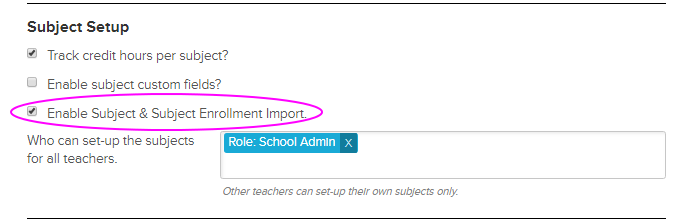
To enable the feature, go to SETTINGS > Turn Features On/Off > click Configure across Report Cards/Gradebook. Check “Enable Subject & Subject Enrollment Import” to enable the feature:

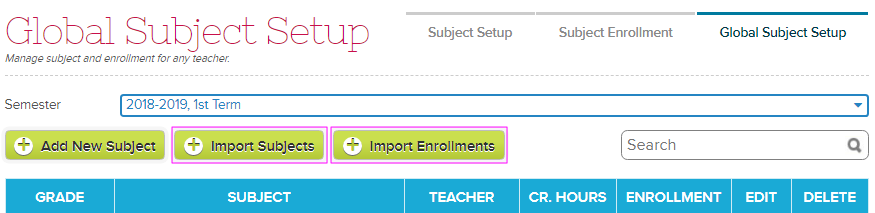
The “Import Subjects” and “Import Enrollments” buttons will now appear under Subjects > Global Subject Setup tab:

IMPORT SUBJECTS

Before you can import subject enrollment, you have to import the subjects first by clicking the “Import Subjects” button.These are the fields that should be contained in your file:Read More »

Copying Grades from one Gradebook to another

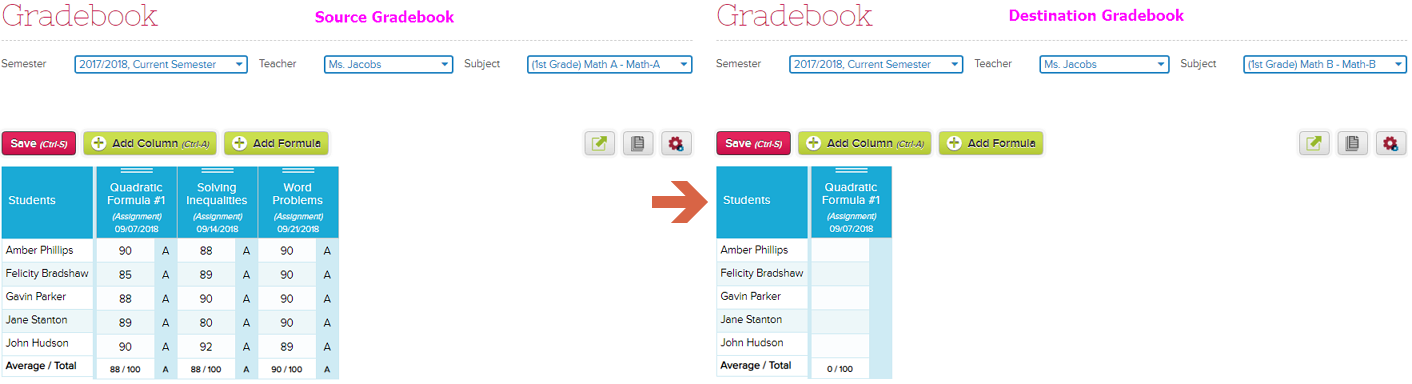
QuickSchools allows teachers to copy grades from one of their gradebooks into another existing gradebook. This could be helpful if the teacher needs to merge gradebooks, or if a student moves to another class.

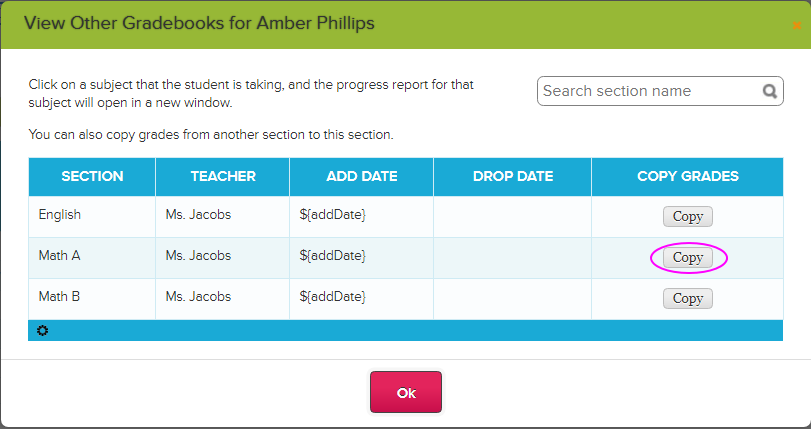
First, go to the Gradebook where the grades are to be copied into (i.e. the destination gradebook) and click any student name. This will bring up a window that lists all the subjects the student is enrolled in. Click the Copy button to start the copy of grades:

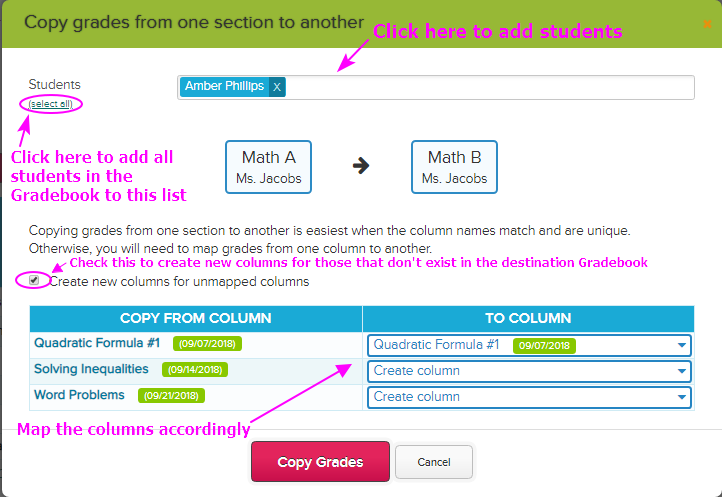
The ‘Copy grades’ window appears where you can add students whose grades need to be copied. You can also map the columns accordingly:

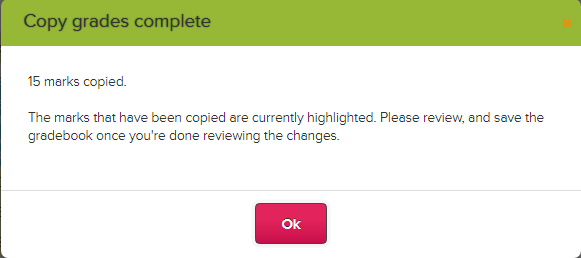
Click the Copy Grades button to initiate the copy. A popup window will appear to confirm the copy:

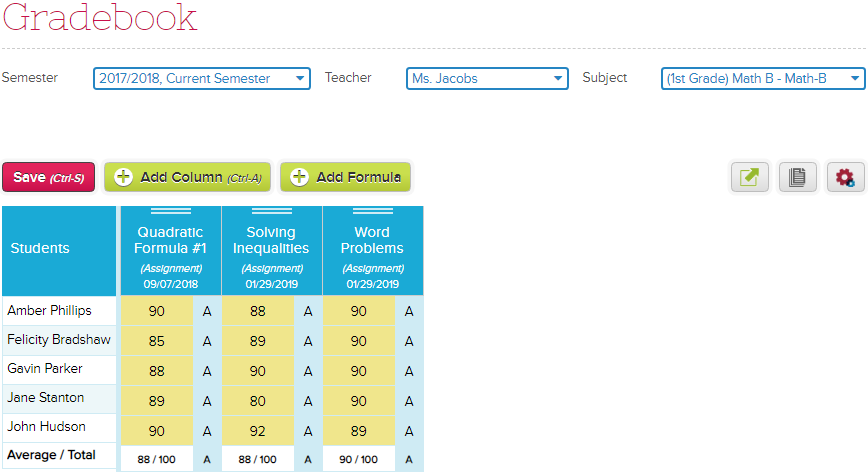
Review the grades then click Save to complete the process.

For more information, please click our support article here: Copy Grades From One Gradebook To Another

New Labels for Sign In/Out App

Quick update for anyone using the Sign In/Sign Out app from the QuickSchools app store! We recently changed the labels for this app, so if you are using the parent sign in option you will now see “Parent Sign-In/Sign-Out” instead of Sign-In/Sign-Out. If you are using the student sign in function you will now see “Student Sign-In/Sign-Out” instead of Sign-In/Sign-Out.1.24 Blog.png

If you have not had a chance to check out this app you can try it now. Just head over to our App Store while logged into your QuickSchools account. This app gives you the option to have parents and/or students sign in/out each day.

See more in how it works here: Sign-In/Sign-Out App

Learning Management (LMS vs. SIS)

While scouring the internet for a suitable system for your school, you may come across these 2 terms: Learning Management System (LMS) and Student Information System (SIS). The latter can sometimes also be referred to as a Student Management System (SMS). What are the differences? And what do you get with QuickSchools?

LMS and SIS actually occupy difference spaces in the market. But due to the nature of systems, and the tendency for schools to want to stick to ONE system/platform, the features of these 2 systems often overlap. We wrote about this a while back, in the article below. But we thought it’d be worth revisiting this topic, for schools that are considering either an LMS or an SIS:

https://blog.quickschools.com/2015/03/01/integration-to-learning-management-systems-lms/

So here is a rough comparison between the two types of systems:

Student Information System (SIS)

Learning Management System (LMS)

  • Focus is on record keeping (student info, attendance, grades, discipline, etc…)
  • Focus is on delivery of content to students (like homework assignments, tests, quizzes, etc…)
  • Primarily used by school administrators, but can extend to students, teachers and parents.
  • Primarily used by teachers and students, but can extend to parents and school administrators.

As mentioned above, even when a platform focuses on ONE key area/market, features often overlap. For example, it’s not uncommon to find an LMS that also tracks grades and attendance, and then produces report cards. You may also find an SIS that allows teachers to post homework assignments to students. But due to the focus of each system, report cards produced by an LMS is typically not as flexible as those produced by an SIS. And likewise, the ability to share content with students in an SIS is typically not as robust as with an LMS.

If you are looking for a single system that has both SIS and LMS features, here are some LMS features that QuickSchools currently supports:

The following LMS features are currently not yet supported in QuickSchools, so if these features are important you should consider a full-fledged LMS:Read More »