School is back! We wanted to make sure teachers are all set as you start the new school year. If you have new teachers going onboard, this article would be very helpful. For existing teachers, this is a good refresher!
Teachers need to effectively use Quickschools. So we are hoping teachers can maximize using the system to make their tasks simpler and to promote streamlined communication and collaboration with parents and students.
Our Teacher Portal video tutorial shows you how to get started with Quickschools and what are the things you can do using different modules (e.g. Gradebook, Attendance, Report Cards, Homework, etc.).
Aside from video tutorial, we also have a Getting Started article that you can read through: Getting Started As A Teacher
As you get the hang of using our system, we’d like to introduce how you can engage parents to help them track their student’s progress, or better yet, involve them in their student’s progress in school: Engaging Parents
And of course we are here for you if you have any question. Looking forward to hear from you, please chat with us!
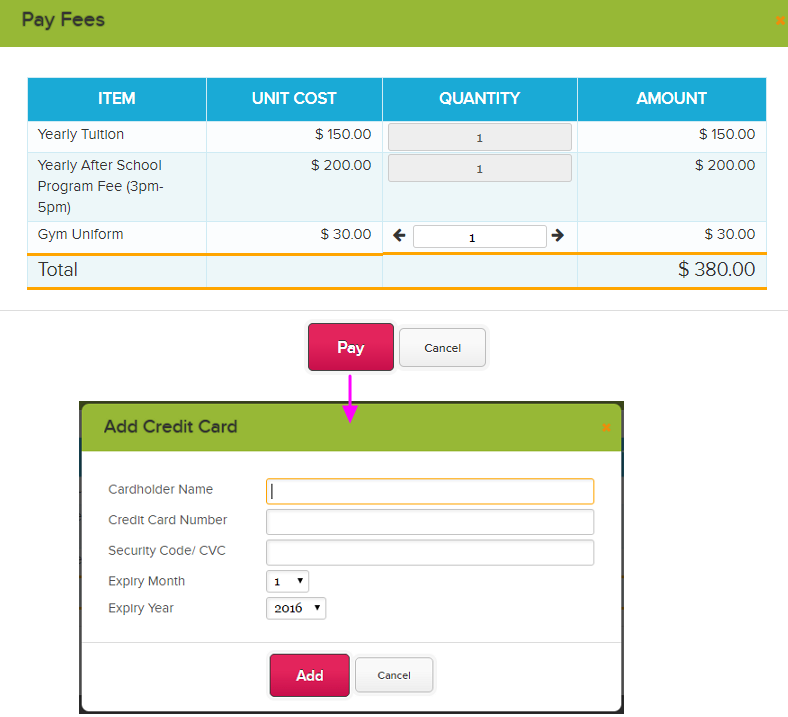
Quickschools allows parents and students to pay for their fees online. They can pay for their tuition fees, uniforms, books, etc. – basically any charge you set for the students. All they have to do is to log in to Parent Portal (for parents) or Student Portal (for students) to make payment using their credit card. To enable the Online Payments feature, click here.
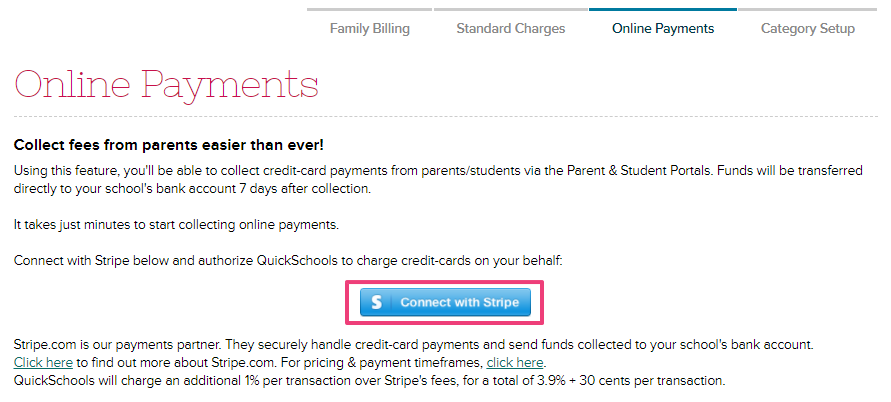
Set up your Stripe account with Quickschools via Online Payments tab under Fee Tracking
To see if Stripe is available in your country, click here.
After setting up your Stripe account with Quickschools, parents should be able to pay online via parent portal. The same goes for students via student portal if Online Payments has been enabled for them.
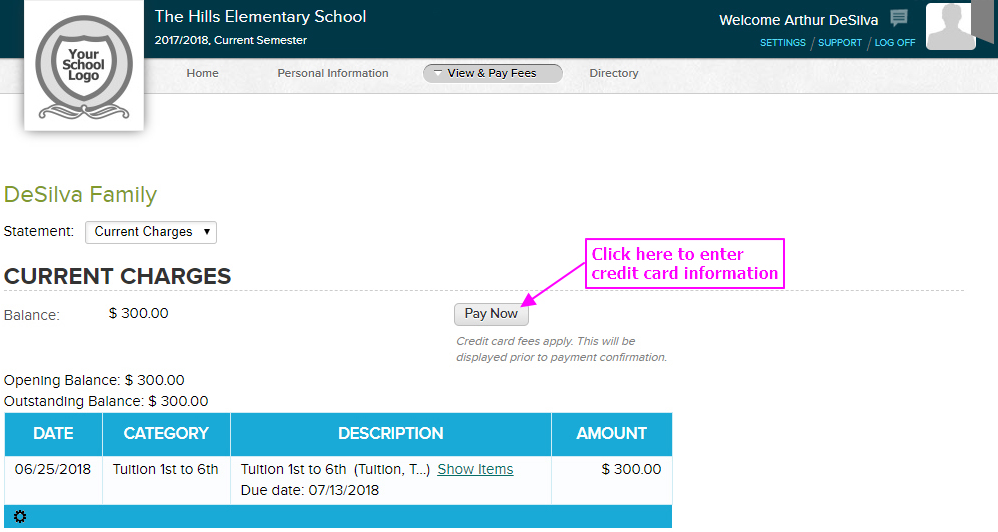
Parent Portal page where parents can initiate online payment.
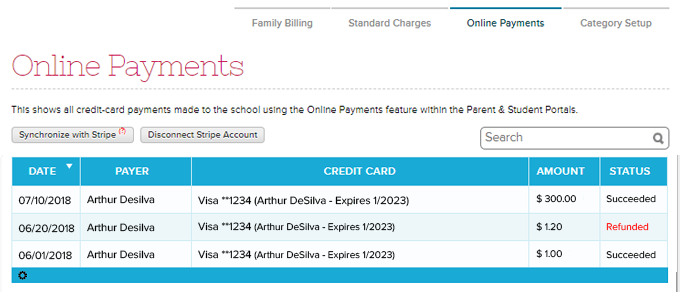
Payments made by parents will automatically reflect in Quickschools under Online Payments tab:
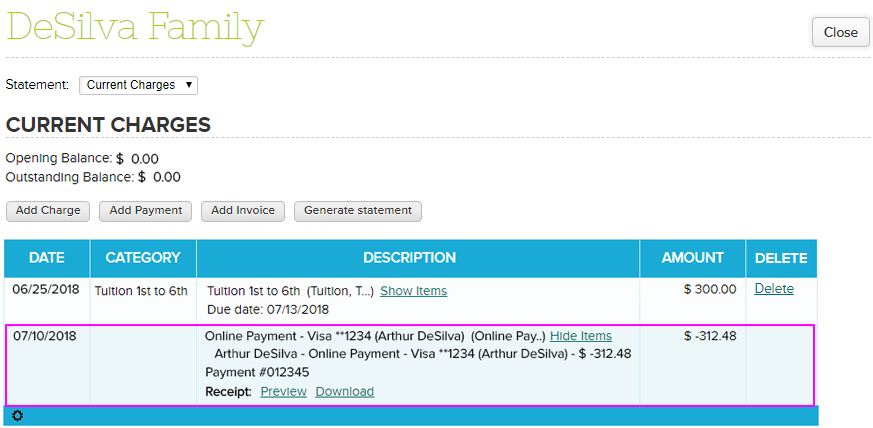
It will also appear in the student’s account under Family Billing/Student Billing:
Let us know if you have questions, come chat with us!
Using the Online Forms in QuickSchools, you can collect fees from parents or students. There are 2 options when collecting fees:
Immediate payment: pay using Credit Card upon completing the online form
Charge to account: students will be charged via Fee Tracking upon completing the online form
Immediate Payment
This option will collect payment before the parent/student can submit the form. You’ll need to set up the fees that need to be paid – and these fees will be shown to parents/students on the last step, right before completing the online form. Note: Stripe should be set up on your account for this to work
As you can see above, the parent/student needs to enter his/her credit card information to make payment, in order to complete the form submission. You can use this option for selling tickets to events (like an End-Of-Term Concert), or for products like T-Shirts and books.
The Online Forms module can be made accessible to the public, so you don’t have to be a QuickSchools users in order to submit (and pay for) forms. For more information on this method, click here.
Charge to Account
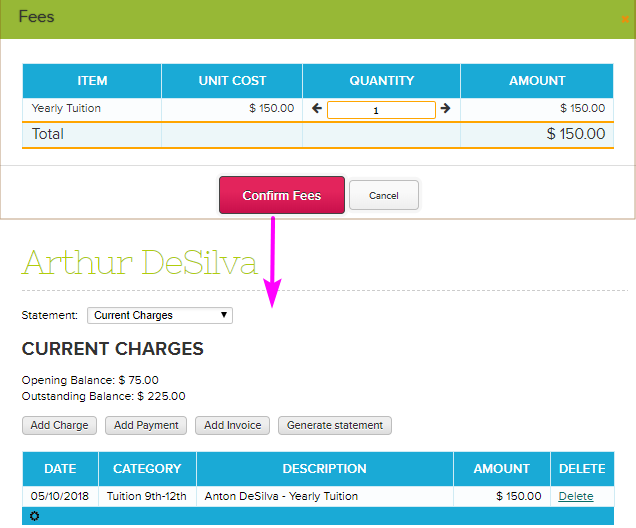
For this option, you’ll also need set up the fees to be paid. The parent/student will just need to confirm these fees before completing the form. The fee will be added to the student’s account under Fee Tracking as a charge and parents/students can make payment at a later time:
Since the fee will be charged to the students, this method is only applicable to students that already exist in the system.
For information in setting up this method, click here.
Please chat with us if you have questions. We’d be glad to help!
Summer is here and we are gearing onto the new school year. So if you’re new to QuickSchools, you may want a quick refresher on some of our modules available. Or you’re probably not new, but you have new teachers and staffs going onboard; our Training Packs would be perfect for you.
The Training Packs include two separate 1-hour training sessions. The first session is for school administrators, while the second training is for teachers and staff.
How it works
The training will be conducted via an online meeting / webinar (We typically use GoToMeeting, Fuze, or Join.me). If you’re interested in the training pack, contact us to arrange times for your admin training and your teacher training (they don’t have to be at the same time, or on the same day). We’ll send you a link for the webinar, and the training will be done online.
We recommend having a projector ready for training sessions with a lot of participants. It helps if each participant has a laptop, so they can walk through the various parts of the software, as we’re explaining the features and modules.
Once the training sessions are completed, you will see a bill for the training pack on your Account page. If you’re on a credit card subscription, you will be charged automatically in your next billing cycle.
Admin Training
So the admin training will include all things schools administrators need to know when setting up a QuickSchools account for the new school year. We discuss these steps quite extensively in this blog article:
Your trainer will be able to answer any questions you may have about setting up your account. So be prepared with any questions as well.
Teacher Training
During the Teacher Training, we’ll first go over the basics that every teacher should know, like how to log in and where to go for help. We have a short article about it here:
From there, we’ll go into all the modules available to your teachers (depending on what you have enabled for teachers). This will include the Teacher’s Lounge, the Gradebook, Report Cards, Attendance, Discipline, Homework, Online Class Discussions, and Private Messaging. We’ll also field any questions from teachers about specific setups.
How much does it cost?
Please email at support@quickschools.com so we can discuss the training cost with you.
For list of Professional Services, check out our Price List here.
At QuickSchools, we try really hard to be a one-stop shop when it comes to school management, with no hidden fees. Many of our schools are able to sign up for a trial, subscribe, and then use the software month-over-month completely on their own, sometimes even without using our awesome Live Chat support. Our software is pretty easy-to-use for many small schools.
But there are always schools that want to go the extra mile, and go beyond the existing off-the-shelf functionality and self-service customizations that are built into the software. And for those types of schools, we do offer several options for additional customizations and value-added services like online training and rollout support, as well as data migration services.
Here are some examples of items / functions that work off-the-shelf, but can also be customized for an additional fee:
Report Cards
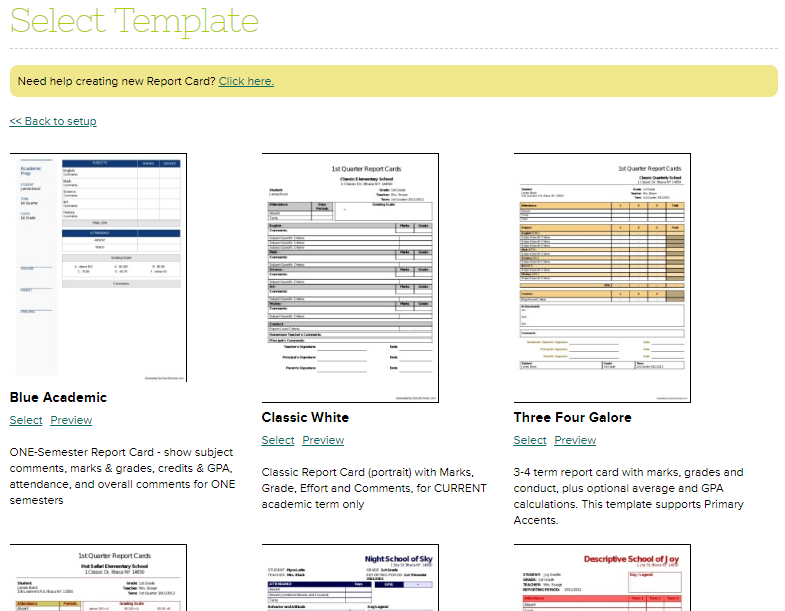
We have more than a dozen of templates that are completely customizable. You can rename fields, hide sections, and even change the colors. But if you absolutely need to build a report card template completely from scratch, we can do that too. Learn more here:
Our Transcripts module works just like our Report Cards, with many readily available templates that can be configured by an administrator. But if needed, we can build brand new custom templates for your transcripts as well.
System-Generated PDF Files
QuickSchools is able to generate printable PDF files of a wide variety of documents, including the Student Profile, Student Gradebook, and Financial Documents (like Statements, Invoices and Receipts). These documents can be customized for individual schools.
Printed PDF Gradebook with Comments
Online Forms
Our Online Forms module supports fillable PDF forms that gives you more flexibility in managing form elements and layout. If you don’t have the tool to build one or you don’t know how to build one, yet you prefer PDF online forms, we can build them for you.
Custom Calculations
Our Report Cards and Transcripts can be configured to display GPA, CGPA and Weighted CGPA based on points and credits. If you need custom calculations, that is also possible, not only in the Report Cards and Transcripts, but also in our Tabular Reports too. We can also custom calculate and apply charges to a student when an applicant is enrolled from the Admissions module.
Tabular (Excel-Style) Report
Quickschools comes with dozens of built-in tabular (Excel-Style) reports. Each module comes with its own set. The reports themselves have pre-set columns, but you can filter the data set as needed. You can also export the data into an Excel file for data manipulation on your own computer. If you a custom report built, we can do that for you too.
Listing of Custom Reports
Data Migration Services
We now support uploading of teachers, students, and even gradebook data from Excel into QuickSchools. And if you want to migrate historical data (like Attendance, Grades, Fees, Disciplinary Incidents, etc) for previous years, from either Excel or from an external (competitor) system, we can do that for you too. Check out this article for more info:
As you know, we try really hard to make the software as easy-to-use and easy-to-learn as possible. In addition to our Live Chat support, we also have built-in video tutorials as well as online manuals. You can read more about it here.
If you need something formal for your administrators and your teachers, we can do that too. We offer one-hour online training sessions. You can read more about out training packs here:
For more information on our customization services, please contact our support personnel, either via email (support@quickschools.com) or chat. Prices for customizations and value-added services are subject to change from year to year. We look forward to discussing your requirements further with you.
For list of Professional Services, check out our Price List here.
Quickschools allows schools to roll out application or enrollment forms to parents and students via online forms. These application forms can then be used to seamlessly enroll the students in the system – getting rid of the arduous manual entering of student information from hundreds of application forms.
Quickschools supports two online forms – one is via the Admissions module while the other one is via the Online Forms app. These are the similarities between the two modules:
Both handle the enrollment of new students, including inquiries
Both have an Online Forms component, for collecting data submitted online (from a public page)
Both support Email Templates, to correspond with inquiries and applicants
Both allow applicants to upload files
One thing to note is that the Admissions module is included in all subscription plans within QuickSchools, vs. Online Forms is a paid app. Having said so, the Admissions module is designed with simplicity in mind, so schools can make use of it quickly. The Online Forms on the other hand are designed with more robust functionality.
The table below shows the difference between the two:
Last week we talked about our ability to send email via Report Creator. This on-demand feature is very helpful in allowing users to send emails to parents, students, and even teachers, based on specific data in a report.
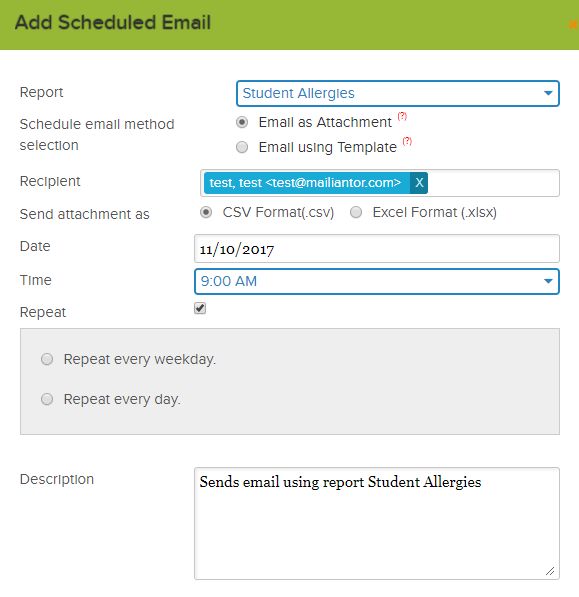
Taking this to another level – we are introducing a related feature called Scheduled Emails. It allows permitted users to create a report and send it at a later time. Still using Report Creator, you build your own report – then set the date and time that the report will be sent out to the specified recipients. The report can be sent once or repeatedly, depending on the schedule you set. For example, you can create an allergy report and send it as an attachment to your school nurse at a specific date.
Another example is to run a daily attendance report that contains those absent for the day, then send an email to the students’ parents – notifying them that their child is absent for the day.
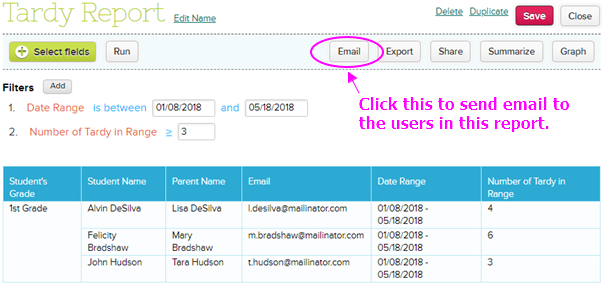
Need to take action based on a report? Quickschools supports custom reporting that allows you to explore data within your account, and then send emails to parents, students and even teachers, based on the data being reported.
The Report Creator is a flexible reporting tool that allows you to extract data from the various modules that you use within QuickSchools. You can sort columns and filter the result set to fit your requirements. The end result, is a dynamic and fully customized view into relevant areas of your data. Learn more here.
Once you’re happy with a report, you can actually take action from that report. For example, you can generate a report that shows students with more than 3 tardies in the semester – then send email to the parents of these students within the Report Creator’s email mechanism.
The “Email” feature within the Report Creator has full Mail Merge functionality. This means that you can insert text into your email based on the columns being reported in your report. This makes for a very powerful tool, where you can send out notifications to virtually anybody (as long as the email address appears as a column for Mail Merge purposes), based on any scenario that you can generate a report for.
Some other examples of reports that can be useful as a notification:
Students with more than X disciplinary incidents
Students who were absent for more than X days
Parents with outstanding balances in the Fee Tracking module
For more information on sending emails from the Report Creator, see our support article here.