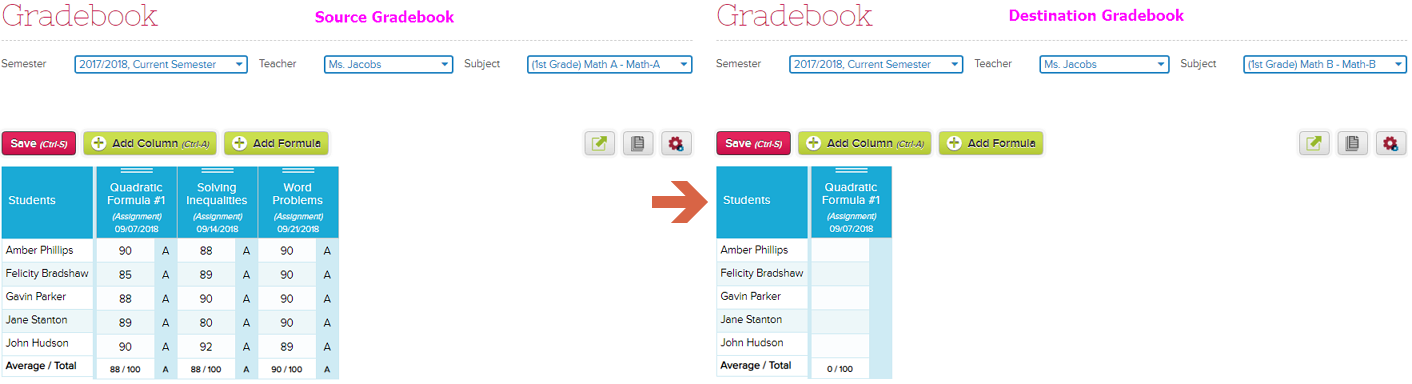
QuickSchools allows teachers to copy grades from one of their gradebooks into another existing gradebook. This could be helpful if the teacher needs to merge gradebooks, or if a student moves to another class.
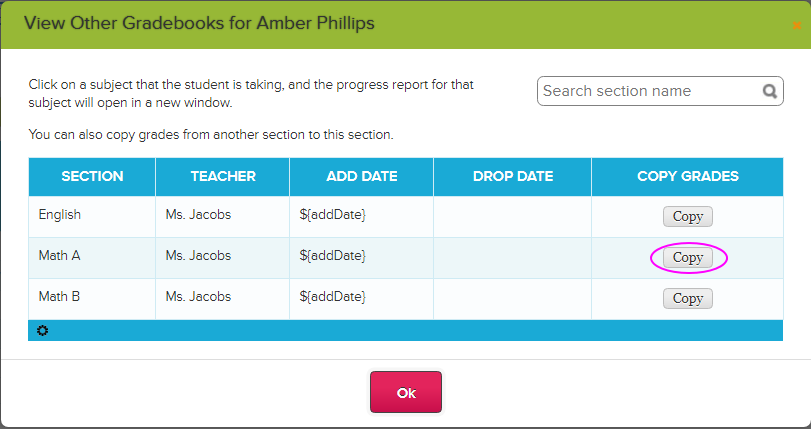
First, go to the Gradebook where the grades are to be copied into (i.e. the destination gradebook) and click any student name. This will bring up a window that lists all the subjects the student is enrolled in. Click the Copy button to start the copy of grades:
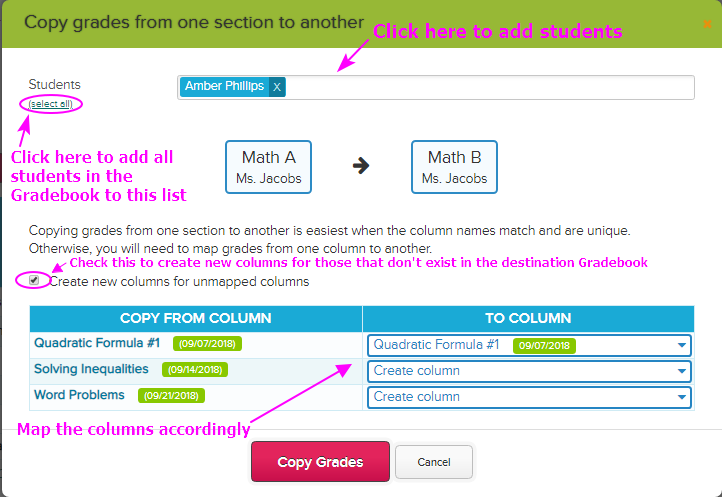
The ‘Copy grades’ window appears where you can add students whose grades need to be copied. You can also map the columns accordingly:
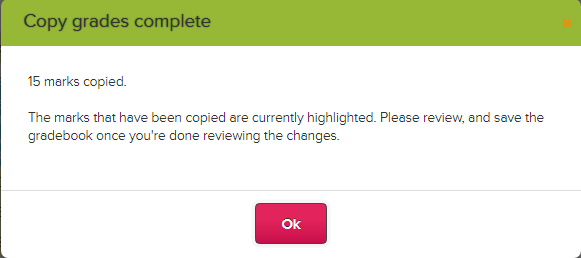
Click the Copy Grades button to initiate the copy. A popup window will appear to confirm the copy:
Review the grades then click Save to complete the process.
Quickschools allows school administrators to granularly control access to each module. Administrators can streamline access by using roles, or provide direct access to specific users.
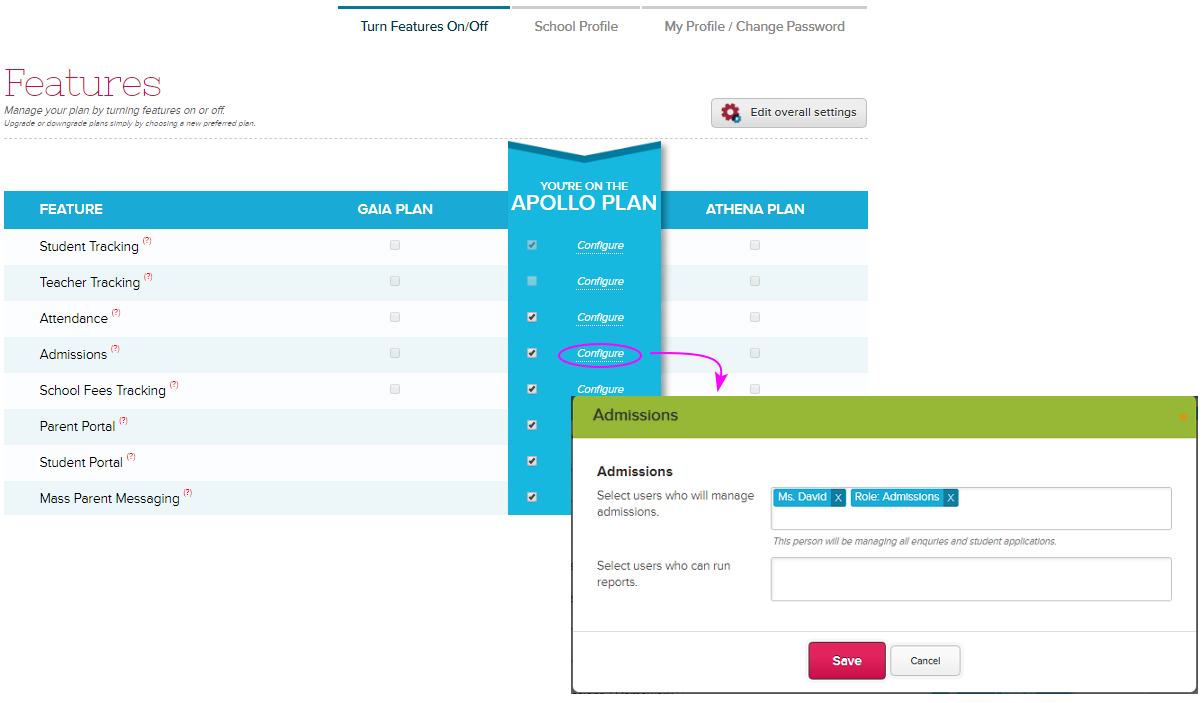
Using TURN FEATURES ON/OFF, you can specify which user or role/s has access to each module:
Role-based User Access
Creating a role allows you to streamline user access. Assign multiple users to the same role, and then assign access to that role. Each user assigned to that role will then inherit all access given to that role. So instead of allowing access to multiple users from the Features page, you can just enter the role.
For example, in the Admissions module, instead of entering 2-3 names in the list of users, you can create an Admissions role and just enter this role when assigning access to Admissions module.
To create role/s, click SETTINGS > School Profile > School Roles:
In our example above, the Admission role has access to the Admissions module, but you can also give it access to other modules like say the Students module. So if you have a new Admission staff, simply add the user to the Admissions role and he/she will instantly have access to all assigned access, which in this example would be the Admissions and Students module.
In QuickSchools, academic terms are self-contained, meaning that when you edit/create subjects and enrollments in one semester, it does not affect other semesters within your account. Before activating a new term, we recommend checking out this article: Checklist when Transitioning to a New Term/Semester.
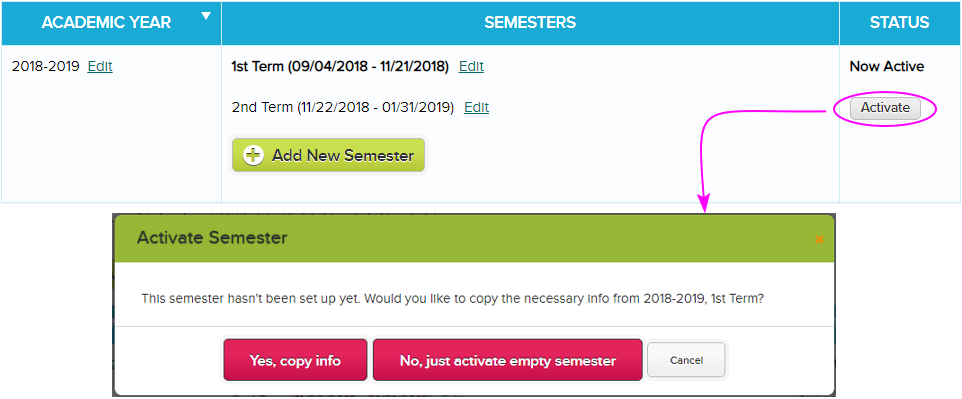
To activate the next term, go to New Semester Setup > View All Semesters > click Activate across the new term:
Activating the next term
Note: If you have not added the new term, click the Add New Semester button to create one.
In activating the next term, you’ll have the option to copy info from the active term or activate an empty semester:
Yes, copy info(Recommended) – the system copies all data from the active term into the new term. Subjects and enrollments are carried over – so you’re pretty much all set for the new semester. Note that some modules are reset so you’ll have a fresh semester to accommodate new data. This way data are separated by terms. Modules like Gradebook, Homework, Class Discussions, and Scheduling are blank when you start a new term.
No, just activate empty semester – you’ll get a new semester without subjects, grade levels, and homerooms. So all students won’t have assigned grade levels, no homeroom enrollments, and no subject enrollments. You’d have create the student grade levels and homerooms, then assign to students. You also need to create new subjects and enroll the students accordingly.
Once you have activated the new term, teachers can start doing the following on the fresh semester:
Take attendance
Enter grades in the Gradebook
Post homework, lesson plans, Class Discussions
Admins can also start creating report card for the newly activated semester (only if done with the previous semester’s report cards).
Important Notes:
In this article, the word TERM is also equivalent to SEMESTER and QUARTER. It simply refers to your grading periods within an academic year.
The instruction in this article shows how to activate a new term within the same academic year. If you need to activate a new academic year’s semester, check out our article – Creating New Academic Year.
We’re gearing towards the end of the term, what should I do to ensure I’m set for the next term?
Note:In this article, the word TERM also equates to QUARTER and SEMESTER – however you call the grading periods in your school.
The list below will help you identify if you’re ready for the next term:
Teachers are done taking attendance for current term
Teachers have completed entering Gradebook grades for the current term (but there’s a way for teachers to enter grades for the previous term, see below)
Report Cards grades are correct, and teachers are pretty much done entering comments in it.
No pending tasks on all the other modules like Homework, Class Discussions, etc.
Once you’re done with the items listed above, you’re all set to move to the next term. Click here for instructions in creating and activating a new term. After activating the new term, you’re good to go. Teachers may start entering attendance, grades, homework, and other data for the new term.
We’ve put in some FAQs that might be helpful for you:
1. When do I activate the next term?
Answer: We recommend activating the next term when the current term is about to end. This is to ensure that the latest data from the active term are copied into the next term.
In activating the next term, the system copies data from the active term into the new term. So if you added new subjects and enrollments after activating the next term, these data won’t appear in the next term; you’d have to recreate them in the next term.
2. Can we activate the next term ahead of time so we can start creating schedules, posting homework, etc.?
Answer: Yes, just take note of the things mentioned above.
3. What if I activate the term late?
Answer: Best practice would be to activate the new semester before it starts. This is to avoid possible problems it can cause to the teachers:
Attendance entered in the wrong semester
Grades entered in the previous semester’s Gradebook (e.g. Term-2 grades entered in Term-1 gradebook)
Homework, Lesson Plans, Class Discussions posted in the wrong semester
4. Can teachers enter grades in the Gradebook for previous terms?
Answer: Yes, the teacher simply needs to select the previous semester in the Semester drop-down box
5. Teachers are still entering comments in the Report Cards, can I go ahead and activate the next term?
Answer: Yes, you can migrate to the next term even if the teachers are still working on the current term’s report cards. Report Cards remain unlocked and editable until you lock/publish them. For more info in publishing report cards, click here.
6. What data gets copied into the new term?
Answer: When activating a new term, you’ll have the option to copy data from the currently active term:
The system copies all data, but some modules are reset so you’ll have a fresh semester to accommodate new data. Modules like Gradebook, Homework, Class Discussions, Scheduling, etc. are blank when you start a new term.
If you activate an empty semester though, you’ll get a new semester with blank subjects, grade levels, and homerooms. So all students won’t have assigned grade levels, no homeroom enrollments, and no subject enrollments.
Quickschools offers a new way to take attendance! Seating arrangement allows teachers to easily spot who’s absent in the class – and makes taking of attendance way easier. Having said so, we are introducing a new app called Homeroom Attendance Seating Chart. Teachers can then easily mark absent students in a single glance. No need for a roll call!
This feature currently supports Homeroom Attendance.
If you want to use this feature, simply download our app via APP STORE. For instruction on how to install and set this up, please check out our Support Site article: Homeroom Attendance Seating Chart
Quickschools provides an efficient way to add student and teacher information in bulk — by importing information from an excel file. To do this you need to have your data accessible in an Excel file, one with either an “.xls” or “.xlsx” extension.
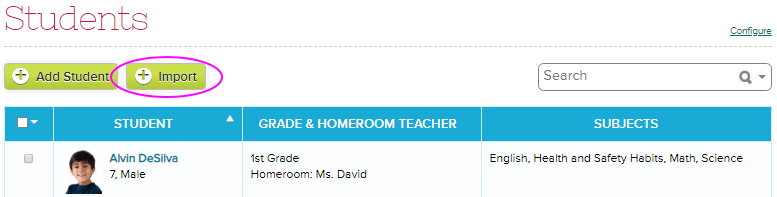
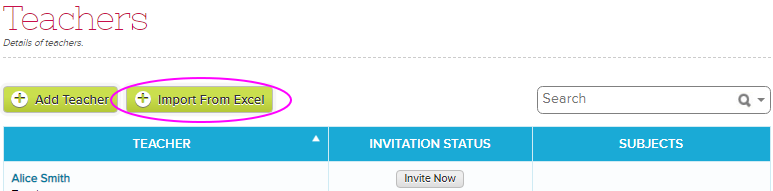
To initiate the import, simply click the Import button under Students/Teachers tab:
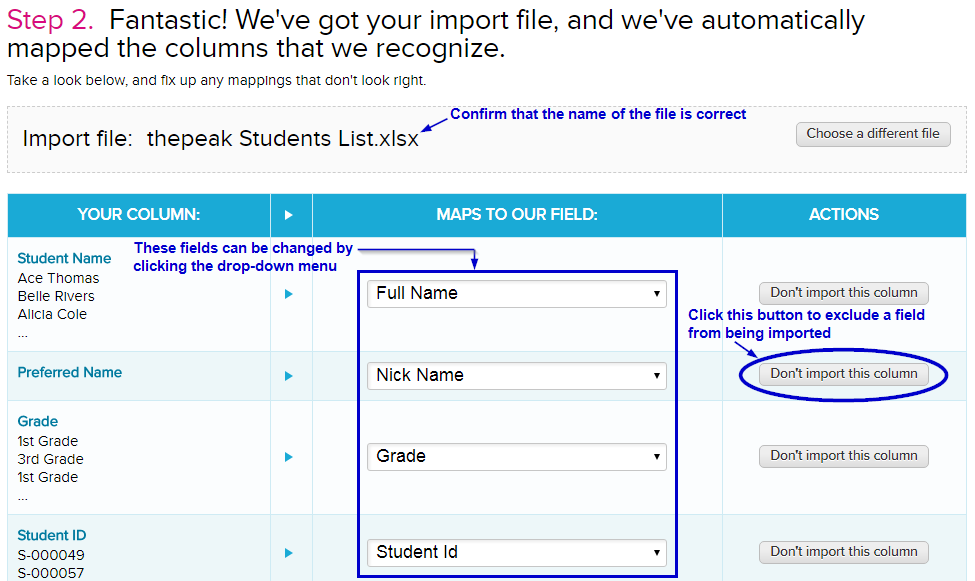
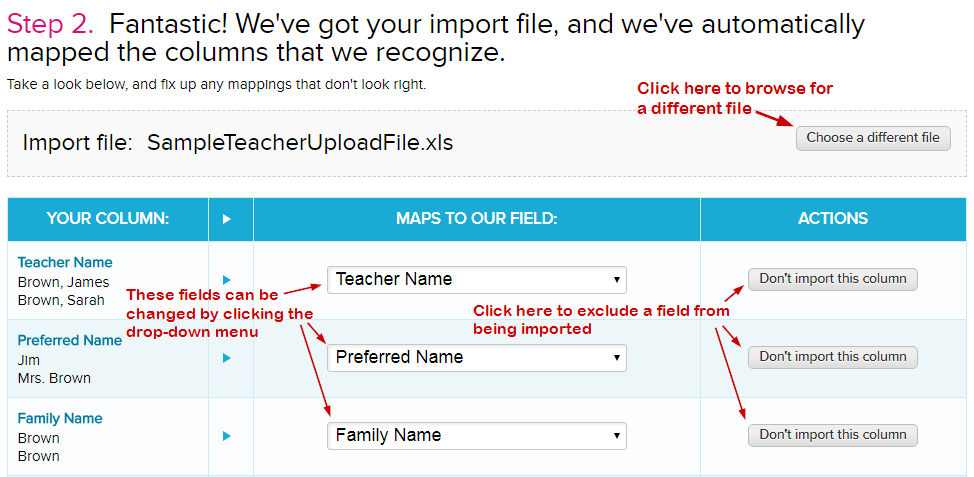
QuickSchools will automatically analyze your file and map commonly-named columns to the fields in QuickSchools. But you can override the mapping as you see fit:
Student Import mapping
Teacher Import mapping
You can also use this procedure to update student and teacher records. To update student records, your import file simply needs to contain the student names that match the student names in the system. During the import, when the system finds an existing record for a student on file, it updates the existing record instead of creating a new one. The same goes for updating teacher information via Import.
TIPS
When updating student records, the name in the file needs to be an EXACT match of the student name in the system (no extra spaces, case sensitive); Otherwise, Quickschools will create a new record for the student.
To avoid creating new student records instead of updating existing ones, we recommend including the Student Number/ID in the import file. In doing so, the system will match students based solely on the Student Number/ID. This will address situations where you may have multiple records with the same exact name.
Quickschools Parent Messaging allows school users to send messages to parents, students, and teachers via email, text (SMS), and voice message. These school users are the teachers, staffs, school admins, etc.
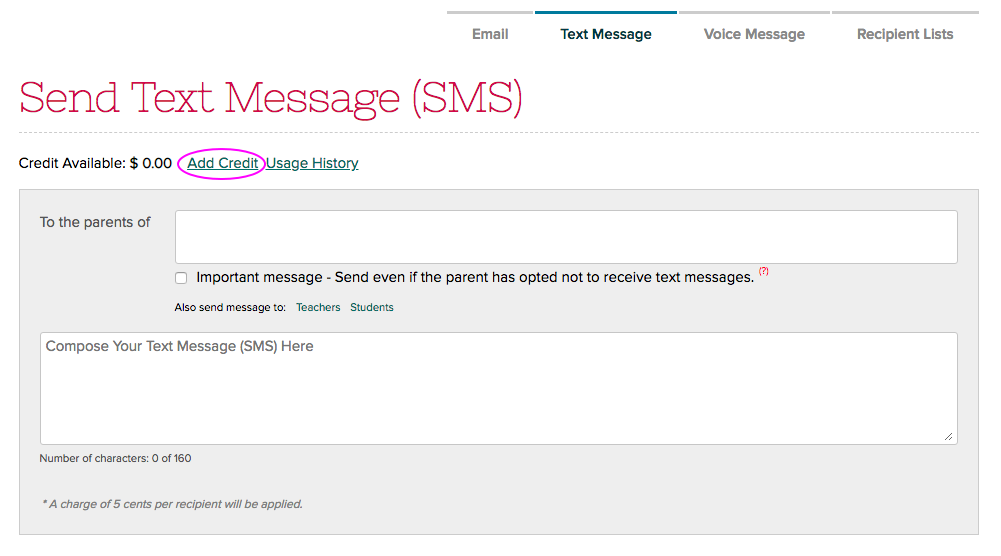
Sending of emails is always freely available even for trial subscriptions. Text and voice messages on the other hand follows a pre-pay system so you’d need to purchase a credit to use them. This credit gets used up as you send out messages via text or voice.
To purchase a credit, your account needs to be subscribed with Quickschools. You’ll have the option to buy credit once you have subscribed:
After buying a credit, the Send Text Message and Call Phones buttons become available so you can start sending text and voice messages:Read More »
The QuickSchools Gradebook is one of our core modules and we spend a lot of time making sure teachers have the best possible experience when working with it. We’ve been taking teachers’ feedback and have made a lot of improvements over time.
We’ve organized different articles and tailored them for admins and teachers. Please see the list of articles below.
Gradebook Setup for Admin
Administrators can easily and conveniently configure Gradebook Settings for the entire school via the Grading Setup menu. These settings will be reflected in every teacher’s Gradebook. Check out the article here: Gradebook Setup For Admins
Gradebook Setup for Teachers
Teachers can set up their own grading scales and categories if permitted by the school admin. Otherwise, they have to use what the admins have centrally set up for the school. But teachers can configure other Gradebook settings based on their preference. Learn more from the article: Gradebook Setup for Teachers
Gradebook Basics – How to use the Gradebook
Now that your Gradebook is set up, let’s go through some of the basic functions you can use when entering grades.
Adding Columns
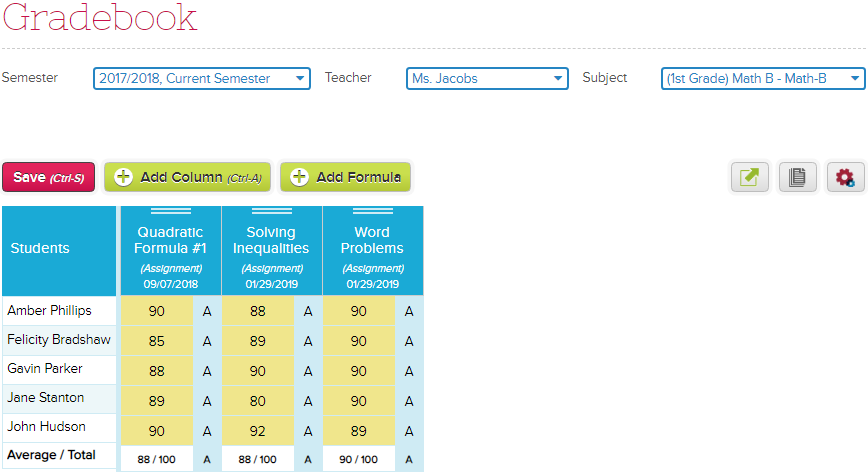
To add a new column to your Gradebook, click on the green Add Column (Ctrl-A) button. You can enter the Column Name, Category, Date, and Total Marks.
The Category is useful for grouping similar items together when using formulas. The Total Marks is the maximum mark for the assignment. This is not the weight of the assignment in the overall grade. You can also award extra credit by entering a mark that is higher than the Total Marks.
Once you’ve entered the information, click Add to create the column.
Adding Grades
Adding grades is easy. Simply click on a cell and enter the student’s grade. You can use the Tab key to move from one cell to the next.
You can also use the Gradebook legend to enter descriptive grade values. Keep in mind that blank cells are not counted as zeroes, while cells with a zero are counted as zero.
Adding Notes
You can add notes to individual grades in the Gradebook. These notes can be either public or private.
Public notes can be viewed by the student, parents, and faculty/staff, while private notes can only be viewed by faculty/staff. To add a note, hover over the grade cell and click on the speech bubble icon. Enter your comment and click Add Comments.
Saving Your Gradebook
The Gradebook does not automatically save your changes, so remember to save your work regularly.
You can click the red Save (Ctrl-S) button or simply use Ctrl-S on your keyboard.
Switching Subjects or Sections
If you teach more than one subject or section, you can switch between them using the subject selector near the top-right of the Gradebook. Click on the selector and search for the subject or section you want to view.
Gradebook Views
The Gradebook has two views: Normal and Full Screen.
Full Screen view can be useful when working with larger Gradebooks, while Normal view gives you a more compact and holistic view of the Gradebook.
Advanced Gradebook Features
Once you’re familiar with the basic Gradebook functions, there are a few more advanced features that can make grading easier.
Formulas and Weight Factors
Formulas allow you to calculate grades based on different groups of assignments. To add a formula, click Add Formula and enter the formula name, total marks, and other details.
You can also use Weight Factors to assign different percentages to different categories. For example, you could give Tests 30%, Projects 20%, Homework 35%, and Participation 15%.
If the formula is going to be used as the final grade for report cards or progress reports, make sure to enable Is final grade?. Only one final grade should be set for a Gradebook.
Extra Credit
Extra credit can be set up using an Extra Credit category and formulas. This allows you to give students additional marks without changing the regular grading structure.
Gradebook Templates
If you use the same Gradebook format for different grading periods, sections, or subjects, Gradebook Templates can save you time.
To create a template, click the stack-of-papers icon and select Templates, then click Create Template. The template takes a snapshot of the current Gradebook columns and formulas.
You can edit the columns, change their order, delete columns, or add new ones. Formulas are preserved in the template. You can also choose to share the template with all staff/faculty.
Once a template has been created, you can find it under Templates and click Insert to use it in another Gradebook. Be careful when inserting a template more than once, as this will create duplicate columns.
Exporting and Printing
There are several ways to export or print information from the Gradebook.
To export the entire Gradebook, click the stack-of-papers icon and select Export. The Gradebook will be exported as a CSV file.
You can also select Print to print or download the Gradebook. There are several options available, such as including students with no grades, dropped students, student names or student numbers, and choosing how many columns to display per page.
You can also print Progress Reports for selected students or all students, as well as generate a Missing Grades / Ds and Fs Report.
Auto-Filling Grades
If you need to enter the same grade for several students, you can use the Auto-Fill feature.
Hover over the top cell of a column and click the pink arrow. Enter the mark you want to use and, if needed, select the option to fill only empty cells. Then click Auto-Fill Column and save your Gradebook.
Customizing Gradebook Settings
You can customize several Gradebook settings by clicking the pink gear icon.
Here you can choose whether to show letter grades and class averages, change the way student names are displayed, change the column order, and hide columns by date. You can also change the grading scale if you have permission to do so.
Remember to save your changes when you’re done.
Frequently Asked Questions
What is QuickSchools Gradebook?
QuickSchools Gradebook is a grading management module that allows teachers and schools to manage student grades, assessments, and grading configurations.
Who uses QuickSchools Gradebook? QuickSchools Gradebook is used by: Teachers managing student grades Administrators configuring grading settings
Can administrators control Gradebook settings? Yes. Administrators can configure Gradebook settings for the entire school through the grading setup area.
Can teachers customize Gradebook settings? Yes. Teachers can customize available Gradebook settings if allowed by school administrators.
Can teachers create their own grading scales? Teachers can create their own grading scales and categories if school permissions allow it.
What happens if administrators restrict Gradebook settings? Teachers must use the settings configured by administrators for the school.
Does QuickSchools provide Gradebook training resources? Yes. QuickSchools provides documentation covering Gradebook setup, basic usage, and advanced features.