The Lunch Ordering App will be receiving a big update this summer. QuickSchools will soon be supporting Online Payments for Lunch Orders. Parents and teachers can pay for meals online before orders are sent to the school for fulfillment.
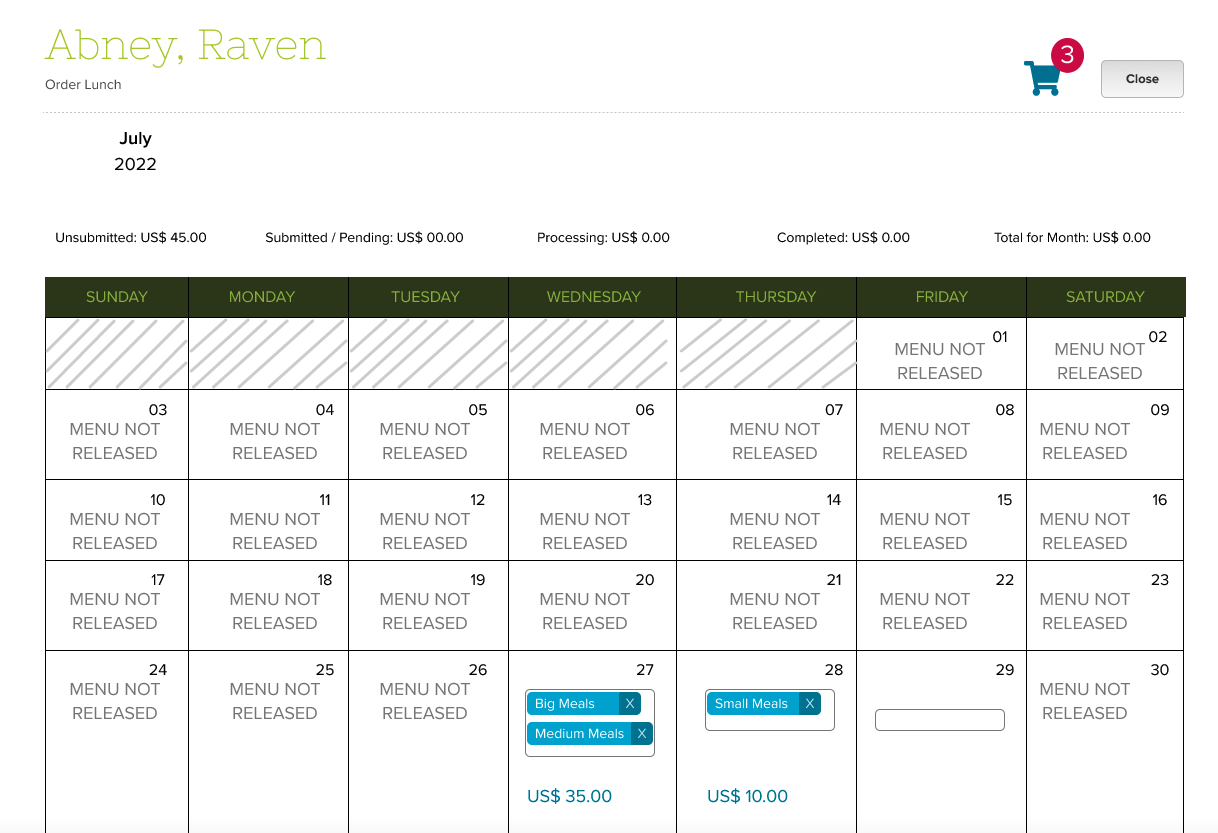
This improvement does not change the existing flow for selecting meals. Users will see a Calendar view of all meals offered. However, instead of seeing a “Submit Order” button, users will see a Shopping Cart icon at the top:
Clicking on the Shopping Cart icon will display all meals that have been added to the Shopping Cart:
In today’s release, we’re including framework improvements for our upcoming Lunch Order and Shopping Cart modules. The release also includes a mix of improvements to the Orchestra Master Scheduler, Admissions, Sign-In/Sign-Out, and security, just to name a few.
Step 4 Scheduler supports color-coding without “Organize by department”
Here is a list of the latest QuickSchools improvements:
Master Scheduler Improvements
Color Code Step 4 when “Organize by department” is not enabled (See above)
Security Improvements
General Security Improvements
Improve Privacy on Test Server
General (Functional) Improvements
Ability to hide Admissions Application Statuses (See below)
Show Custom Fields for Documents on Student record
Importer for Sign-In/Sign-Out App (See below)
Improve Report Creator support for Sign-In/Sign-Out App
General Bug Fixes
Improve Support for Disputed Charges in Fee Tracking with Online Payments
Improve Support for OneRoster (v1.1) Integration
Upgrade Text Messaging Framework
Bug Fix Alerts Framework for deleted parents
Bug Fix when adding new Online Test
Other Server Updates
Beta Improvements / Fixes
Lunch Ordering Support for Online Payment
New Shopping Cart Framework
Ability to Share Dashboard
Improvements to Bulk Charge Credit Cards via Standard Charges
Add support to disable Auto-Enrollment for Canvas Integration
Add support to automatically Un-enroll students for Canvas Integration
Fix District-Wide Students for Group School
Hide Application Status
In the Admissions module, when configuring the Application Statuses, you now have the option to hide certain status:
Your school is under new management, or perhaps has merged with another school, and you want to rebrand. Perhaps your school name has changed? Or, you have a new logo? Or, you have a new color scheme to promote your brand? What are the options available to you?
Here, we discuss the various steps you can take to re-customize the experience for users accessing your QuickSchools account.
Change Basic Profile Details
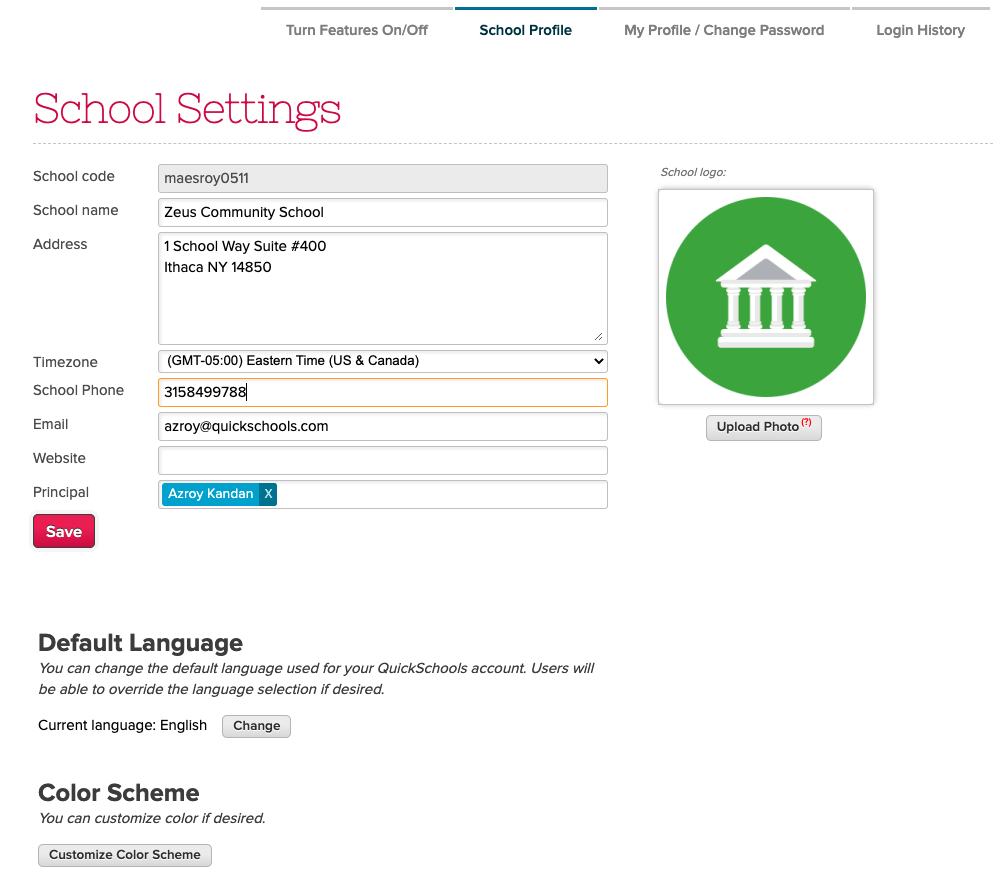
The first thing you should do as the school administrator is go to “Settings” > “School Profile”, and change the basic profile information for your school, such as your school name or uploading your new logo. This includes things like:
School name
School address
Contact info (Phone and Email)
Website
Color scheme
School logo
Update School Details under “School Profile”
The one thing you’ll note is that the School Code cannot be changed. This is because we use the School Code to partition your data into its own database. As such, this field cannot be changed once assigned to a school.
A lot of schools are okay with leaving the URL as-is because it does not incur any additional cost or effort. If changing the URL is important, there are a few options available to you:
Set-Up a Custom Domain
Create a new account
Migration via Group School
OPTION 1: Set-up a Custom Domain
QuickSchools offers a Custom Domain App. By using this app, you can set up your own URL for accessing your QuickSchools account. This option requires the least effort. However, the Custom Domain App incurs a monthly subscription. You will also need to register for your own custom domain and provide an SSL certificate from your provider.
In today’s release, we continue to make security improvements, PLUS a mix of improvements to the Orchestra Master Scheduler, Online Forms, Fee Tracking, and the Report Creator, just to name a few.
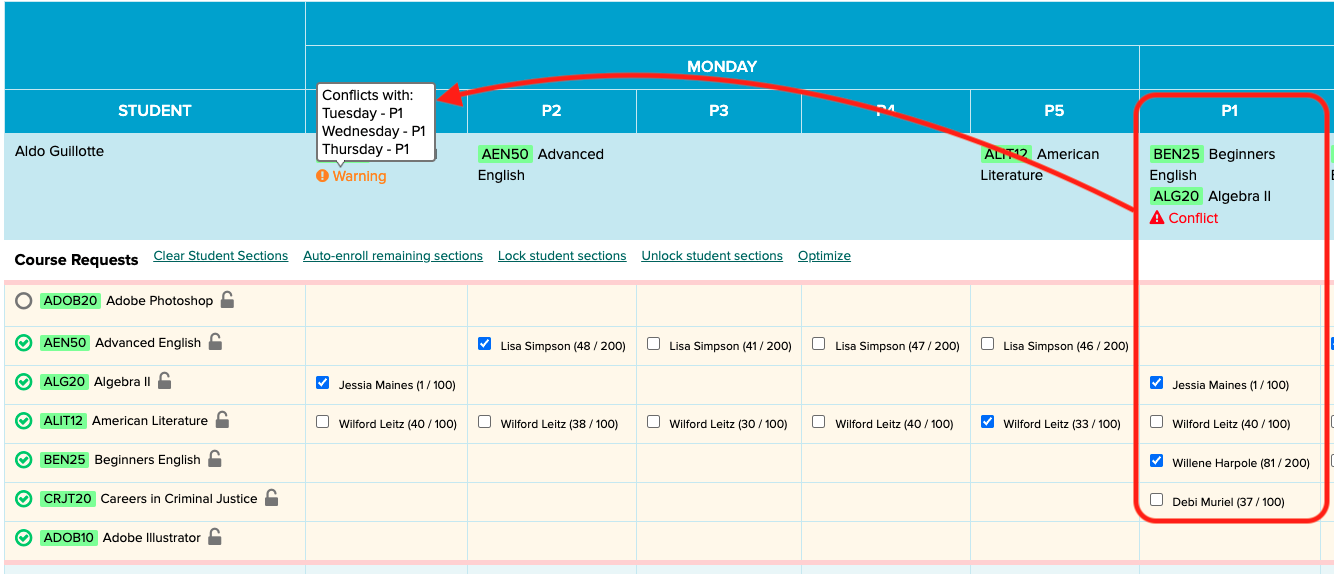
Master Scheduler now shows multi-period conflicts in Step 5
Here is a list of the latest QuickSchools improvements:
Master Scheduler Improvements
Improve visibility for Conflicts in Step 5 (for Weekly Schedule)
Option to Hide/Remove Course Requests in Step 5
Fix Conflicts tab in Step 4
Security Improvements
2-Factor Authentication (2FA) via Email (See below)
Option to reduce Login Email Alerts based in IP Address
Other Security Improvements
General (Functional) Improvements
Online Forms Option to charge fees by Grade Level (See above)
Option to require files for upload when inviting applicant in Admissions module
Improve support for ACH only in Student/Parent Portal
View Assignments from Student Portal when clicking “Show All”
Improve notifications for scheduled tasks
General Bug Fixes
Bug fix for missing features based on roles
Bug fix when scheduling Live Stream with repetition
Bug fix School Message Board on Student Portal
Beta Improvements / Fixes
Option to automatically hide Transcript grades from future semesters
2-Factor Authentication
In our effort to improve security, we are building support for 2-Factor Authentication (2FA), starting with email. This feature can be turned on for the school under “Edit Overall Settings” (under “Settings” > “Turn Features On/Off”):
You may have received an email notification recently from QuickSchools letting you know about a new login to your account. This is a new security-related feature that was released recently. Basically, any time someone logs into your account either via a new IP address, or a new device, QuickSchools will send you an email notification.
Notification on “Login from New Device”
Recent Security Improvements
There are several other security-related features included in our recent release. In addition to new login, QuickSchools will also send out an email notification if you (1) change/reset your password, or (2) add/remove users to the School Admin role. Finally, with this new release, if you do change your password, anybody currently logged into your account will automatically be logged out.
If you notice any strange activity in your account, please change your password immediately. You should also contact your school’s administrative team, or contact QuickSchools support for assistance. We can help track down what might have happened to your account.
Security-Related Summary Reports
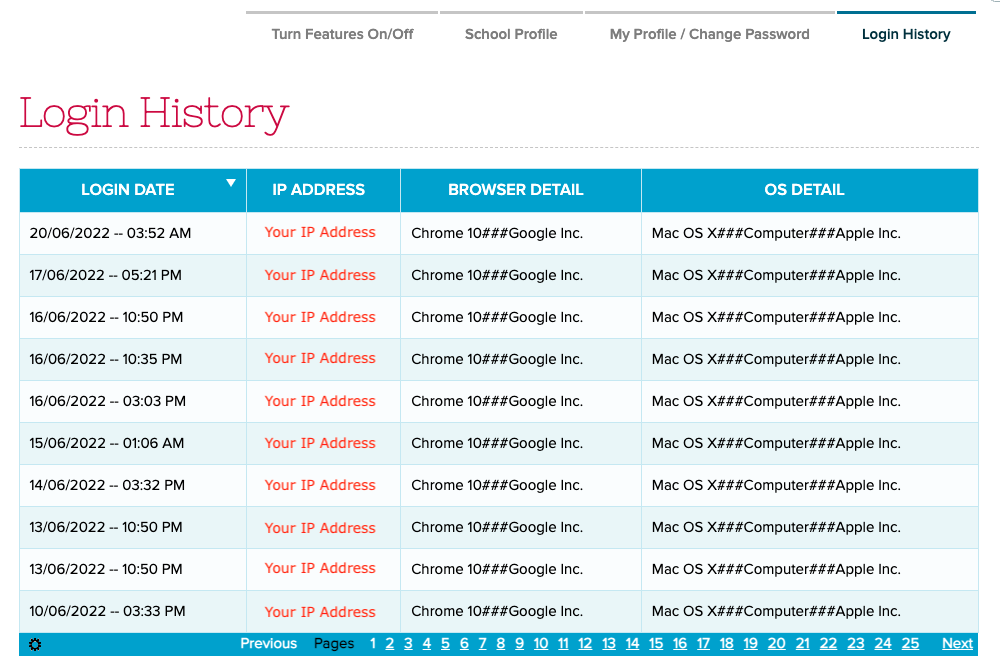
As a school administrator, you have access to Summary Reports that show user and login history. In particular, the “Portal Login History” Summary Report shows the history of all logins for any user in your school:
Today’s release contains several security-related improvements PLUS a mix of improvements to a variety of modules that include Orchestra Master Scheduler, Admissions, Standard-Based Gradebook, Fee Tracking, and the Report Creator, just to name a few.
Improved Security with New Email Notifications
Here is a list of the latest QuickSchools improvements:
Master Scheduler Improvements
Improve new “Scheduling Algorithm” in Step 4
Refresh list of Subject Areas when new subject area is added
Report Creator support for Day and Time in Bell Schedule
Security Improvements
Notification Email when logging in from New Device
Notification Email when School Admin user is added/removed
Notification Email when password is changed
Clear active sessions when password is changed
General (Functional) Improvements
Ability to relabel period names for Subject-Based and Period-Based Attendance (See below)
Ability to unselect radio button when taking attendance
Ability to schedule tasks for every other week (i.e. Bi-Weekly)
Reformat Student Name when converting Inquiry to Application (in the Admissions module), based on configured Student Name format
Report Creator support for (1) subject Custom Fields and (2) Online Payments
API Support for OAuth2
General Bug Fixes
Fix Subject line when using Email Template from the Admissions module
Fix Family Name tag when using Email Template from the Admissions module
Beta Improvements / Fixes
Bulk Charge Credit Card using Standard Charges (See Below)
Improve Search Student specifically by Student Name, Grade Level or Tag
Ability to hide “View Complete Record” from Student Portal
Ability to restrict deletion of Fee Tracking transactions to specific users/roles
Ability to disable “Add Standard” for teachers in the Standards-Based Gradebook
Ability to disable “Override Gradebook Settings” for teachers in the Standards-Based Gradebook
Ability to hide “Call Number” when creating new books in the Library App
Show Subject Abbreviation is Student Self-Enrollment History screen
REST API support for OneRoster v1.1
Improve framework for Integration via File Transfer (SFTP)
Relabel Attendance Periods
You can now relabel the period names for Period-based and Subject-based Attendance. Just click on the new “Customize Period Names” button under “Attendance” > “Settings”: