Doing my own Back-Ups

As part of our service to schools, QuickSchools backs up your data regularly in multiple ways, in order to protect against unforeseen circumstances. This includes: 

  • Real-Time database replication to a separate server instance
  • Daily Database Back-ups, where files are secured to a separate physical location (within the AWS infrastructure)
  • Incremental database back-ups, also secured to a separate physical location (within the AWS infrastructure)

These backups are used solely by QuickSchools, in order to protect against unforeseen circumstances like hardware failure, and disruptions to data facilities. Details for these processes will be discussed in more detail in a separate article.

But if you’re looking to perform your own back ups, for your own peace of mind, or for transferring data to another system, there are a few options which we’ll discuss here. Summary of available methods include:

  • Export Data via Report
  • Download Generated Files (i.e. Report Cards, Transcript, Gradebook PDF, etc)
  • Data from Apps (eg. Online Forms App, Master Scheduler App, etc)
  • Advanced (XML) Back-Up

Export Data via Report

The primary method for backing up your data is simply to download them via the related reports. Data can be downloaded in CSV or Excel format. Just go to “Reports” > “Summary Reports”, and click the “Excel” button for any of the reports:
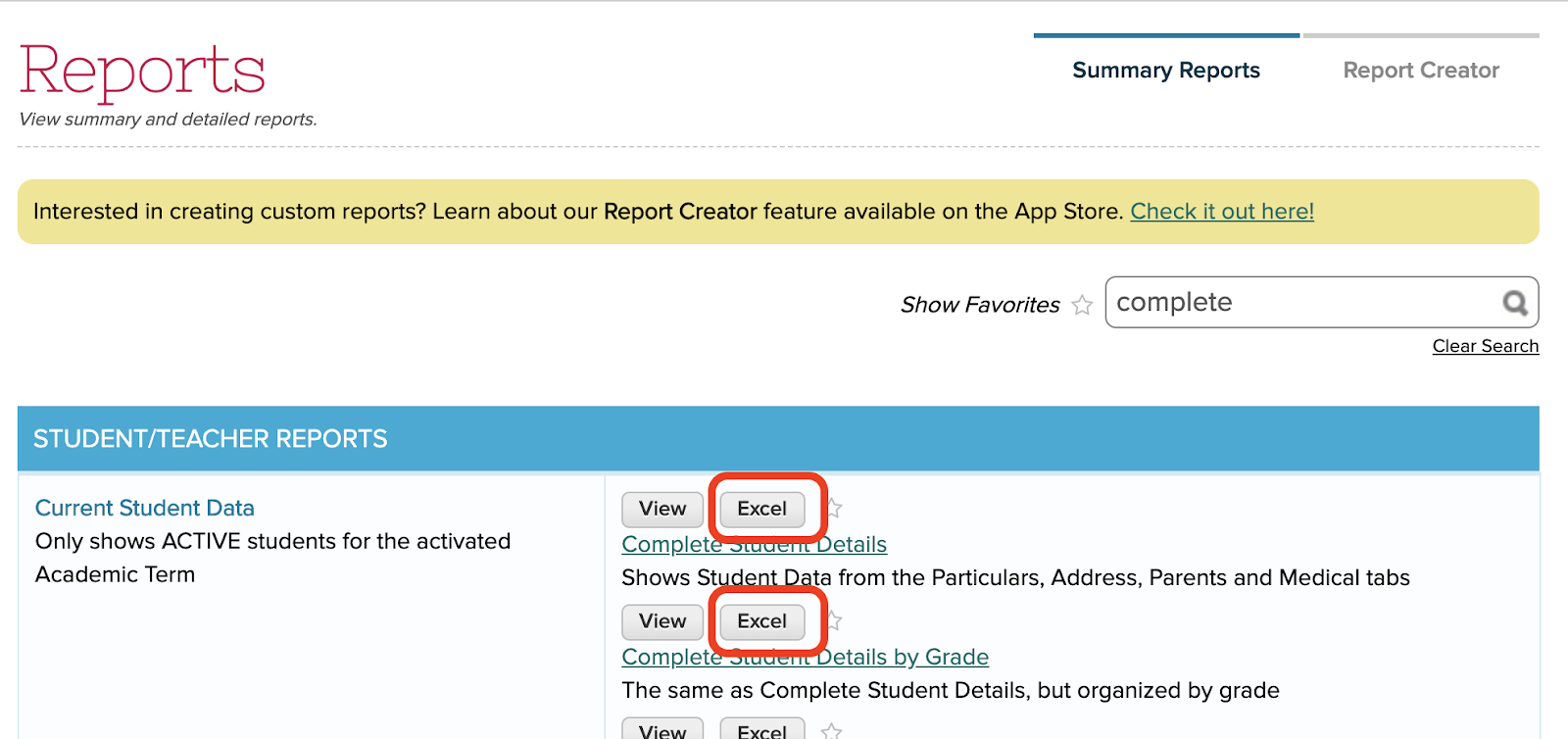
Export Data to Excel from Summary Reports

You will be prompted to select filters for the report. You can then store the downloaded file locally on your machine.

Download Generated Files

You also have the option of bulk downloading files that are generated by QuickSchools. It’s important to note that these files are not stored in QuickSchools as files, but are rather generated in real-time based on the latest data needed for the file.

For example, you can bulk download report cards for a particular session, using the “Download” function on top left corner of the table listing:

Read More »
Collecting Data via Online Forms

We’ve made several improvements to the Online Forms app in recent months. In this article, we wanted to highlight the different ways you can give parents (or students) access to online forms in QuickSchools, in order to submit data that you’re collecting for the schools.

The methods to be discussed are as follows:

  • Portal Access (recommended for existing parents/students)
  • Public URL
    • Non-authenticated users
    • Inviting Applicants
  • HTML code snippet (i.e. Embed Code)

The access configuration elements are located near the top of the screen, right below the “Instructions” field:

Configuring Access to Online Forms

Don’t forget that the Online Form Packet needs to be “Published” in order for access to be enabled. Once published, you should see a green check mark on the top of the screen, with a button to “Unpublish”:

Read More »

Admissions Flow

After making several improvements to the Admissions module in QuickSchools, we thought we’d summarize some of the features in a quick Introduction video: QuickSchools Admissions Flow

The Admissions Flow covers the general process from Inquiry to Application and then to Enrolled Students, highlighting some key features:

Inquiries

Inquiries are used to track leads and anybody interested in applying to your school. Features include:

Read More »

Sending Homework to Teachers

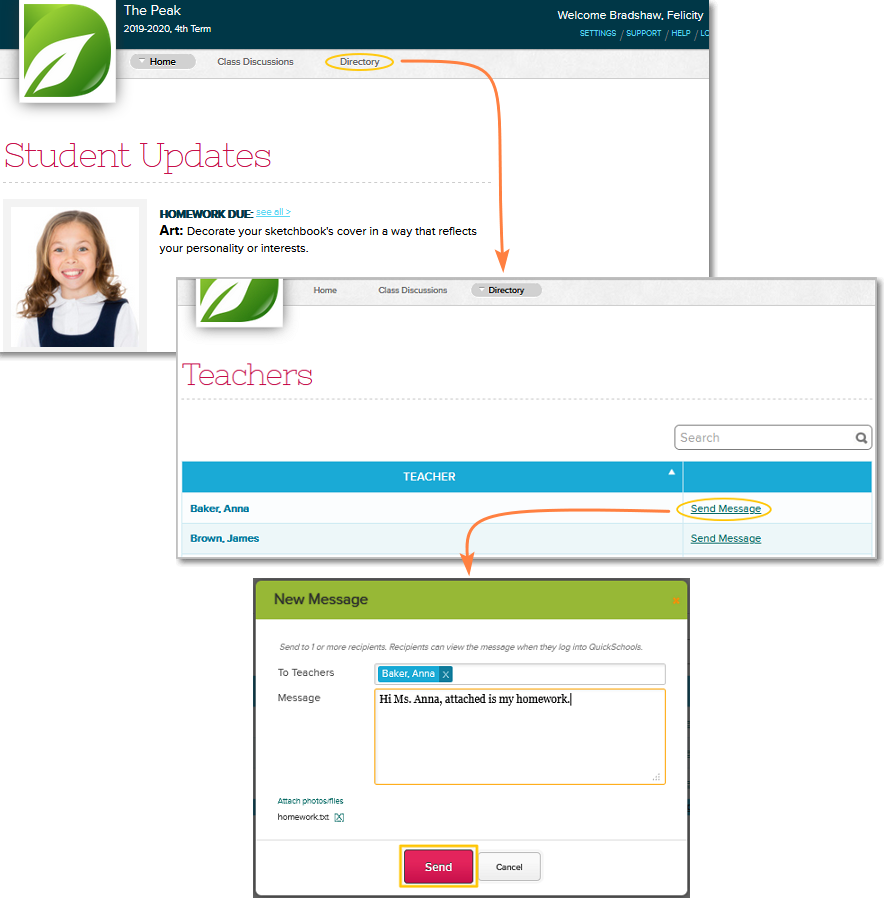
As more and more schools go virtual in today’s changing climate, students need a way to submit homework assignments to their teachers online. Quickschools is still building a dedicated homework submission feature. But for the interim, students can use the Private Messaging feature to submit their work. Here are the steps:

  1. Log in to Quickschools and go to Directory tab
  2. Search for the teacher then click the “Send Message” link across the teacher’s name
  3. Write a message, attach the homework and click Send
homework for online schools


To view all private messages, just click the mailbox icon next to your name on top of the page:

Read More »

Accessing Homework from Student / Parent Portal

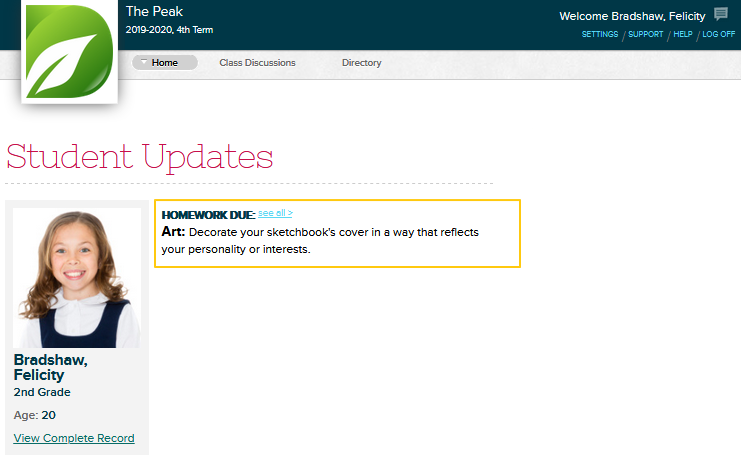
After logging into the Student Portal, students can immediately see recently posted homework assignments from the main Student Updates board that appears on the QuickSchools Home page.

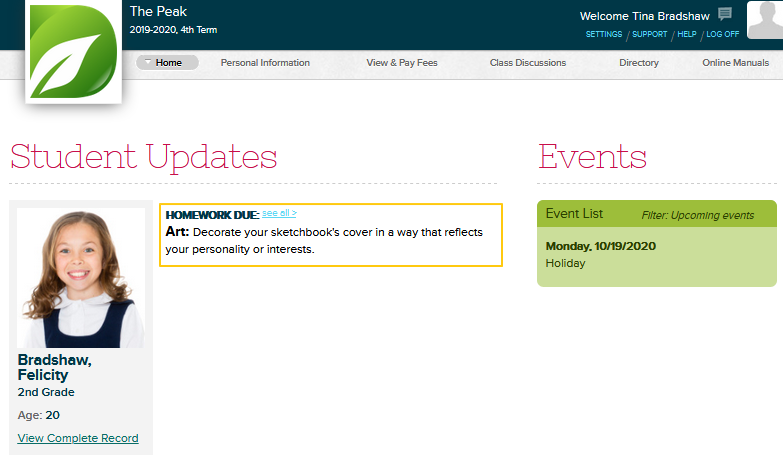
Parents can see a similar page on the Parent Portal:

Note that posted homeworks will only appear under Student Updates for two days after it was posted, and two days before its due date.

If the homework no longer appears under Student Updates, this is how you can access it:

Read More »

Gradebook Tools for Teachers

Choosing the right digital gradebook for teachers is essential for effective classroom management. Gradebook software for classroom management streamlines grading, improves accuracy, and enhances communication with students and parents. In this post, we’ll explore key features to look for when you are a QuickSchools user.

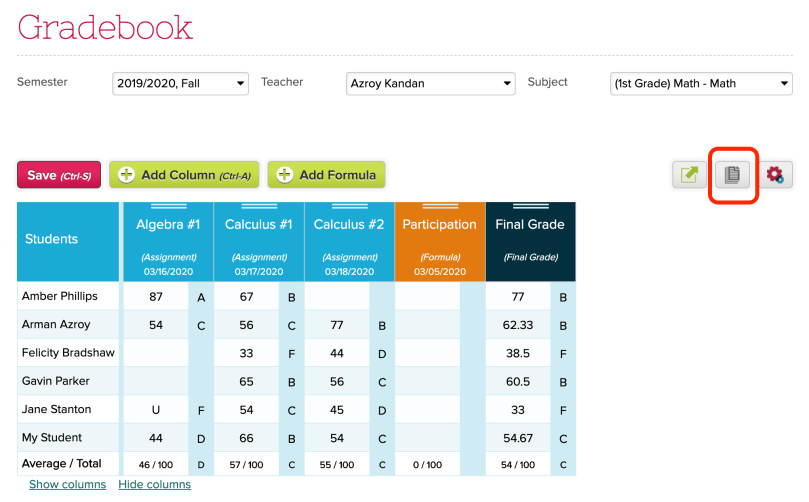
If you’re using the QuickSchools Gradebook, here are some tools available to you as a teacher. Just click on the paper icon on the top right corner of the screen:

quickschools gradebook interface
Tools for Teachers on the QuickSchools Gradebook

This will bring up the following screen:

Available Functions for the QuickSchools Gradebook

Print Gradebook

This feature is useful if you want to print and post grades outside the classroom. When using this function, there are several option to configure the layout as well as what information is displayed:

Read More »

Class Discussions as a mini-LMS

With the COVID-19 (a.k.a. The Coronavirus) affecting so many people everywhere, schools are contemplating temporary closures to help thwart the spread of the virus. Long closures can really be disruptive, and schools are looking for ways to continue providing education for students on the QuickSchools platform while schools are closed. One such way is Online Learning.

Online Learning is typically in the domain of Learning Management Systems (LMS), which has a completely different set of features as compared to a Student Information System (SIS). And we’ve discussed this extensively in previous articles.

Adopting a new LMS can also be challenging, and requires strong commitment for the school. In the long run, adopting an LMS has many benefits, but it also introduces complications to your day-to-day processes. If you do decide on adopting an LMS, we recommend selecting one that readily integrates with QuickSchools. Check out some of of the following systems:

However, if you’re looking for a quick-and-easy temporary solution, just to tide you over, you might want to try using our Class Discussions module. QuickSchools is NOT an LMS, but we are slowly developing some basic LMS features for schools that need something simple to use, without necessarily adopting a whole separate program.

For example, you can post homework assignments, links and videos to a particular class/subject, and students can interact with other members of the class via a chat-like interface.

Teachers can select a class that they’re teaching, and review/post comments from all students. Teachers can also send out an email notification when a thread/topic is created:

Class Discussions for Teachers

Students can review/comment on posts from all subjects in glance. All threads and comments are arranged in chronological order. Each thread is labelled to indicate which subject it’s for:

Read More »

Historical Student Records

In QuickSchools you can readily access and view records for students who are actively enrolled at your site under the Students tab.

From this same screen you can also easily access historical records for students who have previously attended your school. Simply click on the tiny triangle in the search bar, check the box next to “Show students who have left” and “Show expelled students“, then the system will display previously enrolled students in your listing:

You can open the old record to access historical report cards, reports, etc. that are in the students file.