Subject-Based Grading – Regular & Customized

The Subject-Based grading screen is designed to make entering a class’ worth of grades and comments quickly and efficiently – without opening a single report card! And, like everything else about QuickSchools Report Cards, it’s entirely customizable. Not only can you configure it to your liking with Subject-Specific Criteria, but also when we create a custom template, we can make all sorts of special grading and comment fields available in the Subject-Based grading screen.

To use the Subject-Based Grading Screen…

1 – Go to to to the Report Cards module
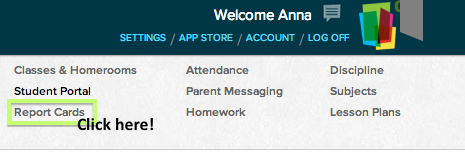
step-by-step guide on subject based grading

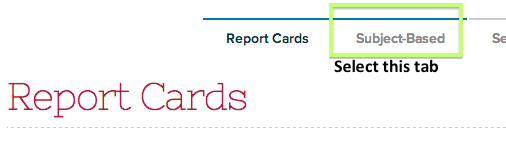
2 – Select the “Subject-Based” tab

select subject based tab

3 – Select the teacher name & class
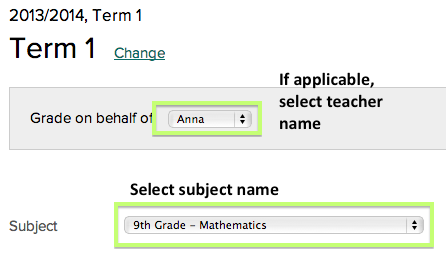
select the teacher's name

Now, you’ll be at the Subject-Based grading screen! Depending on how your Report Cards are configured or customized, the screen might look a bit different. Subject-Specific Criteria will appear in the Subject-Based grading screen, and depending on the Report Card template, the screen will be configured differently as well. In addition, if your template draws marks and grades from the Gradebook, these will already appear on the screen, and if your template has room for comments, there will be space for these as well. Though there are all sorts of ways the Subject-Based grading screen can look, here are a few different examples.

Classic White – this public template is a popular choice, and very flexible. Currently, it is configured to show marks, grades, and comments.
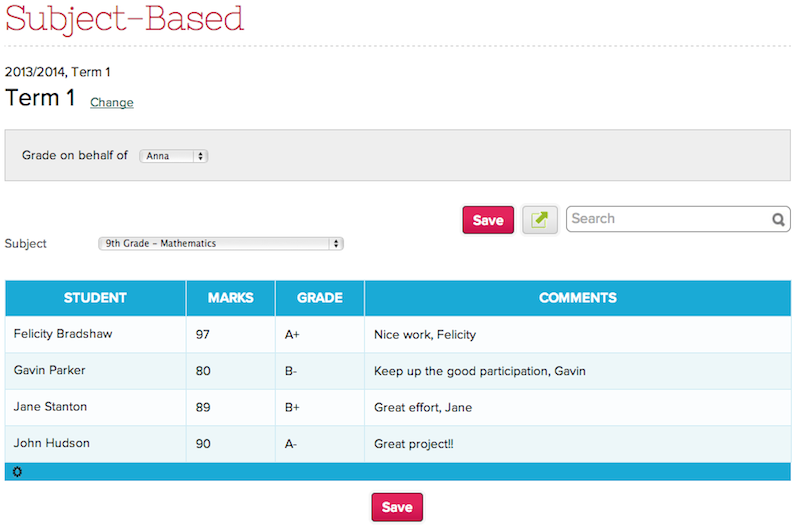
classic white template

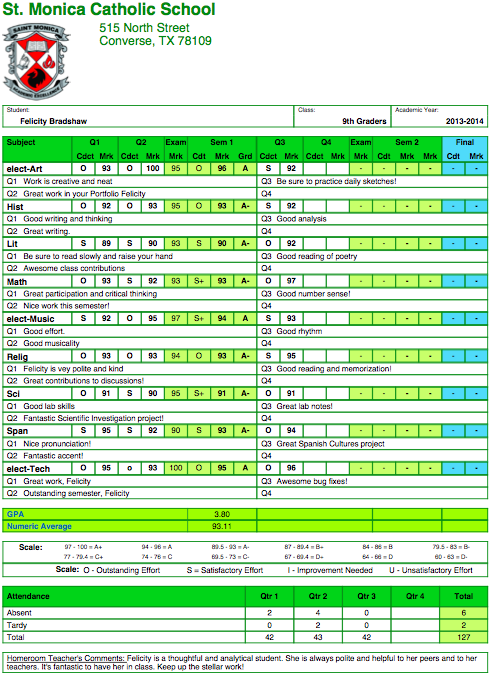
St. Monica Catholic School Template – this private template is a great report card for showing conduct grades alongside academic grades. It also has space for exams and semester grades.

Read More »
The St. Monica Catholic School Report Cards

As mentioned in one of our previous posts on the new Report Cards initiative, today we are sharing one of the custom-built private templates. If you like the way it looks, feel free to chat in anytime and we can enable it in your account and help set it up just the way you like.


One of our fabulous schools, St. Monica Catholic School in Converse, TX, has a cool quarterly grading system with conduct grades shown alongside the regular academic marks, as well as a section for end-of-semester exams. Check out the report card below – it’s an example of how a Quarter 3 report card might look.

St. Monica Report Cars

This report card was built from several customizations to our public Quarterly Classic report card template. Here’s a great, big thank-you to St. Monica Catholic School for the fantastic design,  and to Rick, our awesome chat agent, for building it!

The report card is designed to show subject abbreviations, semester grades, and all subject comments for the year-to-date. It’s a tidy and concise presentation for a lot of information. The template also supports reporting lots more info, including…

Read More »

The Carden Arbor View School Report Cards

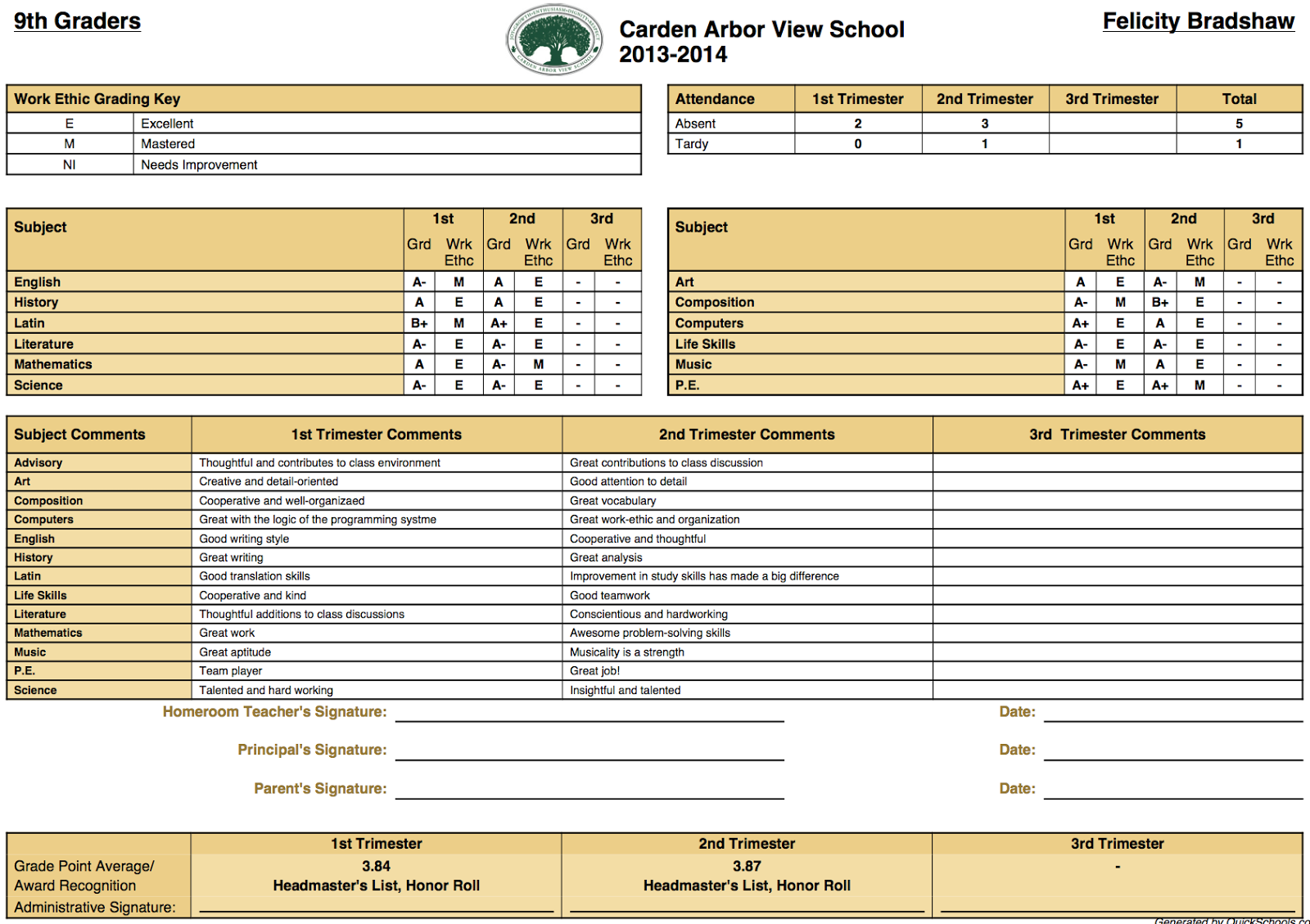
One of our new schools, the Carden Arbor View School in Upland, California requested a custom private template that was very detailed and succinct. It is setup for trimesters, shows attendance, has subjects separated into columns, and commented listed below. In addition, there’s space for special academic designation, such as Headmaster’s List or Honor Roll, special custom grading scales, and it all fits on one page.

Here’s a sample of how this fabulous report card template looks  –

Carden Arbor View School Report Card Template

What an awesome report card ! Kudos to CAVS for their fantastic design and dedication to all the details of the report card, and to Rick, our chat support agent who built the report card for QuickSchools.

The CAVS template comes equipped all sorts of different useful fields that can be switched on, edited and customized. These include….Read More »

Customizing your Report Cards

We’re very proud of our Report Card module. It has been a labor of love for us at QuickSchools, as we sought to blend the complexities of what schools demand in terms of assessments, with something that’s simple and easy-to-use for teachers and parents alike. And thanks to your feedback, the module has been able to evolve (and continues to evolve) into what it is today.

But still, customizing report cards can be a complicated affair, depending on the specific needs of your school. And it has been a challenge for us to try to meet the varying needs of our customers. And so, we’re dedicating an entire section on our QuickSchools Blog just to showcase the report cards that we’ve been able to customize over the years. And we hope that schools can use these examples as they work on setting up or even improving their QuickSchools Report Cards.

All report cards customization will be categorized into the “Custom Report Cards” category, which is available here:

http://blog.quickschools.com/category/custom-report-cards/

In addition, all custom report cards will be tagged based on use-case / scenario. We’ll start with just a few examples per scenario, but the list of sample report cards will grow over time.

Report Card Examples

Here is a list of report card use-cases / scenarios:

Public vs. Private Templates

When you go to “Report Cards” > “Setup Report Cards”, you can click on “Select Template” to choose a public template for your report cards:

Read More »

The Brunswick Academy Report Cards

As mentioned in one of our previous posts on the new Report Cards initiative, today we are sharing one of the custom-built private templates. If you like the way it looks, feel free to let chat in anytime and we can enable it in your account and help set it up just the way you like.


This Report Card template is used by Brunswick Academy, one of our amazing schools, which is located in Lawrenceville, VA, USA. The template was built by Regie, one of our awesome chat support agents.

Brunswick has a really cool semester setup, with six cycles, each cycle is a six-week marking period. In the high school, the first three cycles and a final exam correspond to Semester 1, while the second three cycles and their final exam correspond to Semester 2. Semesters are averaged into a final grade, and credit earned is shown on the Report Card. Also, attendance is combined so that “Absent” and “Tardy” include excused and unexcused absences and tardies together. As a result, it’s a very detailed and informative report card.

Here’s a look at a sample of the report card, configured for the High School-

Thanks Brunswick, for the design for a fantastic report card, and great work, Regie, for building it for QuickSchools!

For schools with six marking periods, exams, and semesters, this might be a good report card template for you. In addition to the term setup and the combined attendance, this report card supports several other sections including…Read More »

The Lake Michigan Academy Progress Reports

As part of our exciting new initiative to make our awesome report cards more available, we thought we’d start by sharing an example of how to use the Report Cards for mid-term progress reports. Today, we’re featuring a school that uses a public template. And, stay tuned – our next post will showcase one of our custom-built private templates!


One of our schools, Lake Michigan Academy in Grand Rapids, MI, USA uses one of our public templates – Classic White – to build awesome progress reports every week.

Sample Report Cards using the Classic White template

Let’s take look at a sample Lake Michigan Academy Weekly Progress Report.

Great work, LMA!! This is such a great setup for giving detailed comments feedback to students.

Of course, since all schools with a Report Cards module have access to this public template, anyone can set up progress reports like Lake Michigan Academy! If you’re interested in a how to, we’ve included the steps below:

1 – Create a New Report Card sessionRead More »