Private Messaging Parent Directory

After much demand from schools, Quickschools now have separate access for Parents to send Private Messages to Teachers and to other Parents. This is all controlled via the Features page:

Parent Private Messaging

And if you do decide to allow parents to send Private Messages to other parents, this actually becomes our new Parent Directory feature:

Parent Directory on QuickSchools

Notice that with this new feature, Parents can specify which contact info can be shared with other parents, whether it’s an email address, telephone number of address:Read More »

Ways to Use Class Discussions

As you may know, Class Discussions was one of the awesome new features we rolled out over this summer. It’s a great platform that allows teachers, students, and parents to discuss topics related to a class in a controlled and safe environment.

To turn on Class Discussions on QuickSchools, Admins go into the Settings → Turn Features On/Off menus. The Class Discussions module is connected to the Homework module, so they are turned on together:

To enable teachers to post updates to their own classes, as well as configure who can post for to others’ classes, head over to the configure menu. Now, as to a few ways to use it…

Announcements

Because Parents, Students, and Teachers connected to a specific class all see the Class Discussions, the module is a great way to get the word out about specific events related to your class. It’s especially well-suited to class-related announcements since your posts can be emailed to students and parents when they are posted.

Blog

Because so much communication is done online now, blogging is one of those useful skills that many teachers want to encourage their students to develop. Because all QuickSchools data (including Class Discussions) is completely private and secure, student work is entirely safe while they practice their skills at writing for an online audience. For example, students could be encourage to rotate at writing a blog post for each week.Read More »

Weighted Formulas in Gradebook (Part 2)

This is yet another guest post by our chat agent – Anna

This article is an elaboration/addition to our previously discussed “Weighted Grades and Gradebook Formulas”. You can read it here:

http://blog.quickschools.com/2013/10/01/weighted-grades-and-gradebook-formulas/


As awesome as automatically generated weighted final grades are in the Gradebook, there are many different features available with formulas, depending on how you would like to use it. Here are some other ideas for using formulas for weighted averages:

Extra Credit

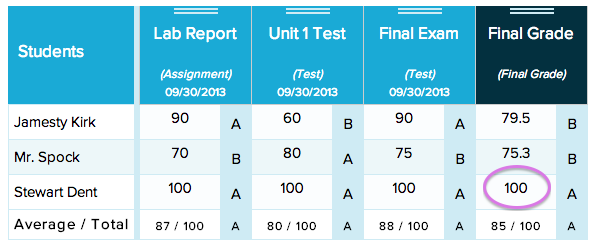
Want extra credit to be, say, a flat 10% of a student’s grade? To do this, add an extra weight factor for the category “extra credit” and set its weight percent at 10%. Of course, you can set extra credit to be any percent of the final grade that you choose.For example in the screenshot below, Stewart’s final grade is a 100%.  

In order to count extra credit, we use a formula like the one below that includes extra credit as 10% of the final grade.Read More »

Rotating Attendance Schedule

We’ve got another new QuickSchools feature for you guys – Rotating Attendance Schedule. You can now define 4-day or 10-day (or any number of days) attendance schedules that rotate. Rotations can also take into account holidays and other non-school days (like In-Service or Professional Activity days). To turn it on, you’ll first need to configure the Attendance module on the Features page:

Turning on Rotating Attendance on QuickSchools

Note that you’ll also need to turn on “Period-Based Attendance”, and make sure your name is listed as someone who can “configure the periods”. This will turn on the “Attendance Settings” sub-menu under the main “Attendance” menu:

Attendance Settings with Rotating Schedule

You’ll need to set the appropriate grade levels to the “Rotating” attendance schedule. When you do that, a “Configure” button will appear next to the grade level. Clicking it will bring up the actual scheduling configuration for attendance:Read More »

Weighted Grades and Gradebook Formulas

This is a guest post by 2 of our awesome live chat agents: Anna and Rick

Many of our schools – and their teachers – prefer to use weighted grades when calculating final grades for a semester or for a course. If you are considering using weighted grades, or wondering how to get your grading all setup, here’s some info on how it all works.

Weighted Grades

Weighted grading is a grading system where certain types of assignments/assessments are prioritized more than others in the final grade. Often, the idea behind this sort of grading is smaller assignments are designed to be more like practice. Tests and exams are designed to allow students to show what they have learned. Therefore, these big grades ought to count for more in the final grade than practice grades should.

For many classes, weighted grades work in grading systems that rely on using graded assignments for feedback and calculating a student’s final grade. This final grade is a weighted average. This sort of average is designed to make the final grade closest to the average of the type of assignment that is the most heavily weighted.

Here’s an example of how weighted averages might be used. Say you are a History teacher, and you give 3 big tests per term. A dozen quizzes, homework every day, and a daily participation grade. However, you want these three big tests to be the biggest portion of a student’s grade because they require a student to demonstrate their best writing and all of their knowledge to date. You might decide that for the grading system in your class, tests will be 50%, quizzes will be 25%, homework will be 20%, and participation will be 5%.

As a result in this class, tests have by far the largest impact on a student’s final grade. Quizzes have half of that impact, homework has a little less, and participation has even less of an impact.  At the end of term, the way students’ final averages would be calculated following a formula that looks a lot like this :

Final Grade = (sum of tests’ averages) * 0.5 + (sum of quizzes’ averages)*0.25 + (sum of homeworks’ averages) * 0.20 + (sum of participation averages) * 0.05

Looks like a lot of time with a calculator, right? Well, that’s where our Gradebook enters the game.

Setting Up Formulas in Gradebook

A great feature about the Gradebook is that does all of these calculations for you. Teachers enter a student’s grades and set up a quick formula, and the final grade is calculated automatically. The formula appears in the teacher’s gradebook, the report card if its a final grade, and if students and parents are allowed to see gradebooks, in their gradebooks in their student and parent portals.. And, when administrators go to draw up report cards, these final grade calculations automatically load into Report Cards.

Read More »

Subject-Based Messaging via Class Discussions

The Class Discussions module in QuickSchools is becoming more and more central in the delivery of content to students, while keeping parents informed. Remember, you can use the Class Discussions module to share pictures, comments and files via the Parent Portal and the Student Portal.

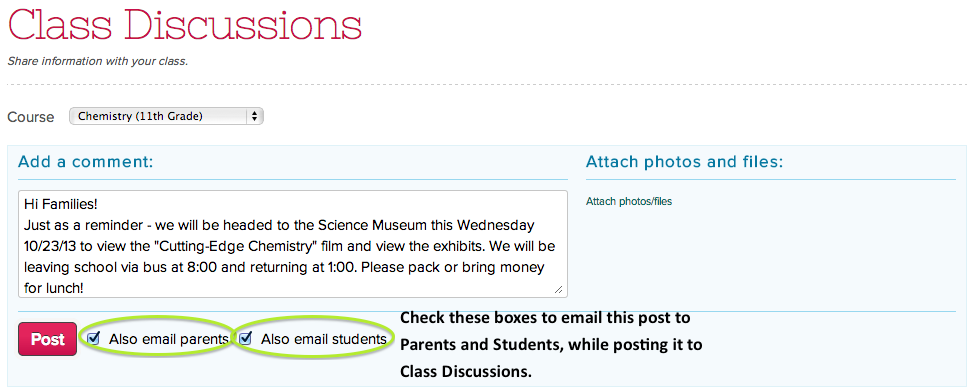
To help improve on this mode of communication, teachers can now send an email notification to students and parents when posting a new message to the Class Discussions module.

Class Discussions Emails

The entire post will be viewable on the email, similar to email notifications in the Private Messaging module. Users can then log onto their respective portals to view the entire thread and interact as appropriate.  By using the Class Discussions module (instead of the Mass Messaging module), all participants get to keep a record of previous messages and interactions in the class.Read More »

Gradebook Comments

Did you know that you can write public and private comments in your QuickSchools Gradebook?

Gradebook Comments in QuickSchools

When you mouse over a cell, a pink bubble appears. Clicking on the bubble allows you to edit the public and private comments for that cell:

Editing Gradebook Comments

Public comments are available in the student’s “Gradebook” tab, and can be printed to PDF as well.

Read More »

Private Messaging vs. Mass Messaging

By the way, we’ve just released an update on QuickSchools, and Private Messaging now supports attachments. And as you know, when you send a private message to a parent or teacher, it also sends out an email to the parent / teacher. And with attachment support, the email notification will also include the attachment as well. Nice, huh?

So what’s the difference between Mass Messaging and Private Messaging? They both send out emails to parents and teachers. They both support attachments? You can also send private messages to groups of people, just as you can with mass messaging.

Private Messaging for Teachers

The difference is simply this: Private messaging is available and intended for all users, to communicate privately with others, while Mass messaging is intended for specific people within the school to broadcast messages (usually announcements) to groups of people:Read More »