
Choosing the right digital gradebook for teachers is essential for effective classroom management. Gradebook software for classroom management streamlines grading, improves accuracy, and enhances communication with students and parents. In this post, we’ll explore key features to look for when you are a QuickSchools user.
If you’re using the QuickSchools Gradebook, here are some tools available to you as a teacher. Just click on the paper icon on the top right corner of the screen:
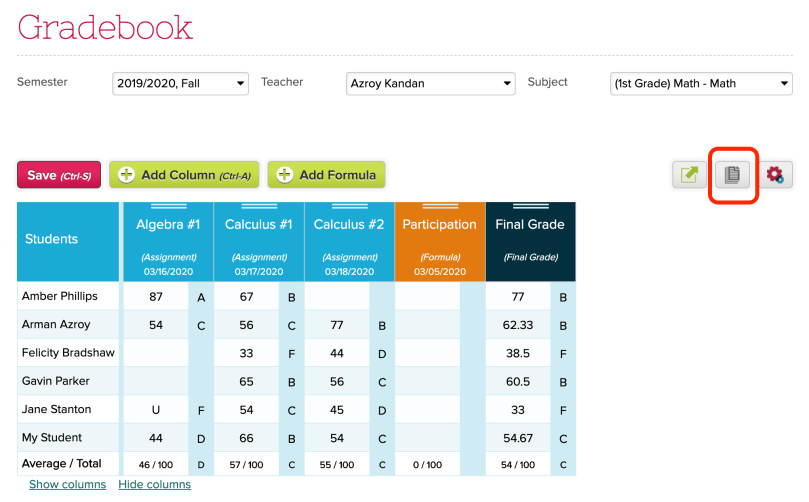
This will bring up the following screen:

Print Gradebook
This feature is useful if you want to print and post grades outside the classroom. When using this function, there are several option to configure the layout as well as what information is displayed:

The student names can be replaced with the student number, to maintain student privacy. Here’s an example printout:

Print Student Progress Reports
This feature is useful for Parent-Teacher conferences. You can print Gradebook entries for all students at once, or just for a few selected students:

Here’s an example of what the PDF looks like for a particular student:

Note that the PDF will only contain Gradebook entries from the selected subject, and will not contain grades from other subjects. To print grades from all subjects for a particular student, you’d need to access the Gradebook tab on the student record the main Students listing.
Missing Grades / Ds and Fs Report
The purpose of this feature is to highlight missing assignments/grades, as well as low performing areas from the Gradebook. There are a few elements that you can configure:

Similar to the “Student Progress Reports”, you can use the “Detailed Report” option to print each student on it’s own page:

You can also print a summary for all students on a single page, using the “Simple Report” option:

Export Gradebook
The export function simply produces an Excel spreadsheet of all assignments and grades of the current Gradebook. This is useful if you’d like to maintain your own back-up of the Gradebook.
Gradebook Templates
The Gradebook Templates feature essentially allows you to templatize the columns, so that they can be imported into other subjects more easily. Only the column names and categories are used. When importing into a new Gradebook, new dates are applied. You can read about this feature on our support site here:
https://support.quickschools.com/hc/en-us/articles/115005885586-Creating-Gradebook-Template
Other Features
There are many other features that can be enabled, based on your subscription plan with us. Here are some examples that you can considering checking out:
- Creating Grading Scales and Categories: Typically teachers must use grading scales and categories defined by the school. But there is an option to allow teachers to create their own grading scale.
- Showing / Hiding Columns from Students and Parents: Typically, the school decides whether gradebook entries are visible to students and parents. There is an addtional option to allow teachers do decide and control which assignment to display, and which assignments to hide.
- Drop Lowest Grade: Administrators would need to enable this feature, which allows teachers to automatically drop the lowest grade from the gradebook
- Save History: The Gradebook History / Versioning App from our App Store has the ability to track every version of the Gradebook as it is saved. You can then refer to previously saved versions, and even restore to a previous version if desired.
- Gradebook Import: This feature allows teachers to import grades from an Excel file, in the event teachers want to track grades offline (in an excel file), which then gets imported into the QuickSchools Gradebook periodically.
We’re constantly looking for feedback on ways to improve not only the Gradebook, but for our product in general. Please feel free to chat in with questions or feedback. Or leave a comment on our blog.
Frequently Asked Questions
What is QuickSchools Gradebook?
QuickSchools Gradebook is an online grading tool that allows teachers to manage assignments, record grades, track student progress, and generate academic reports.
Who uses QuickSchools Gradebook?
Teachers are the primary users of QuickSchools Gradebook. Administrators may also configure grading settings and access permissions.
What can teachers do with QuickSchools Gradebook?
Teachers can enter grades, manage assignments, print reports, identify missing grades, export grade data, and monitor student progress.
Can teachers print grade reports in QuickSchools?
Yes. Teachers can print gradebook summaries, student progress reports, and missing grade reports.
What is the QuickSchools Missing Grades Report?
The Missing Grades Report helps teachers identify incomplete assignments and areas where students may need additional support.
Can teachers export grades from QuickSchools?
Yes. Teachers can export Gradebook information into spreadsheet format for backup, analysis, or record keeping.
What are QuickSchools Gradebook Templates?
Gradebook Templates allow teachers to reuse assignment structures across different subjects or classes.
Can teachers import grades into QuickSchools?
Yes. Teachers can import grade information from Excel files into QuickSchools Gradebook.
Can parents see grades in QuickSchools?
Parents can view grade information when schools enable appropriate visibility settings through the Parent Portal.
How does QuickSchools help teachers manage student progress?
QuickSchools Gradebook provides tools for tracking assignments, analyzing performance, identifying missing work, and creating progress reports.
Can schools customize grading scales in QuickSchools?
Yes. Schools can configure grading scales and categories based on their academic requirements.

[…] activating a new academic term, we’ve introduced a new configuration area where you can control Gradebook elements to be copied over. You can see the new “Configure” link on the far right under “New […]
[…] Grades (for Report cards and Transcripts) […]
[…] now have the ability to send emails to parents/students directly from the Gradebook, and include information from the Gradebook in the email. Start by clicking on the new mail […]
[…] creates test data in order for you to quickly evaluate the major modules, like Attendance, Gradebook, Report Cards and Scheduling. Just click on one of the “Test Drive” buttons on the “Getting […]
[…] Grade in Schoology, there is a way to configure which final grade to pull into the QuickSchools Gradebook. This setting is under “STEP 7: SYNCHRONIZE GRADES”, under the “Synchronize Now” […]
[…] Gradebook features were previously in Private Beta, but is now available to all schools. You can enable this feature […]
[…] introduced a new feature to allow teachers to email parents and/or students directly from the Gradebook. This is just one of the many ways teachers can engage parents/students (in addition to Mass […]
[…] We are introducing a new feature in the Google Classroom Integration app, that allows teachers to manage and pull grades from Google Classroom for their own subjects in QuickSchools. When enabled, teachers will see a new “Sync with Google Classroom” button in their Gradebook: […]
[…] creating a Gradebook Template, you now have the option to set the Column Date. Leaving the date blank will import new columns […]
[…] part of April, we’re still deciding on a topic for teachers. Most likely, we’ll talk about our Gradebook module, which has received several extensive improvements over the years. Do let us know if there are […]
[…] Gradebook Template in QuickSchools is one of several features available in the Gradebook for teachers. It’s available on the top right corner of the Gradebook next to the Full Screen […]
[…] More info here: https://blog.quickschools.com/2020/03/26/gradebook-tools-for-teachers/ […]
[…] Gradebook Tools for Teachers […]
[…] Gradebook Tools for Teachers […]
[…] introduced a new feature to allow teachers to email parents and/or students directly from the Gradebook. This is just one of the many ways teachers can engage parents/students (in addition to Mass […]