The Reporting module is a great way of making offline back-ups of your data, since you can export your data from each module into an Excel file at any time. You can also view the tabular reports on screen for quick viewing. Here’s a sample report:
Sample QuickSchools Report
To access the report, you’ll need to go to the “Reports” menu. Typically, only school admins have this menu. For teachers and staff, if you don’t already have this menu, you’ll need to get access from your school admin.
Reports are grouped into modules. So for each module, there is a list of reports. The left column denotes the data being extracted, while the right column shows the various formats for the data to be displayed. In the example below, we actually have one “Disciplinary Incidents” report, but you can view it as “Disciplinary Incidents by Date”, or “Disciplinary Incidents by Reporter”, and so on:
Career Tracking using QuickSchools Custom Fields for Students
All fields are also report-able via our Reports Module, so you can export them to Excel for further analysis. It’s a great way of recording static fields associated with a student. And you can also arrange the fields into sections so that they can be easily read and understood.
For fields that are more dynamic in nature (say a student has 2 employment records), then the App Store would be your best bet, as the App Store supports a separate database that can store linkages to multiple records. If you’re in need of an app that’s not already available in our App Store, come chat with us, and we’ll see what we can do you.
You can now change the name of the relationship for parents and guardians in QuickSchools into something more meaningful:
Configure Parent/Guardian Relationship Names on QuickSchools
For example, you may want to use an alternate name like “Dad” instead of “Father”. You can also change the language to “Father / Padre”. You can delete unwanted relationships, as well as add new ones. Also, you can control the order in which these relationships by assigning an appropriate sort order to the record.
This new menu is accessible via the “Students” listing. Just click on the “Configure” button on the top right of the screen, available to School Administrators on the account:Read More »
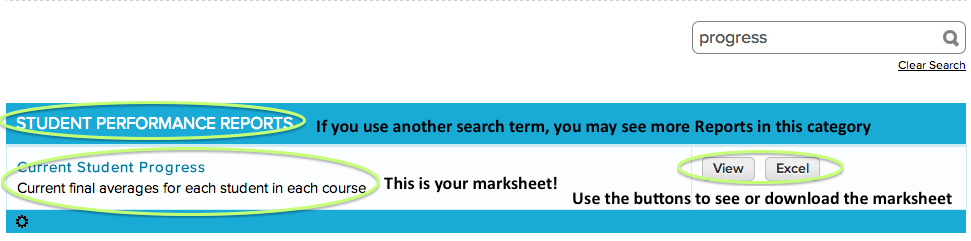
The QuickSchools folks are at it again! This time, we have created a brand new report that helps you see how all your students are doing in all their classes – all in one grand table! A number of schools have requested a student marksheet to show current final grades for students, without having to make report cards and then lock them (which sends the report cards to parents). So we put our heads together and wrote a brand new report that compiles the students’ grades by subject to allow you to see their current final grades. Here’s how you can find it…
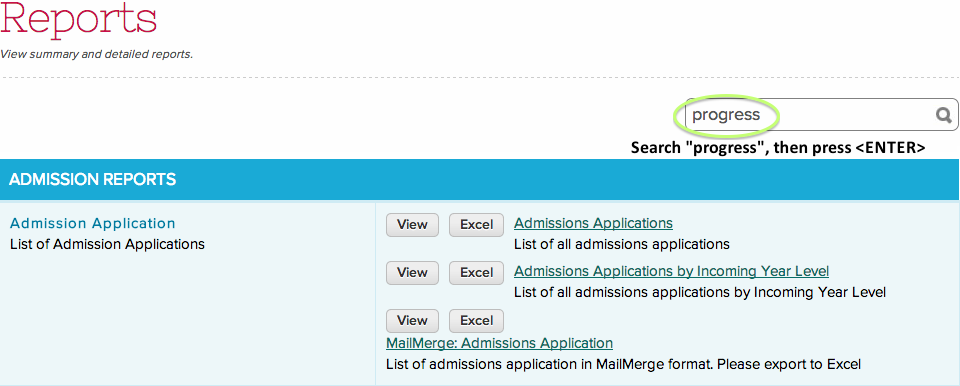
1 – Go to the Reports Module
Reports menu
2- Search “progress” in the search bar
3- Click “View” to see the report
….and there you have it!
Of course, like all the QuickSchoolsreports, there are many ways you can use the new report. Here are a few ideas-
Search by Student – to see just the results for only one student. Great for middle of the year parent-teacher conferences or progress reports
Search by Teacher – this lets you see the grades for one teacher’s classes, if you are concerned if that teacher needs either a helping hand or a spotlight for their great work
Search by Subject – if you have several different classes of the same subject, this report lets you see how the students in the different classes are doing.
Hope this helps streamline the process of figuring out how your students are doing – without having to draw up report cards. This report lets you see students individually, if you search for details in the student’s name or classes, as well as globally, if you let the report run free of search terms. It’s a great way to draw up a marksheet and get a better sense of how your students are progressing.
If you have any questions about how to use this report, or how to use any other Quickschools report, or if you need a custom report to help with a specific question, please let us know. We’d love to help, and who knows, maybe your custom report will be just the thing that everyone needs! Feel free to chat in anytime.
Update! – Dec 4th, 2013
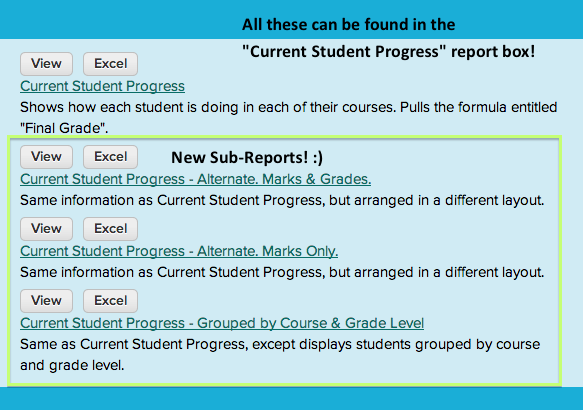
The new “Current Student Progress” Report has been a hit! In response to requests for additional ways to display the data, we’ve added three more sub-reports. Feel free to check them out!
As to a bit more information on how these new reports work…
Current Student Progress – Alternate. Marks & Grades – this sub report shows one row for each student, with their marks and grades as columns
Current Student Progress – Alternate. Marks Only – like the other alternate report, students are in rows and classes are in columns, but this one only shows marks (no letter grades)
Current Student Progress – Grouped by Course & Grade Level – this subreport is great if you want to see the average grade in a specific course, or for all the students in a specific grade level
Hope you enjoy the improvements! As always, we are thrilled to receive comments and feedback. Feel free to chat in if you have any questions or need any help!
As we head back into Report Card season, we’ve received quite a few requests for help setting up a Behavior/Work Habits/Social Growth grading system. In case you’re wondering the same thing, here are two ideas that we like to recommend when this question comes up.
Idea 1: The No-Credit Behavior Class
This is a nice way to setup a behavior grading system so that appears like a regular class in the student’s record and a teacher’s subject-based grading menu. It’s very convenient, and quite intuitive if you think of behavior/work/social skills as being like a subject for students. That said, it does have some drawbacks in that you need to hide the subject in each student’s transcript so that everything looks neat and tidy. If you’d like, you can set up a No-Credit Behavior class like this…
1. Go to Subjects and make a different Behavior subject for each grade.
Make sure to set the credit hours to 0 – so that it’s really “no credit”! 🙂
For this, first go to Setup Report cards, and scroll all the way to the bottom and click “Turn it on” for Subject Specific Grading Criteria. Then, click the new fourth tab in your Report Cards module.
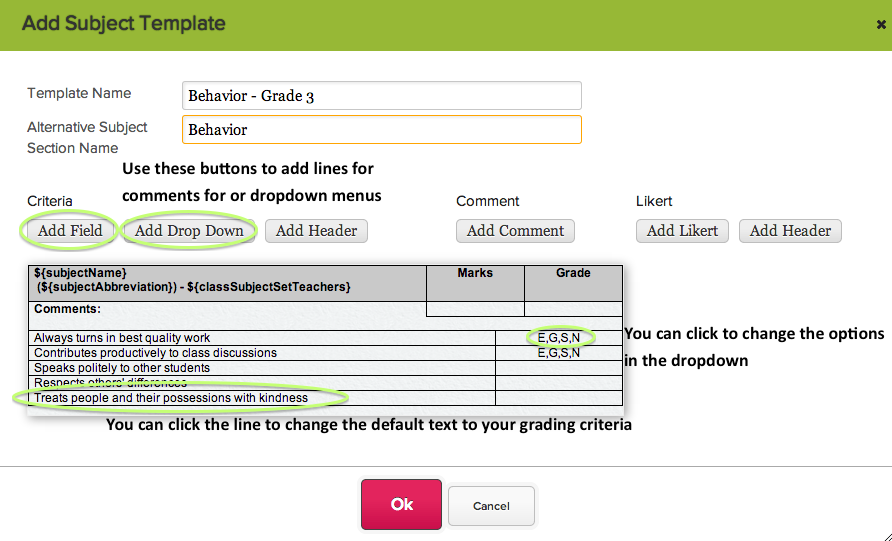
Then, we can create a subject-specific criteria template. First click “Add Template”, then fill in your grading criteria
4. Assign the Template to the Class
Click the subject’s “Assigned Template” line to get a dropdown menu of possible choicesRead More »
To turn on Class Discussions on QuickSchools, Admins go into the Settings → Turn Features On/Off menus. The Class Discussions module is connected to the Homework module, so they are turned on together:
To enable teachers to post updates to their own classes, as well as configure who can post for to others’ classes, head over to the configure menu. Now, as to a few ways to use it…
Announcements
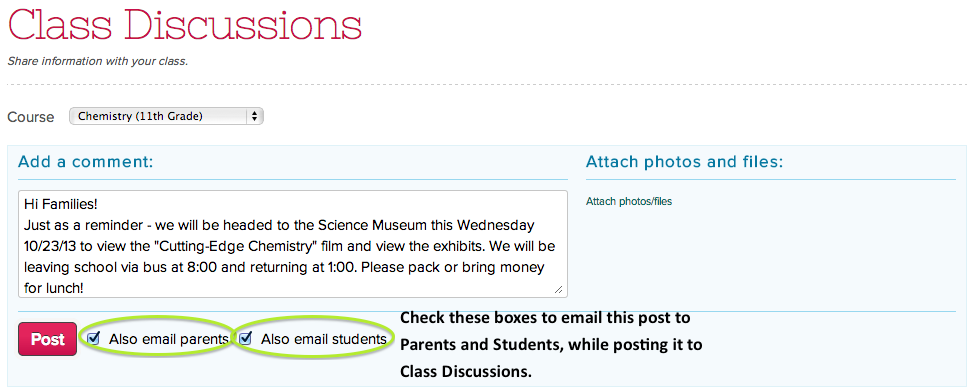
Because Parents, Students, and Teachers connected to a specific class all see the Class Discussions, the module is a great way to get the word out about specific events related to your class. It’s especially well-suited to class-related announcements since your posts can be emailed to students and parents when they are posted.
Blog
Because so much communication is done online now, blogging is one of those useful skills that many teachers want to encourage their students to develop. Because all QuickSchools data (including Class Discussions) is completely private and secure, student work is entirely safe while they practice their skills at writing for an online audience. For example, students could be encourage to rotate at writing a blog post for each week.Read More »
As awesome as automatically generated weighted final grades are in the Gradebook, there are many different features available with formulas, depending on how you would like to use it. Here are some other ideas for using formulas for weighted averages:
Extra Credit
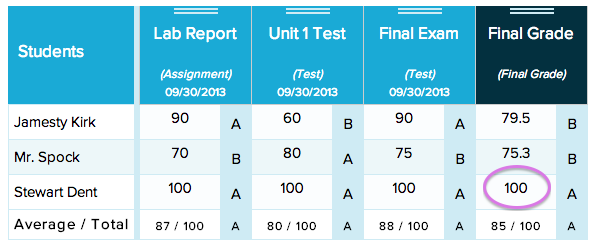
Want extra credit to be, say, a flat 10% of a student’s grade? To do this, add an extra weight factor for the category “extra credit” and set its weight percent at 10%. Of course, you can set extra credit to be any percent of the final grade that you choose.For example in the screenshot below, Stewart’s final grade is a 100%.
In order to count extra credit, we use a formula like the one below that includes extra credit as 10% of the final grade.Read More »
We’ve got another new QuickSchools feature for you guys – Rotating Attendance Schedule. You can now define 4-day or 10-day (or any number of days) attendance schedules that rotate. Rotations can also take into account holidays and other non-school days (like In-Service or Professional Activity days). To turn it on, you’ll first need to configure the Attendance module on the Features page:
Turning on Rotating Attendance on QuickSchools
Note that you’ll also need to turn on “Period-Based Attendance”, and make sure your name is listed as someone who can “configure the periods”. This will turn on the “Attendance Settings” sub-menu under the main “Attendance” menu:
Attendance Settings with Rotating Schedule
You’ll need to set the appropriate grade levels to the “Rotating” attendance schedule. When you do that, a “Configure” button will appear next to the grade level. Clicking it will bring up the actual scheduling configuration for attendance:Read More »